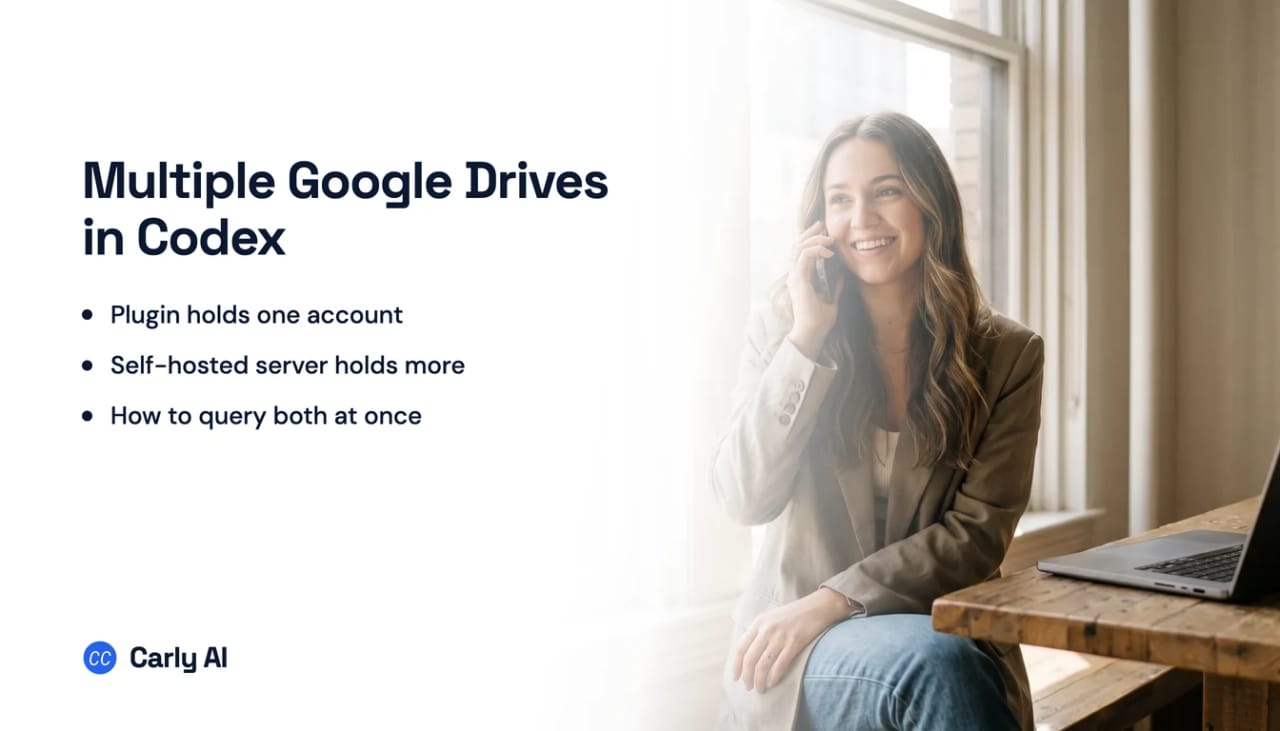
How to Connect Multiple Google Drive Accounts to Codex
Want Codex working across more than one Google Drive? Codex’s own Drive plugin was left out when Gmail and Calendar took several accounts in August 2026, and OpenAI’s September 2026 expansion to more plugins names ChatGPT rather than Codex. Connect your Drives to Carly and you can add as many as you want, then one Codex session reaches all of them.
1. Add your Google Drive accounts to Carly
- Sign in at carlyassistant.com.
- Open carlyassistant.com/integrations.
- Find Google Drive, click Connect, and authorize the Drive.
- Click Connect again for the next one, and keep going for as many Drives as you want.
Repeat for each additional Google account, choosing Use another account if Google preselects the first login. If a Workspace account requires administrator review, ask that Workspace administrator to approve it. Each Workspace approves independently.
Carly connects to thousands of apps, so while you are on that page you can add your inboxes, calendars, CRM, and anything else you want Codex to reach through the same connector.
2. Register Carly as an MCP server
The CLI route is the shortest:
codex mcp add carly --url https://carlyassistant.com/mcp/Servers added this way land in ~/.codex/config.toml at user scope. You can also write the entry by hand:
[mcp_servers.carly]
url = "https://carlyassistant.com/mcp/"
A url key is what makes this a streamable HTTP server; a command key would make it stdio. That is the whole rule, and there is no separate transport field to set. A trusted project can carry its own .codex/config.toml if you would rather scope the server to one repository.
Then authenticate:
codex mcp login carlyThat opens a browser for the OAuth flow. Sign in to the Carly workspace holding the Drive accounts. Codex supports OAuth and bearer-token auth against remote HTTP MCP servers, so there is no API key to paste into a config file. Confirm the server is live before moving on:
codex mcp listWhat one chat can do afterwards
- Search a personal Gmail Drive and a Workspace Drive in the same question.
- Copy, file or update a document in any of your Drives.
- Reach Drive from the VS Code extension, where plugins do not run.
- Add a fourth Google account with a Connect click, not a Cloud project.
- Keep the work running when no session is open.
Gate the writes, and ignore the sandbox advice
The common assumption is that you have to open the sandbox to reach Drive. That is wrong, and turning the sandbox off is a real cost. OpenAI’s permissions documentation lists MCP under what the network proxy does not control: “MCP servers: Local and remote MCP servers use their own process or transport. Control them with mcp_servers configuration and managed server allowlists.” Leave your sandbox as it is.
What does gate Drive changes is approvals. OpenAI states that destructive tool calls always require approval when the tool advertises a destructive annotation, even if it also advertises read-only hints. Add one more key to the same table so reads run and writes ask:
default_tools_approval_mode = "writes"The four modes are auto, prompt, writes and approve, with per-tool overrides underneath.
Where the plugin’s account count stands
The plugin directory is shared between ChatGPT and Codex, and Google Drive is in it. OpenAI’s plugin documentation says plainly: “Install the Google Drive plugin to work across Drive, Docs, Sheets, and Slides.” What the plugin does not do is carry two accounts.
Two different surface lists, and mixing them up wastes an afternoon. Plugins, per OpenAI’s documentation, “work in Chat and Work across ChatGPT on the web, desktop, and mobile, and in Codex in the ChatGPT desktop app”, and the Codex CLI has a plugin browser too. The exclusion is explicit: “The IDE extension doesn’t support plugins.” If you live in VS Code, the Drive plugin is not available to you at all.
Google ships a Drive MCP server at drivemcp.googleapis.com, and it is worth knowing why it is not the answer. It is gated behind the Google Workspace Developer Preview Program, on top of a Google Cloud project and an OAuth consent screen, and its eight tools are read-heavy, with no update and no delete.
Nothing starts when a file lands in Drive
An MCP server can finally act first, if its app supports it. ChatGPT shipped automations that start from MCP events, but the specification behind them is still marked ideating by the working group writing it, and each vendor has to add support on its own schedule. OpenAI's docs list three apps whose events can start a task today: Gmail, Slack and GitHub. Carly already starts work from a customer email, a new booking, a CRM stage change or a new spreadsheet row, and can check any app with an API.
So a new contract in a shared folder, or a spreadsheet a client edits overnight, does not reach Codex until you open a session and ask. One detail muddies this if you skim the plugin docs: plugins can carry scheduled task templates. Those are clocks, not Drive events.
ChatGPT added event triggers for Gmail, Slack and GitHub, and the plumbing underneath is turning out to be the hard part. An open thread on OpenAI's own developer forum documents Gmail and Drive showing as authorized in Settings while conversations report them unavailable at runtime, logged on 28 August and 1 September 2026 with no public fix. Claude's Cowork tasks do not fire on events at all. Carly watches thousands of apps and acts on its own.
Codex versus Carly on Google Drive
| Need | Codex plugin | Carly MCP server |
|---|---|---|
| Reach one Drive account | Yes | Yes |
| Two Drive accounts side by side | One connection per provider | Yes, connect all of them |
| Setup cost for the second account | Not available | A second Connect click |
| One query spanning both Drives | No | Yes |
| Works in the VS Code extension | No, plugins are excluded | Yes, MCP config is read there |
| Act when a file is added or changed | No | Yes, event triggers |
| Runs with no session open | No | Yes |
Carly gives Codex one connection to every Drive instead of a single-slot plugin, with no Cloud project, no Desktop OAuth client and no alias table to maintain. It also starts on the event: the file lands, the contract gets read, the row gets written, with nobody at a terminal.
Free Zapier-style workflows; AI agents from $35/month. Connect the accounts at carlyassistant.com/integrations, then point Codex at carlyassistant.com/mcp.
Quick fixes
| Problem | Fix |
|---|---|
| Drive plugin missing in VS Code | The IDE extension does not support plugins; the MCP server works there |
| Plugin connected the wrong Google account | Domain matching steers you to the work account; connect all your Google accounts to Carly instead |
codex mcp login stalls on Google’s Drive server | It expects a client secret and Codex stores only a client ID |
| Tools do not appear after editing config | Start a new Codex session; tools load at session start |
codex mcp login carly never completes | Finish the browser OAuth flow, then rerun codex mcp list |
Project .codex/config.toml seems ignored | Project config loads only from trusted directories |
Frequently asked questions
Can the Google Drive plugin hold two accounts?
Not that OpenAI has documented. Its open issue 20500 describes the app and connector model as oriented around one active connection per provider and asks for named multi-account support, and the September 2026 multi-account note covers ChatGPT plugins without mentioning Codex. Drive setup also uses domain matching to steer you to one account. The plugin also does not run in the IDE extension at all.
How many Google Drive accounts can this reach?
As many as you authorize in Carly. Codex connects to one server, so the account count is a Carly setting rather than a Codex one.
Will Codex notice when a file changes in Drive?
No. MCP has no trigger mechanism, so nothing runs until you ask inside a session. Scheduled task templates in plugins run on a clock, which is not the same as reacting to a file landing. Carly runs on the event.
Related: Codex MCP servers · Multiple Gmail accounts in Codex · Multiple Google Calendars in Codex · Multiple Notion workspaces in Codex · Best AI assistants for Google Drive · MCP servers · Google Drive integration
Ready to automate your busywork?
Carly schedules, researches, and briefs you—so you can focus on what matters.
See what people say
"Before Carly, I relied on a Calendly link, but the whole process felt impersonal and not very professional. Carly changed that by handling all the back-and-forth, so I'm no longer stuck in endless email threads trying to line up schedules.
Now Carly reaches out to candidates, shares my real-time availability, lets them pick a slot, then sends a Zoom link and drops it straight into my calendar. She sends reminders to both of us before each call, which has significantly reduced no-shows and last-minute confusion.
On top of scheduling, Carly acts like a full executive assistant, sending me my schedule the night before so I can prepare for each call. It reminds me of the old x.ai assistant, but Carly is noticeably smarter, faster, and better suited to my healthcare recruitment business."