How to Merge Gmail Accounts (2026)
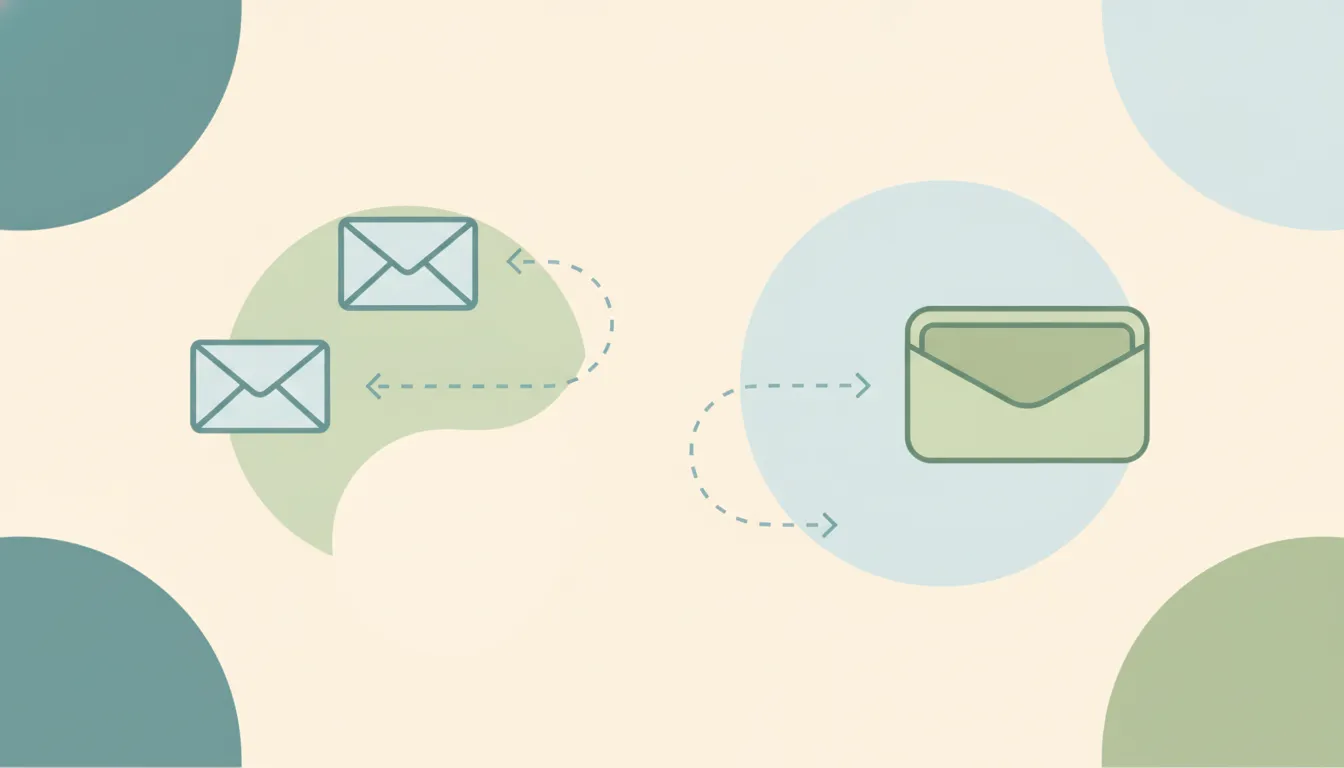
Google does not offer a one-click way to merge two Gmail accounts into one. There’s no “combine accounts” button, and you can’t fuse two Google identities, their Drive files, or their purchase histories together. What you can do is consolidate — move mail and contacts into the account you want to keep, then route future messages there. Here are five methods, and you’ll usually combine a couple of them.
1. Import Old Mail and Contacts (One-Time Copy)
The cleanest way to bring the past with you:
- Sign in to the account you want to keep.
- Click the Settings (gear) icon > See all settings.
- Open Accounts and Import.
- Next to Import mail and contacts, click Import mail and contacts.
- Enter the old Gmail address, sign in, and authorize the import.
- Choose what to bring over (existing mail, contacts, and new mail for the next 30 days) and start the import.
This copies messages and contacts in the background — it can take hours to a couple of days for large mailboxes.
2. Auto-Forward + Send Mail As (Keep Both Addresses Working)
If people still email the old address, forward it and keep the ability to reply from it.
In the old account — turn on forwarding:
- Settings (gear) > See all settings > Forwarding and POP/IMAP.
- Click Add a forwarding address, enter the new address, and confirm the verification.
- Choose Forward a copy of incoming mail to the new account.
In the new account — send as the old address:
- Settings > Accounts and Import > Send mail as > Add another email address.
- Enter the old address, then verify it via the confirmation email.
- Pick the old address from the From dropdown when you reply.
Now everything lands in one inbox and you can still answer as the old you. (Same pattern as setting up an alias.)
3. Fetch Old Mail by POP (Ongoing Pull)
Instead of forwarding, you can have the new account pull mail from the old one:
- In the account you keep, go to Settings > Accounts and Import.
- Under Check mail from other accounts, click Add a mail account.
- Enter the old Gmail address and follow the POP3 setup (server
pop.gmail.com, port 995, SSL).
This is handy when you can’t change forwarding on the old account or want it pulled on a schedule. See also adding another email account to Gmail.
4. Move Contacts Separately
If you only need contacts (or the import missed some):
- At contacts.google.com in the old account, select Export > Google CSV.
- In the new account’s Google Contacts, choose Import and upload the CSV.
5. Export Everything with Google Takeout
To archive the full old account — mail, contacts, Drive, photos — before you stop using it, use Google Takeout (takeout.google.com). Select the data, export, and download. Note this is a backup/export, not a merge: Takeout files don’t automatically reappear inside the new account’s Drive.
What you can’t merge: Google account data like Drive files, Photos, YouTube history, and purchases stay tied to each account. Consolidation moves mail and contacts; it doesn’t fuse two Google identities.
Troubleshooting
The import stopped or only copied some mail
Large mailboxes import in batches over up to a couple of days. Check Accounts and Import for status; if it stalls, you can re-run the import or use the POP method (Method 3) to pull the rest.
Forwarding isn’t working
Confirm you clicked the verification link sent to the new address, and that forwarding is set to Forward a copy (not disabled) in the old account’s Forwarding and POP/IMAP tab.
I can’t send as the old address
You must verify the address first under Send mail as — Gmail emails a confirmation code/link to that address. Until it’s verified, it won’t appear in the From dropdown.
Two Inboxes, One Assistant
Consolidating gets all your mail into one place. Keeping it organized after that is the harder part. Carly is an AI assistant you reach by email or text: tell it in plain English how to sort, label, and reply to each kind of message, and it works across Gmail, Outlook, and 200+ other apps — so a merged inbox doesn’t just become a bigger pile.
More on Gmail: How to create an email alias in Gmail · How to add another email account to Gmail · Best email management tools · Best AI assistants for Gmail
Ready to automate your busywork?
Carly schedules, researches, and briefs you—so you can focus on what matters.
See what people say
"Before Carly, I relied on a Calendly link, but the whole process felt impersonal and not very professional. Carly changed that by handling all the back-and-forth, so I'm no longer stuck in endless email threads trying to line up schedules.
Now Carly reaches out to candidates, shares my real-time availability, lets them pick a slot, then sends a Zoom link and drops it straight into my calendar. She sends reminders to both of us before each call, which has significantly reduced no-shows and last-minute confusion.
On top of scheduling, Carly acts like a full executive assistant, sending me my schedule the night before so I can prepare for each call. It reminds me of the old x.ai assistant, but Carly is noticeably smarter, faster, and better suited to my healthcare recruitment business."