How to Add Another Email Account to Gmail (2026)
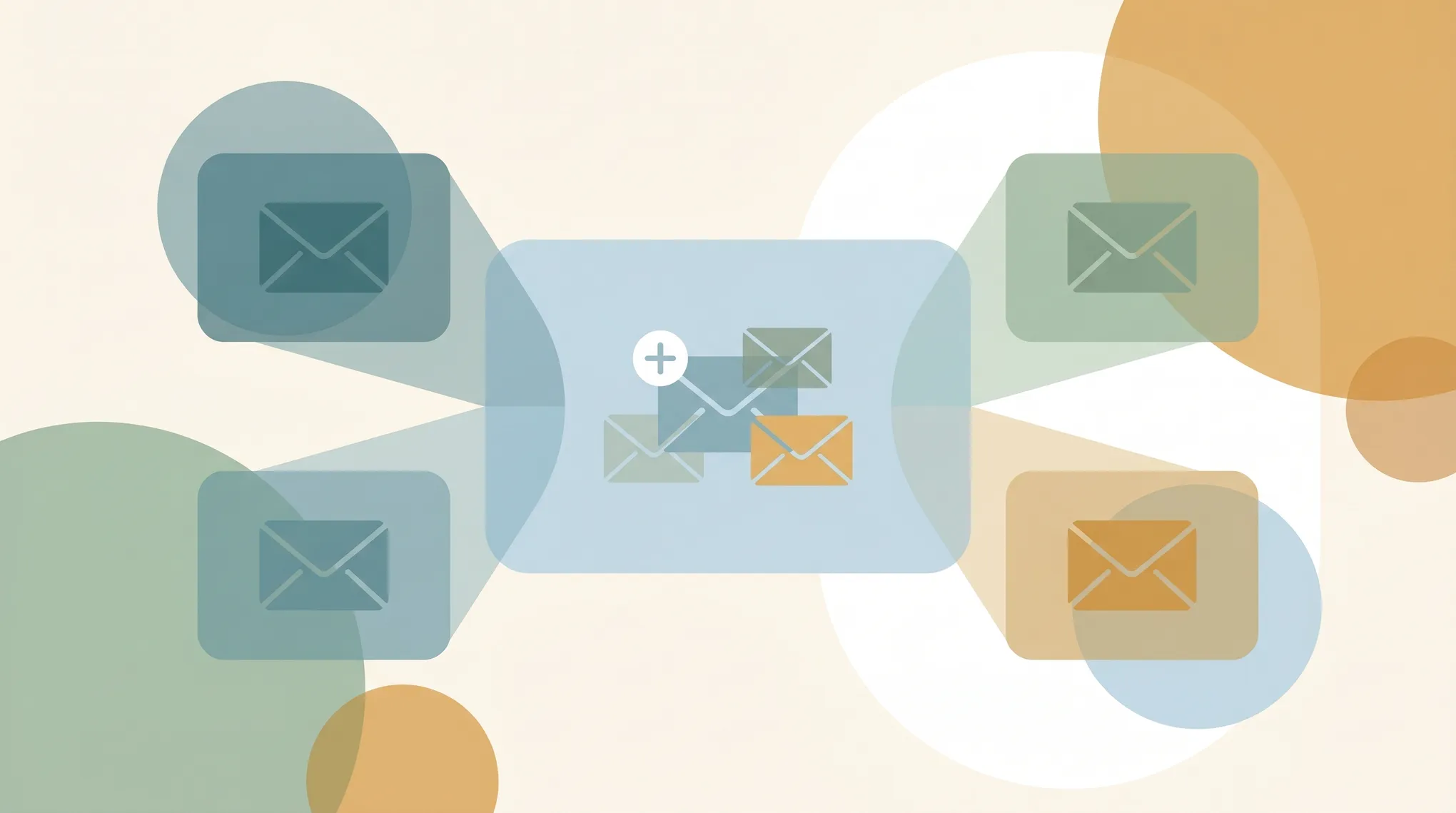
“Add another account” means two different things in Gmail, and people want one or the other:
- Switch between separate accounts (a personal Gmail and a work Gmail) without logging out.
- Combine a second address into one inbox so you read and reply to everything from a single Gmail.
Here’s how to do both.
1. Add Another Google Account (Switch Between Them)
Best when you keep accounts separate but want fast switching.
- In Gmail, click your profile picture (top-right).
- Click Add another account.
- Sign in to the other Google account.
Both accounts stay logged in. Click the profile picture anytime to switch — each opens in its own tab/view with its own inbox, settings, and signature. This works for any number of Google accounts (personal Gmail or Workspace).
On a shared computer, use Sign out of all accounts from the same menu when you’re done.
2. Pull Another Address Into One Gmail Inbox
Best when you want a single inbox for everything — including non-Gmail addresses like Outlook, Yahoo, or a work/domain email.
- Open Gmail → gear icon → See all settings.
- Go to the Accounts and Import tab.
- Under Check mail from other accounts, click Add a mail account.
- Enter the email address → Next.
- Choose:
- Gmailify (if offered, for Outlook/Yahoo) — links the account and keeps it on the other server while showing mail in Gmail with spam filtering and search.
- Import emails from my other account (POP3) — Gmail pulls copies of incoming mail using the other account’s POP settings.
- Enter the username, password, and POP server details (your provider lists these). Add Account.
New mail from that address now flows into your Gmail inbox. POP import checks periodically rather than instantly, so expect a few minutes of delay.
Gmail uses POP, not IMAP, for importing other accounts. If you need real-time two-way sync, Gmailify (where available) is the better option.
3. Send Mail From the Added Address
Importing only handles incoming mail. To send as the other address so replies show the right “From”:
- Same Accounts and Import tab → Send mail as → Add another email address.
- Enter the name and address. Leave Treat as an alias checked unless the address is a separate person’s mailbox.
- Enter the other provider’s SMTP server, port, username, and password → Add Account.
- Gmail emails a confirmation code to that address. Enter it to verify ownership.
Now when you compose, click the From dropdown to pick which address to send from. Set a default under the same Send mail as section.
4. Add an Account in the Gmail Mobile App
- Tap your profile picture (top-right).
- Tap Add another account.
- Choose the type: Google, Outlook/Hotmail/Live, Yahoo, Exchange/Office 365, or Other (IMAP).
- Sign in.
The mobile app supports true IMAP/Exchange accounts directly (unlike the web import, which is POP-only) — so a work email added on mobile syncs in real time. Switch accounts by tapping the profile picture and selecting one.
5. Which Method Should You Use?
| Goal | Use |
|---|---|
| Keep work and personal fully separate, switch fast | Add another Google account (Section 1) |
| One inbox for a Gmail + non-Gmail address | Check mail from other accounts (Section 2) |
| Reply so it comes from the right address | Send mail as (Section 3) |
| Real-time sync of a work/IMAP account | Add it in the mobile app (Section 4) |
If you’re juggling multiple inboxes because each one demands attention, Carly is an AI assistant that handles email and scheduling across your accounts — triaging, drafting, and booking meetings — so consolidating inboxes isn’t the only way to cut the load.
More on Gmail: How to set up email forwarding in Gmail · How to add a signature in Gmail · How to create filters in Gmail · Best AI assistants for Gmail · Best email management tools
Ready to automate your busywork?
Carly schedules, researches, and briefs you—so you can focus on what matters.
See what people say
"Before Carly, I relied on a Calendly link, but the whole process felt impersonal and not very professional. Carly changed that by handling all the back-and-forth, so I'm no longer stuck in endless email threads trying to line up schedules.
Now Carly reaches out to candidates, shares my real-time availability, lets them pick a slot, then sends a Zoom link and drops it straight into my calendar. She sends reminders to both of us before each call, which has significantly reduced no-shows and last-minute confusion.
On top of scheduling, Carly acts like a full executive assistant, sending me my schedule the night before so I can prepare for each call. It reminds me of the old x.ai assistant, but Carly is noticeably smarter, faster, and better suited to my healthcare recruitment business."