How to Request a Read Receipt in Gmail (2026)
A read receipt tells you when a recipient opens your email. Gmail has this built in — but only on Google Workspace (business) accounts where an administrator has turned it on. Free personal @gmail.com accounts don’t have native read receipts. Here’s how to use the real feature if you have it, and what to do if you don’t. For the Microsoft equivalent, see how to request a read receipt in Outlook.
1. First, Check Whether You Can Use Read Receipts
Native read receipts in Gmail require both of these:
- You’re on a Google Workspace account (a custom-domain business account, e.g.
you@yourcompany.com), not a free@gmail.comaddress. - Your Workspace administrator has enabled read receipts for your organization (and may have limited them to recipients inside your domain).
If you’re on a personal Gmail account, the Request read receipt option simply won’t appear in your compose window. Skip to section 4.
2. Request a Read Receipt When Sending (Workspace)
- In Gmail, click Compose.
- Write your email — add the recipient, subject, and body as usual.
- Click the three-dot “More options” menu in the bottom-right of the compose window (next to the trash icon).
- Select Request read receipt.
- Click Send.
You’ll only be able to select this if your admin has enabled the feature for your account.
3. What the Recipient Sees — and What You Get Back
When your email is opened:
- Depending on your organization’s settings, the recipient may see a prompt asking whether to send a read receipt. They can approve or decline it.
- If approved (or if receipts are sent automatically per your domain’s policy), Google sends you a confirmation email noting the date and time the message was opened.
A few realities worth knowing:
- Receipts can be declined. If the recipient is prompted and clicks “no,” you get nothing.
- One receipt per recipient. You won’t get repeated notifications each time they re-open it.
- It confirms “opened,” not “read.” A preview-pane open still counts.
4. Alternatives for Personal Gmail Accounts
If you’re on a free @gmail.com account, native receipts aren’t an option. Your alternatives:
- Email-tracking browser extensions. Reputable mail-tracking tools add an invisible tracking pixel that tells you when a message is opened. Choose an established, well-reviewed extension and understand it relies on the recipient’s email client loading images.
- Ask directly. For important messages, a simple “Could you confirm you received this?” is more reliable — and more transparent — than any pixel.
- Use delivery/▾ confirmation built into your workflow tool if you send through a CRM or email platform that reports opens.
Privacy note: Tracking pixels are increasingly blocked. Apple’s Mail Privacy Protection and many corporate gateways pre-load or strip images, which can produce false “opened” signals or no signal at all. Treat open-tracking as a hint, not proof.
5. Troubleshooting
I don’t see “Request read receipt” in the menu
You’re either on a personal account or your Workspace admin hasn’t enabled the feature. There’s no setting you can change yourself — ask your admin.
I requested a receipt but never got a confirmation
The recipient may have declined the prompt, their client may not support receipts, or images/receipts may be blocked by their organization. A missing receipt doesn’t mean the email wasn’t read.
Can I request a receipt for an email I already sent?
No. The request has to be set before you click Send. There’s no way to add it retroactively.
Stop Wondering Whether Email Got Read
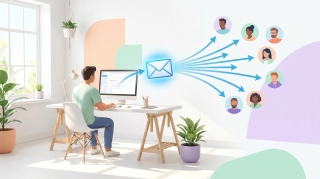
Chasing read receipts is usually a symptom of a slow back-and-forth. Carly is an AI assistant you reach by email or text: give it its own name and email address, tell it in plain English what to follow up on, and it works across Gmail, Outlook, and 200+ other apps to chase replies, schedule the meeting, and keep threads moving — so you’re not refreshing your inbox waiting for a confirmation.
More on Gmail: How to recall an email in Gmail · How to schedule an email in Gmail · How to create an email template in Gmail · How to set up email forwarding in Gmail · Best AI assistants for Gmail · Best AI email tools
Ready to automate your busywork?
Carly schedules, researches, and briefs you—so you can focus on what matters.
See what people say
"Before Carly, I relied on a Calendly link, but the whole process felt impersonal and not very professional. Carly changed that by handling all the back-and-forth, so I'm no longer stuck in endless email threads trying to line up schedules.
Now Carly reaches out to candidates, shares my real-time availability, lets them pick a slot, then sends a Zoom link and drops it straight into my calendar. She sends reminders to both of us before each call, which has significantly reduced no-shows and last-minute confusion.
On top of scheduling, Carly acts like a full executive assistant, sending me my schedule the night before so I can prepare for each call. It reminds me of the old x.ai assistant, but Carly is noticeably smarter, faster, and better suited to my healthcare recruitment business."