How to Set Up Email Forwarding in Gmail (Auto-Forward + Filters, 2026)
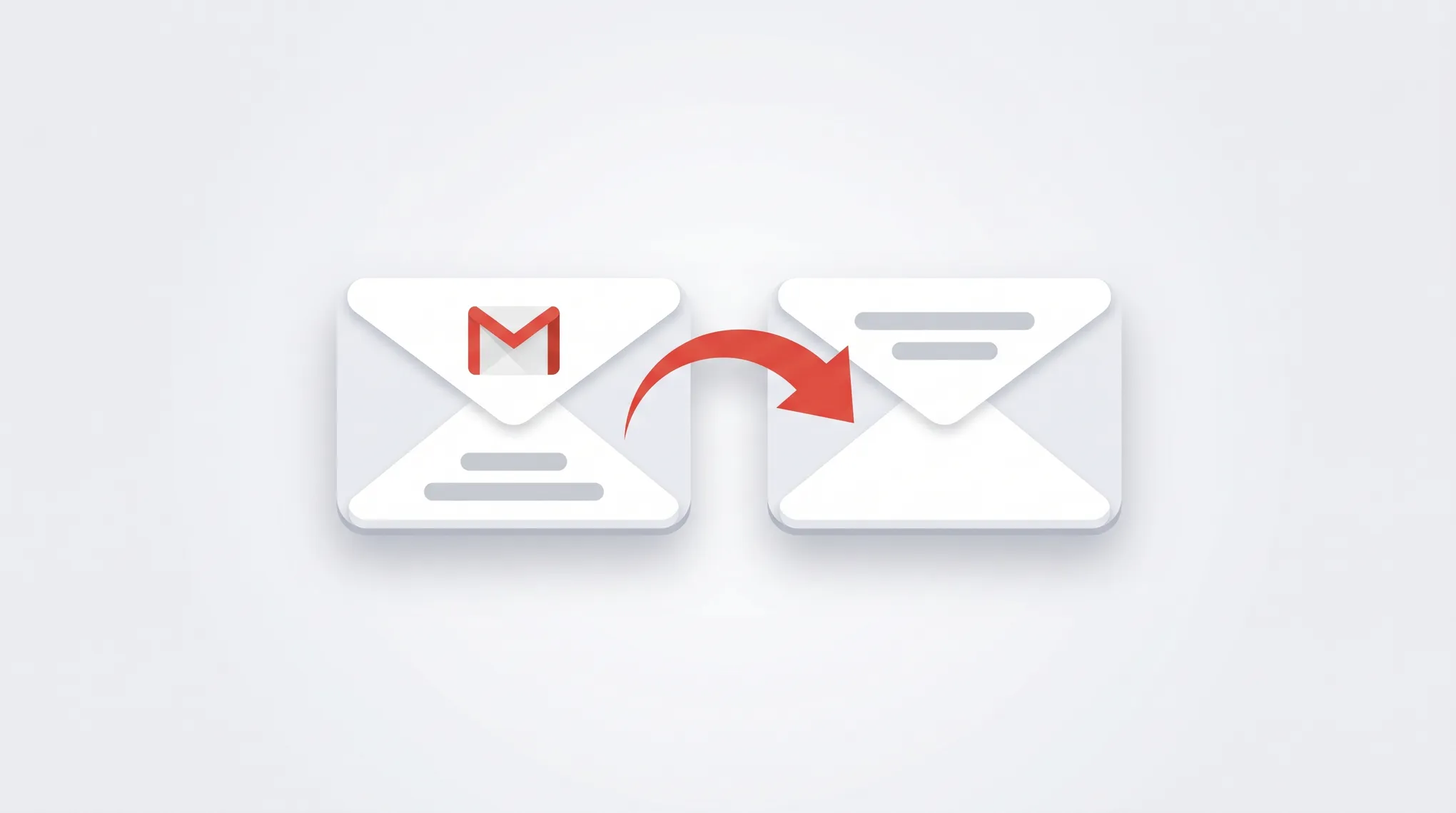
Gmail’s auto-forward only allows one “blanket” address. To forward to multiple destinations, forward conditionally, or pipe email into Slack, you need filters. This guide covers both — plus what to do when your Workspace admin has disabled forwarding.
1. Add a Forwarding Address
The auto-forward setup is web-only. The Gmail iOS and Android apps don’t support it.
- Open Gmail in a browser.
- Click the gear icon (top-right) → See all settings.
- Click the Forwarding and POP/IMAP tab.
- In the Forwarding section, click Add a forwarding address.
- Enter the destination email → Next → Proceed → OK.
Gmail sends a confirmation code to the destination address.
2. Verify the Destination
- Open the destination inbox.
- Find the email titled “Gmail Forwarding Confirmation”.
- Click the verification link inside the email. Or copy the confirmation code and paste it back into the Forwarding and POP/IMAP tab in Gmail.
- Refresh Gmail.
Without verification, Gmail will not let you enable forwarding to that address.
3. Enable Forwarding
Back in Settings → Forwarding and POP/IMAP:
- Select Forward a copy of incoming mail to.
- Choose the verified address from the dropdown.
- Choose what happens to the Gmail copy:
- Keep Gmail’s copy in the Inbox (recommended)
- Mark Gmail’s copy as read
- Archive Gmail’s copy
- Delete Gmail’s copy (destructive — if forwarding silently fails, the email is gone)
- Click Save Changes at the bottom.
A yellow banner appears at the top of Gmail for 7 days confirming forwarding is active. Recipients see nothing.
4. Conditional Forwarding via Filters
Native Gmail forwarding allows only one blanket destination. Filters lift that limit.
- Click the sliders icon in the search bar to open Show search options.
- Enter criteria:
- From: specific senders or domains
- Subject: keywords in the subject
- Has the words: full-text body match
- Has attachment: only forward emails with attachments
- Size: forward only large emails
- Click Create filter at the bottom of the panel.
- Tick Forward it to → choose a verified address.
- Create filter.
Repeat for each additional address you want to forward to. Each filter is independent — a single email can match multiple filters and be forwarded multiple times.
The destination still has to be pre-verified via the steps in section 1.
5. Forward to a Slack Channel
Slack channels accept email. To pipe specific Gmail messages into a channel:
- In Slack, go to the channel → channel name at top → Integrations tab → Send emails to this channel → Get email address. Slack generates an
<id>@<workspace>.slack.comaddress. - Add that address as a forwarding destination in Gmail (sections 1–2).
- Create a filter that matches the criteria you want piped to Slack and tick Forward it to → the Slack address.
Now matching Gmail messages appear as posts in the Slack channel automatically.
6. “Forwarding Is Disabled by Your Administrator”
If you see this error, your Workspace admin has turned off auto-forwarding at the org level.
Path for admins to fix it:
- Admin console → Apps → Google Workspace → Gmail → End User Access.
- Find Automatic forwarding.
- Tick Allow users to automatically forward email to another address.
- Save.
Some orgs also restrict forwarding to internal domain only via Apps → Gmail → Routing. If that’s set, forwarding to external addresses fails silently — verification emails are never delivered.
If you’re a Workspace user without admin access, you’ll need to ask IT to enable this. There’s no user-side workaround.
7. Stop Forwarding
To disable:
- Settings → Forwarding and POP/IMAP.
- Select Disable forwarding.
- Save Changes.
Filter-based forwards run independently. To stop those:
- Settings → Filters and Blocked Addresses.
- Find each filter with a Forward to action.
- Click Delete at the right of the filter row.
8. Daily Forwarding Limits
Gmail enforces forwarding rate limits:
- Free Gmail: ~500 forwards per 24 hours.
- Workspace: ~2,000 forwards per 24 hours.
Hit the cap and forwarding silently pauses for 24 hours. Heavy newsletters → forwarding setups can hit this faster than expected.
9. The Spam Trap
When Gmail forwards an email, it strips the original DKIM signature and forwards under your address. If the destination is strict (Gmail-to-Outlook is the most common case), SPF fails at the destination and your forwarded mail goes to spam.
Mitigations:
- Tell the destination’s IT to relax SPF for your domain, or whitelist your forwarding address.
- Use a filter that just labels, not forwards, and read in Gmail directly.
- For high-volume use, set up a mail server-level forward (an MX rewrite) instead of Gmail’s user-level forward — but this is a Workspace admin task.
10. Useful Operators for Filter-Based Forwarding
from:(*@vendor.com) subject:(invoice OR receipt)— auto-forward billing to bookkeeping.has:attachment filename:pdf -from:me— forward incoming PDFs only.list:* -from:linkedin.com— forward newsletters except LinkedIn.subject:(urgent OR ASAP)-have:subject “out of office” — forward urgent emails to a phone-monitored address.
11. Common Gotchas
- Forwarding does not retry on bounce. If the destination’s MX is down, those messages are not forwarded — they stay only in Gmail.
- Loops: A→B→A is auto-detected. A→B→C→A is not — Gmail will eventually rate-limit you.
- Verification expires: if you remove a forwarding address, you have to re-verify when re-adding it.
- Forwarding doesn’t apply retroactively. Existing emails stay put. Filters with Apply filter to <N> matching conversations can retroactively forward older mail at filter creation.
- Mobile signup workaround: To set up forwarding on mobile, open
mail.google.comin mobile Chrome → tap the menu → Settings (this opens the desktop settings UI in mobile browser).
If forwarding is your way of keeping the inbox manageable, Carly is an AI assistant that triages, replies, and routes inside Gmail — no forwarding hops or extra inboxes required.
More on Gmail: How to create filters in Gmail · How to mass delete emails in Gmail · How to fix Gmail search not working · How to recover deleted emails in Gmail · Best email management tools
Ready to automate your busywork?
Carly schedules, researches, and briefs you—so you can focus on what matters.
See what people say
"Before Carly, I relied on a Calendly link, but the whole process felt impersonal and not very professional. Carly changed that by handling all the back-and-forth, so I'm no longer stuck in endless email threads trying to line up schedules.
Now Carly reaches out to candidates, shares my real-time availability, lets them pick a slot, then sends a Zoom link and drops it straight into my calendar. She sends reminders to both of us before each call, which has significantly reduced no-shows and last-minute confusion.
On top of scheduling, Carly acts like a full executive assistant, sending me my schedule the night before so I can prepare for each call. It reminds me of the old x.ai assistant, but Carly is noticeably smarter, faster, and better suited to my healthcare recruitment business."