How to Use Confidential Mode in Gmail (2026)
Gmail’s Confidential Mode lets you send emails that expire, can’t be forwarded, copied, printed, or downloaded by the recipient, and can optionally require an SMS passcode to open. It’s built into Gmail on desktop and mobile, and it works whether you’re sending to another Gmail user or any other email address. Here’s how to use it — and an honest look at what it actually protects.
1. Turn On Confidential Mode (Desktop)
- Open Gmail and click Compose.
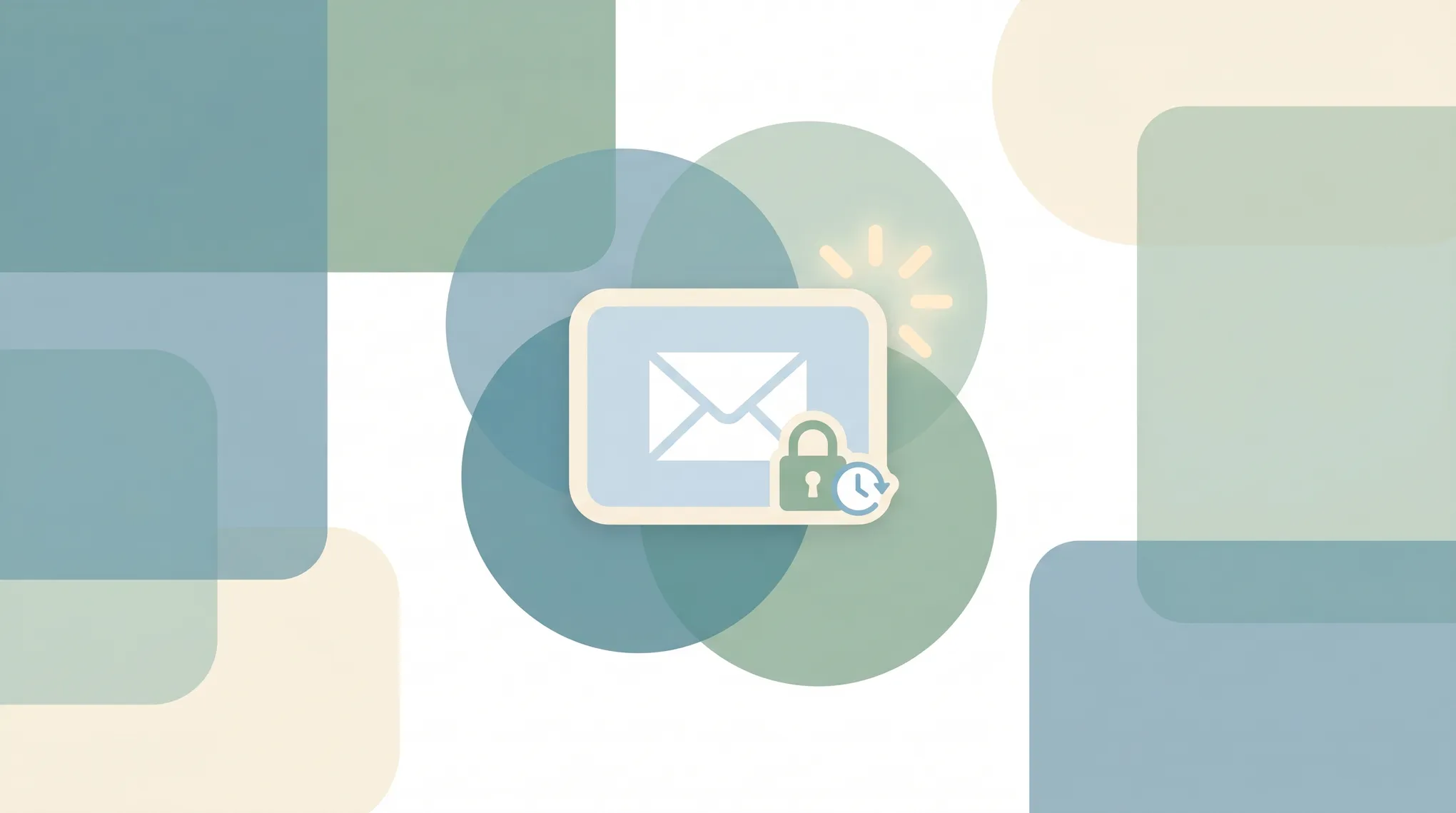
- At the bottom of the compose window, click the Confidential mode icon — a small lock with a clock over it.
- The Confidential mode panel opens. Set your options (below).
- Click Save.
- Finish writing your email and click Send.
A banner appears in the compose window confirming the message is confidential, showing the expiration you set.
2. Turn On Confidential Mode (Mobile)
- Open the Gmail app and tap Compose.
- Tap the three-dot menu in the top-right.
- Tap Confidential mode.
- Set the expiration and passcode options, then tap Save (or the back arrow).
- Finish your email and tap Send.
3. Set an Expiration Date
In the Confidential mode panel, use the Set expiration dropdown to choose how long the recipient can access the message:
- 1 day
- 1 week
- 1 month
- 3 months
- 5 years
After the expiration passes, the recipient can no longer open the message — the link to it stops working. You can pick any option that fits the sensitivity of what you’re sending.
4. Require an SMS Passcode (Optional)
For an extra layer, you can require the recipient to enter a one-time code:
- No SMS passcode — Gmail recipients open the message directly. Non-Gmail recipients get an emailed passcode.
- SMS passcode — the recipient receives a code by text message and must enter it to open the email. You’ll need to add the recipient’s phone number before sending.
SMS passcode is useful when you’re not certain the recipient’s inbox itself is secure.
5. Revoke Access Early
You can cut off access before the expiration date:
- Go to your Sent folder.
- Open the confidential message.
- Click Remove access.
The recipient immediately loses the ability to open it, even if the expiration hasn’t arrived.
6. What Confidential Mode Does — and Doesn’t — Protect
What it does:
- Removes the recipient’s built-in options to forward, copy, print, or download the message and its attachments.
- Expires the message after your set date.
- Optionally gates access behind an SMS passcode.
What it doesn’t do:
- It’s not end-to-end encryption. Google can access the content, and so can your Workspace admin.
- It can’t stop screenshots. A recipient can still photograph or screenshot the message on their screen. Removing forward/print/download raises friction; it doesn’t make leaking impossible.
- It doesn’t protect metadata. The subject line and the fact you emailed them are still visible.
Bottom line: Confidential Mode is a reasonable speed bump for sensitive-but-not-classified information. For anything requiring true confidentiality, use proper encryption.
7. Troubleshooting
The recipient says they can’t open the message
Confidential messages open via a link to a Google-hosted page. If their email gateway strips links or they’re offline, the message won’t load. Non-Gmail recipients open it in a browser.
I don’t see the Confidential mode icon
On desktop it’s at the bottom of the compose window (lock + clock). On mobile it’s under the three-dot menu. If a Workspace admin has disabled it, it won’t appear.
Can I make replies confidential too?
The recipient’s reply is a normal email under their control — Confidential Mode applies to the message you send, not to their response.
Less Sensitive Email to Send by Hand
Confidential Mode protects the rare message that needs it. For everything else, Carly is an AI assistant you reach by email or text — you give it its own name and email address and tell it, in plain English, how to handle your inbox. It works inside Gmail and Outlook plus 200+ apps to draft replies, route sensitive threads to you, and keep routine correspondence moving without you touching every message.
More on Gmail: How to encrypt email in Gmail · How to recall an email in Gmail · How to schedule an email in Gmail · How to block emails in Gmail · Best AI assistants for Gmail · Best AI email tools
Ready to automate your busywork?
Carly schedules, researches, and briefs you—so you can focus on what matters.
See what people say
"Before Carly, I relied on a Calendly link, but the whole process felt impersonal and not very professional. Carly changed that by handling all the back-and-forth, so I'm no longer stuck in endless email threads trying to line up schedules.
Now Carly reaches out to candidates, shares my real-time availability, lets them pick a slot, then sends a Zoom link and drops it straight into my calendar. She sends reminders to both of us before each call, which has significantly reduced no-shows and last-minute confusion.
On top of scheduling, Carly acts like a full executive assistant, sending me my schedule the night before so I can prepare for each call. It reminds me of the old x.ai assistant, but Carly is noticeably smarter, faster, and better suited to my healthcare recruitment business."