How to CC in Gmail (Desktop, iOS, Android — 2026)
The Cc field is hidden by default in Gmail’s compose window — and it’s hidden differently on mobile than on web. Here’s how to add Cc on every platform, plus etiquette, recipient limits, and search operators for finding old Cc’d emails.
1. CC on Gmail Web
- Click Compose (the colored pencil button at top-left).
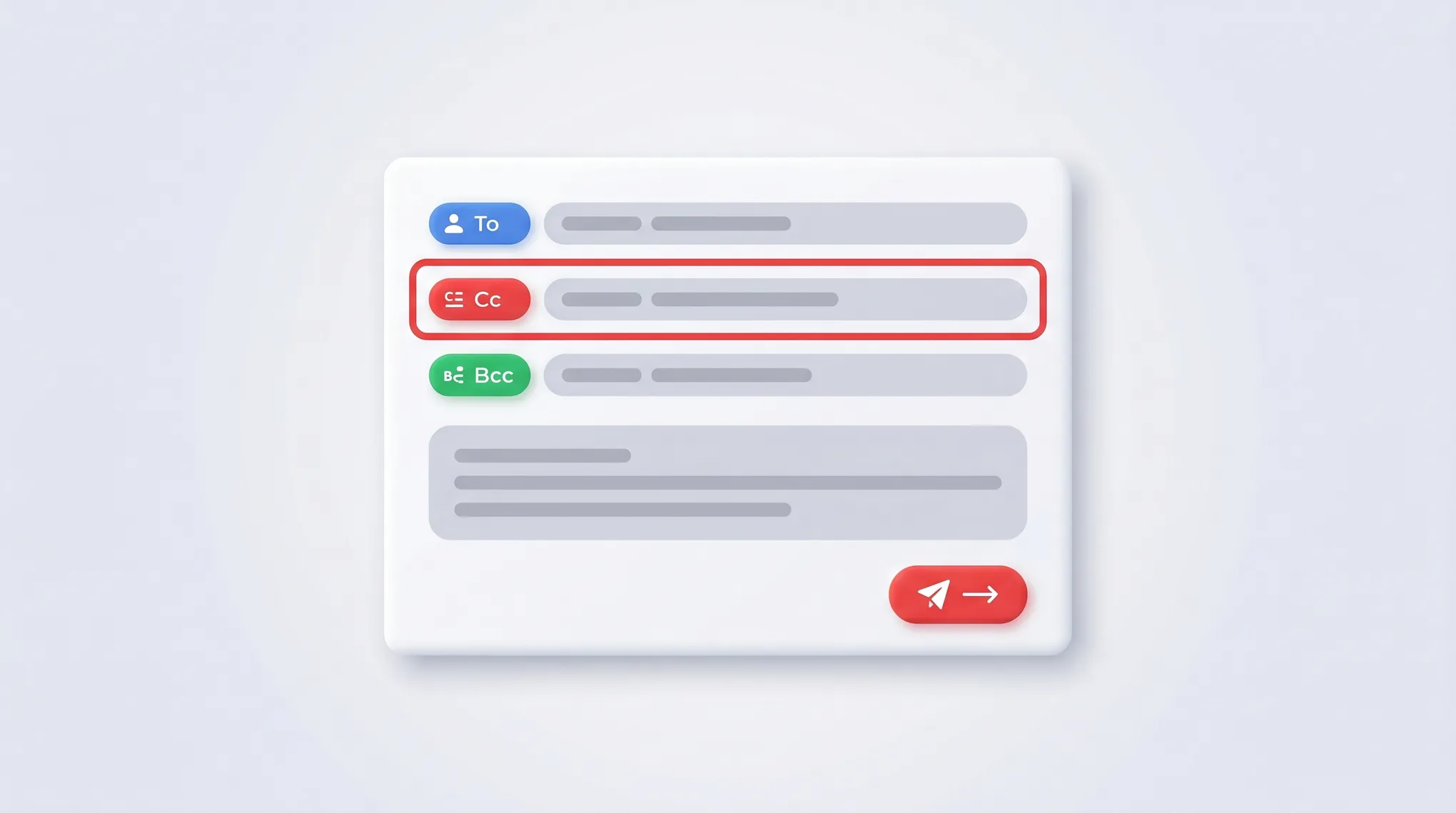
- The compose window opens with a To field. The Cc and Bcc links sit on the right side of the To row.
- Click Cc to reveal the Cc field.
- Type or paste recipient addresses, separated by commas.
- Compose your message → Send.
The Bcc link sits next to Cc — see how to BCC in Gmail for the difference.
2. Keyboard Shortcuts
Faster than clicking:
| Shortcut | Action |
|---|---|
| Ctrl+Shift+C (Win/Linux) / ⌘+Shift+C (Mac) | Toggle Cc field |
| Ctrl+Shift+B / ⌘+Shift+B | Toggle Bcc field |
| A | Reply all (keeps Cc) |
| R | Reply (drops Cc) |
| F | Forward |
Shortcuts only work if you’ve enabled them. Turn them on at Settings (gear) → See all settings → General → Keyboard shortcuts → Keyboard shortcuts on → Save Changes.
3. CC on iOS
- Tap the Compose pencil (bottom right).
- In the To row, tap the small downward chevron (˅) on the right side. This expands to show Cc and Bcc rows.
- Newer iOS builds show literal “Cc/Bcc” text instead of the chevron — tap that text. Behavior is the same.
- Type the recipient → tap Send.
The chevron is collapsed by default on mobile to reduce accidental disclosure. There’s no setting to make Cc always visible — it’s a long-standing Help forum feature request.
4. CC on Android
- Tap Compose (pencil, bottom right).
- Tap the chevron (˅) at the right end of the To field. Cc and Bcc rows appear below.
- If the chevron doesn’t respond, wait a beat — long signatures sometimes delay compose rendering. Tap again.
- Type the recipient → tap the send arrow (top right).
5. CC a Contact Group
You can Cc an entire contact group by typing its label name:
- Open Compose.
- In the Cc field, start typing the group name (a label you’ve created in Google Contacts).
- Gmail autocompletes the group → press Enter.
- The group expands to show all members individually before sending.
Workspace dynamic groups (Cloud Identity) work the same way but are governed by the group’s posting permissions — some only allow internal senders.
6. CC vs BCC — When to Use Each
| CC | BCC | |
|---|---|---|
| Who sees it | Visible to all recipients | Hidden from all recipients |
| Reply-all includes | Yes | No (Bcc’d recipient is dropped) |
| Use for | Looping in stakeholders openly | Mass announcements, privacy |
| Etiquette | Acknowledged participants | Discreet awareness only |
A common mistake: Bcc’ing someone on a long thread, expecting them to “see all replies.” They won’t — Bcc only delivers the original message. Future replies skip them entirely.
7. Reply-All Keeps the Cc
Plain Reply sends only to the original sender. Reply all preserves the entire To and Cc list (Bcc is always dropped).
- Web: open the email → click Reply all in the bottom-right action bar. Or press A.
- iOS/Android: open the email → tap the three-dot menu (top-right of the message) → Reply all.
To remove yourself from a Cc chain, you usually have to ask the sender — there’s no native “unsubscribe from CC” feature. The closest workaround is Mute: open the thread → three-dot menu → Mute. Future replies skip your inbox but the thread is still searchable with is:muted.
8. Recipient Limits
Gmail enforces hard ceilings on the combined To + Cc + Bcc count.
| Account type | Max recipients per message | External recipients per day | Total recipients per day |
|---|---|---|---|
| Free Gmail | 500 | ~500 messages | ~500 |
| Workspace | 2,000 | 500 external per message | 10,000 |
| Gmail API / SMTP relay | 100 per message | Same daily caps as account | Same |
Hit the daily cap and Gmail temporarily blocks sending for 24 hours. The 100-recipient API ceiling is per-message, not per-day — important when composing programmatically.
Sources: Gmail sending limits (Workspace).
9. Why Mobile Hides Cc
Gmail collapses Cc/Bcc into a chevron on iOS and Android by default to prevent accidental disclosure when composing in a hurry. Many regulated industries flagged this as a privacy concern in 2018 and Google left the safer default in place.
There is no setting to make Cc always visible on mobile. Tap the chevron each time.
10. CC Etiquette Notes
- Cc your boss when they need awareness, not action. Don’t make it look like an escalation if it isn’t.
- Avoid Cc’ing the same person every reply. If they’ve stopped replying, drop them on the next round.
- Use Bcc for recipients who don’t need to see replies — newsletters, announcements, status updates.
- Cc’d recipients can still hit Reply all and pull everyone back in. If you don’t want that, Bcc instead.
- Gmail’s Smart Compose and Gemini “Help me write” only personalize tone based on To-line recipients. Cc’d people are not factored in. Gemini summary cards now flag “you were Cc’d” vs “you were a direct recipient” when summarizing long threads (rolled out 2025).
11. Useful Search Operators
Find old emails by Cc:
cc:alice@example.com— threads where Alice was Cc’d.bcc:me— only works on Sent label (you can’t see who Bcc’d you).-cc:me— filter out threads where you were merely Cc’d.cc:me has:attachment older_than:30d— old Cc’d attachments to clean up.cc:(*@vendor.com)— wildcard Cc by domain.
12. Workspace Admin Restrictions
Admins can block external Cc via Admin Console → Apps → Google Workspace → Gmail → Compliance → Outbound gateway / Content compliance. If your org has these rules, attempting to Cc an external address shows “Message blocked” with no specific reason.
Some regulated orgs block all external Cc by default. Ask IT if Cc is silently failing on external addresses.
If figuring out who to Cc on every email is one more decision than you have time for, Carly is an AI assistant that drafts emails for you with the right recipients pre-filled — based on past patterns and the context of the thread.
More on Gmail: How to BCC in Gmail · How to create a contact group in Gmail · How to schedule email in Gmail · How to add a signature in Gmail · Best email management tools
Ready to automate your busywork?
Carly schedules, researches, and briefs you—so you can focus on what matters.
See what people say
"Before Carly, I relied on a Calendly link, but the whole process felt impersonal and not very professional. Carly changed that by handling all the back-and-forth, so I'm no longer stuck in endless email threads trying to line up schedules.
Now Carly reaches out to candidates, shares my real-time availability, lets them pick a slot, then sends a Zoom link and drops it straight into my calendar. She sends reminders to both of us before each call, which has significantly reduced no-shows and last-minute confusion.
On top of scheduling, Carly acts like a full executive assistant, sending me my schedule the night before so I can prepare for each call. It reminds me of the old x.ai assistant, but Carly is noticeably smarter, faster, and better suited to my healthcare recruitment business."