
How to Connect Carly to Grok
Carly isn’t in Grok’s list of apps, so searching for it there finds nothing. Instead, you add Carly as a custom connector. This guide is for Grok, the chat app at grok.com. Grok Bot is a different product and adds connectors its own way: see Grok Bot connectors.
1. Open Connect Apps in Grok
- Go to grok.com/connectors. Or, on grok.com, click your name at the bottom left, then Settings, then Connect Apps.
- Scroll to the bottom of the list and click Add a custom connector.
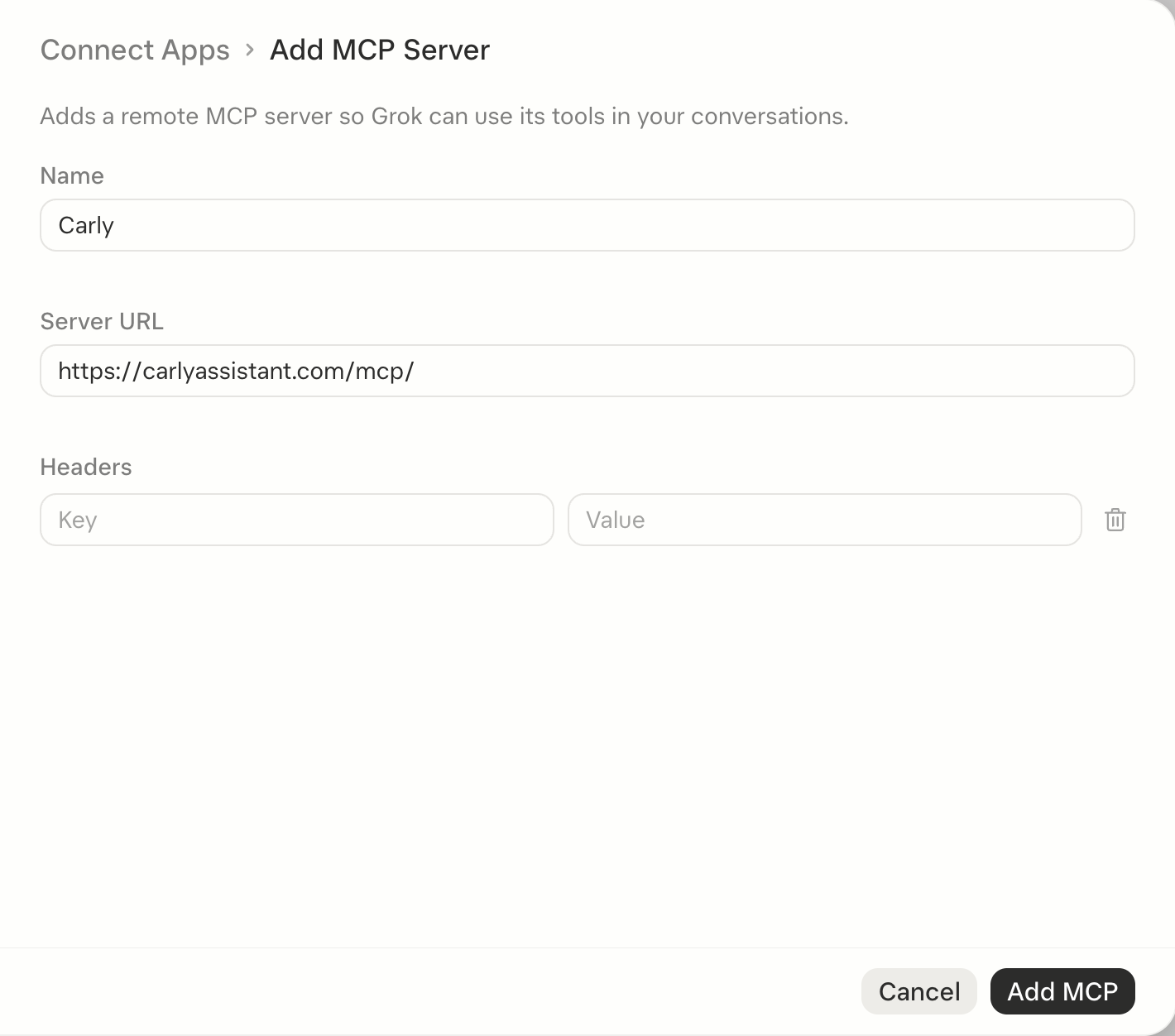
2. Add Carly
- Name: Carly
- Server URL:
https://carlyassistant.com/mcp/ - Leave Headers empty.
- Click Add MCP.
3. Sign in to Carly
Grok opens Carly’s sign-in in a pop-up window. Sign in with the account you use for Carly. If you’re already signed in to Carly in that browser, the window closes by itself.
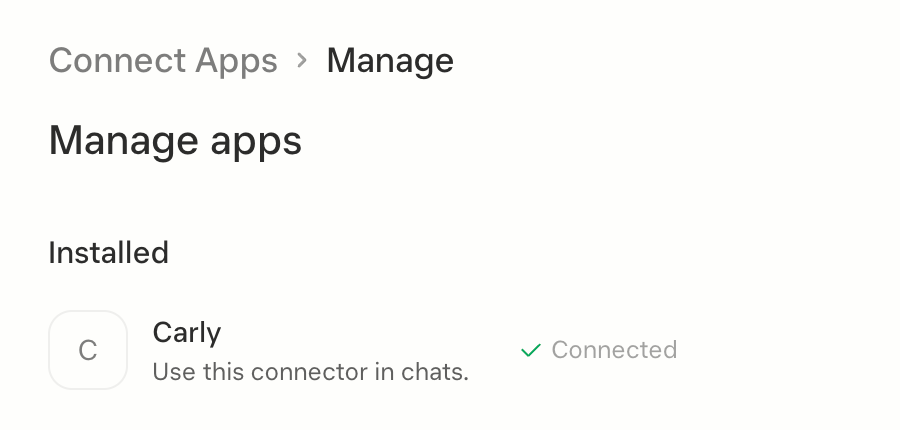
When it’s done, the top of Connect Apps says 1 connected, and Carly is listed as Connected.
Screenshots from grok.com.
Grok can now reach everything you’ve connected to Carly: your email accounts, calendars, workflows and the apps on your Integrations page.
Try it
Use Carly to list the names of my calendars.
Troubleshooting
”Sorry, there was a problem connecting to this MCP server”
Grok shows this before Carly’s sign-in window opens. Check each of these, then click Add MCP again:
- The Server URL is exactly
https://carlyassistant.com/mcp/, with no space before or after it. - Headers is empty. Carly doesn’t need one.
- Pop-ups are allowed for grok.com. Carly’s sign-in opens in a pop-up.
If it still fails, try grok.com in another browser, such as Chrome.
Searching “Carly” in Connect Apps finds nothing
That’s expected. Carly isn’t in Grok’s list; it’s a custom connector (step 2).
Opening the Carly link in a browser says “Method Not Allowed”
That’s normal. https://carlyassistant.com/mcp/ is an address for apps like Grok, not a page for browsers. Paste it into Grok as in step 2.
Grok answers without using Carly
Name Carly in your message, as in “Use Carly to…”.
To use several Gmail or Outlook accounts in Grok at once, see connecting multiple email accounts to Grok.
Last verified: November 14, 2026.
Ready to automate your busywork?
Carly schedules, researches, and briefs you—so you can focus on what matters.
See what people say
"Before Carly, I relied on a Calendly link, but the whole process felt impersonal and not very professional. Carly changed that by handling all the back-and-forth, so I'm no longer stuck in endless email threads trying to line up schedules.
Now Carly reaches out to candidates, shares my real-time availability, lets them pick a slot, then sends a Zoom link and drops it straight into my calendar. She sends reminders to both of us before each call, which has significantly reduced no-shows and last-minute confusion.
On top of scheduling, Carly acts like a full executive assistant, sending me my schedule the night before so I can prepare for each call. It reminds me of the old x.ai assistant, but Carly is noticeably smarter, faster, and better suited to my healthcare recruitment business."