How to Mass Delete Emails in Outlook (Every Version, 2026)
Outlook can mass delete thousands of messages in seconds, but the right method depends on whether you’re clearing an entire folder, deleting by sender, or filtering by date. Below: every Outlook version, every common bulk-delete scenario, and how to set rules so future messages auto-delete.
1. Mass Delete in Outlook on the Web & New Outlook Desktop
Delete every message in a folder
- Open the folder (Inbox, Junk, Archive, etc.) you want to clear.
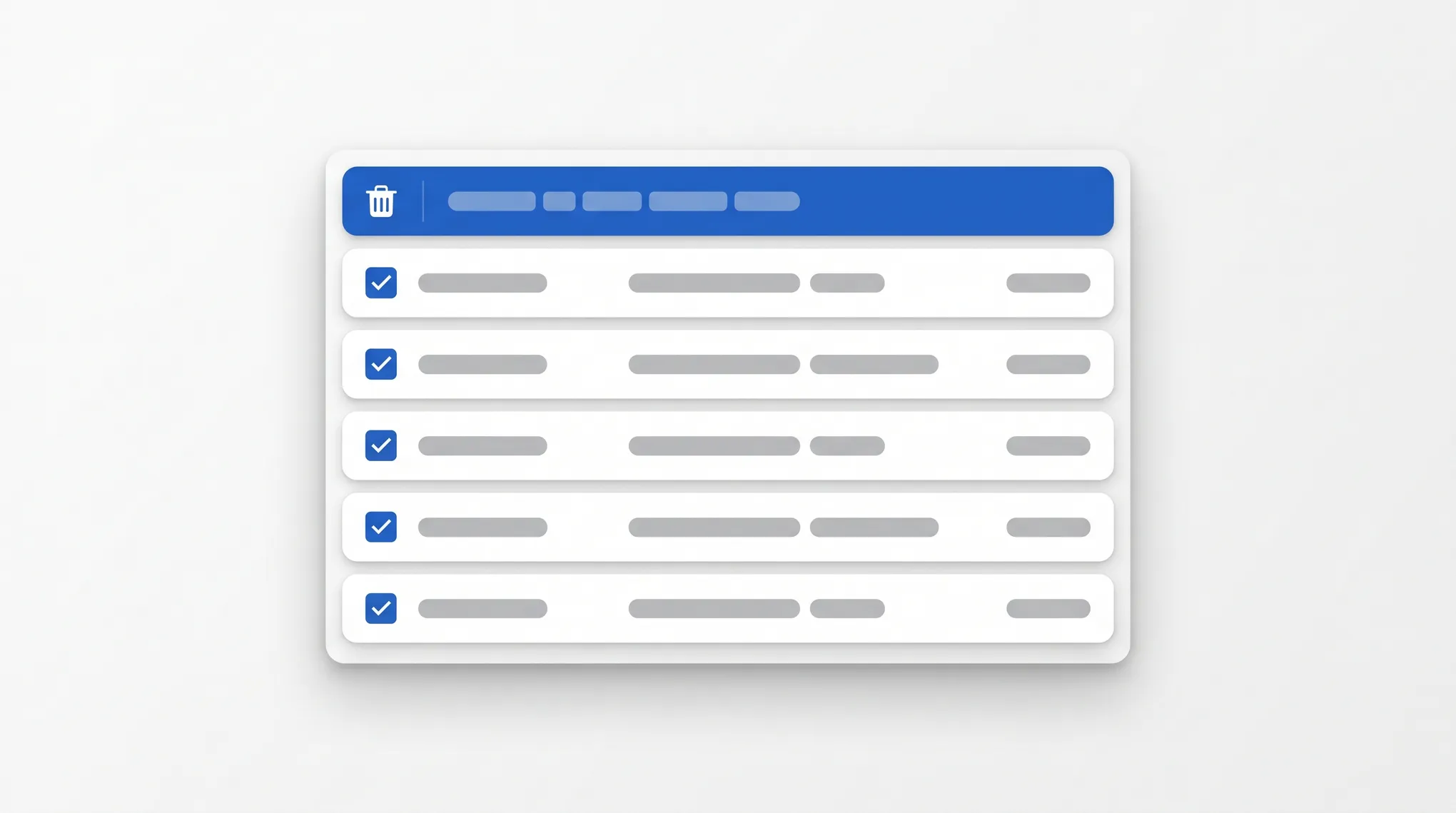
- Click the checkbox at the top of the message list to select all visible messages.
- A banner appears: Select all messages in this folder. Click it to extend the selection to every message, not just the visible ones.
- Click Delete in the toolbar.
- Confirm the prompt if Outlook asks.
Messages move to Deleted Items. To delete permanently, empty the Deleted Items folder afterward (right-click it → Empty folder).
Delete only messages from one sender (Sweep)
Sweep is the fastest way to clear newsletters, promos, or any single sender from your inbox.
- Click an email from the sender you want to clear.
- Click Sweep in the toolbar (or right-click the message and select Sweep).
- Choose:
- Move all messages from [sender] to Archive (or Deleted Items).
- Move all messages and any future messages.
- Always move messages older than 10 days.
- Always keep the latest message and move the rest.
- Click OK.
The cleanup runs in seconds, even on thousands of messages.
Delete by date or subject (search-based)
- Click the search bar at the top.
- Type a query like:
from:newsletter@company.comsubject:"meeting recap"received:<2025-01-01(everything before that date)
- Press Enter.
- Click the checkbox at the top to select all results.
- Click Delete.
2. Mass Delete in Classic Outlook for Windows
Select all and delete
- Click into the folder you want to clear.
- Click any message in the list.
- Press Ctrl+A to select all messages.
- Press Delete (or Shift+Delete to skip Deleted Items and remove permanently).
Warning: Shift+Delete is permanent. Use only when you’re sure.
Sort first, then delete a range
For folders with thousands of messages, sorting by sender or date helps you delete in safer chunks:
- Click the From column header to sort by sender.
- Click the first message from the sender you want to clear.
- Shift+click the last message from that sender.
- Press Delete.
Same flow with the Received column to delete everything from before a certain date.
Use Clean Up Folder
Classic Outlook can collapse redundant messages in long email threads — useful for clearing thread bloat without losing the latest reply.
- Click the folder in the navigation pane.
- Go to the Home tab in the ribbon.
- Click Clean Up → Clean Up Folder.
Outlook deletes redundant messages where the entire content is contained in a later reply. The latest message in each thread stays.
3. Mass Delete in Outlook for Mac
- Click into the folder.
- Click any message and press Cmd+A to select all.
- Press Delete (or Shift+Delete for permanent delete).
For Sweep-style deletion, Outlook for Mac uses Rules instead — see the auto-delete section below.
4. Mass Delete in Outlook Mobile
- Open the Outlook mobile app and go to the folder.
- Tap and hold any message to enter selection mode.
- Tap Select All at the top (if available), or tap the circle on each message you want to delete.
- Tap the trash icon in the toolbar.
Mobile is slower for very large bulk deletes — use desktop or web for thousands of messages.
Search Operators That Help with Bulk Delete
Outlook’s search bar accepts these operators across all versions:
| Operator | Example | What it matches |
|---|---|---|
from: | from:noreply@company.com | Messages from that sender |
to: | to:team@company.com | Messages sent to that address |
subject: | subject:"weekly report" | Subject contains the phrase |
hasattachment:yes | hasattachment:yes | Messages with attachments |
received: | received:lastmonth | Messages received last month |
received: | received:<2025-01-01 | Messages before a date |
messagesize:> | messagesize:>5MB | Messages larger than 5MB |
Combine them: from:newsletters@ subject:"weekly" received:<2025-01-01 finds every weekly newsletter from before 2025.
Auto-Delete Future Messages with a Rule
Rules can delete incoming messages automatically — so you never have to mass-delete that sender again.
Classic Outlook for Windows
- Go to File → Manage Rules & Alerts.
- Click New Rule.
- Select Apply rule on messages I receive and click Next.
- Set conditions — e.g., from people or public group or with specific words in the subject. Click the underlined links to fill in the values, then click Next.
- Check delete it (moves to Deleted Items) or permanently delete it (skips Deleted Items entirely).
- Click Next, then Next again to skip exceptions.
- Name the rule and check Run this rule now on messages already in “Inbox” to delete existing matching messages. Click Finish.
New Outlook & Outlook on the Web
- Go to Settings → Mail → Rules.
- Click + Add new rule.
- Name the rule, then under Add a condition, pick From or Subject includes.
- Under Add an action, choose Delete or Move to → Deleted Items.
- Click Save.
Existing messages aren’t affected by new rules in the web version — use Sweep for those.
Recover Deleted Emails
If you mass-delete and immediately regret it:
- Deleted Items folder: Open it, select the messages, right-click, and choose Move → Inbox (or another folder).
- Recoverable Items (purged): In classic Outlook, go to the Folder tab and click Recover Deleted Items. Pick what to restore.
- Outlook on the web: Click Deleted Items in the sidebar, then Recover items deleted from this folder at the top of the message list.
Recovery windows vary — typically 14 to 30 days for most Microsoft 365 accounts. See how to recover deleted emails in Outlook for the full details.
Common Issues
“Select all” only selects 50 or 100 messages. Outlook on the web and new Outlook load messages in batches. After clicking the checkbox, click the banner that says “Select all messages in this folder” to extend the selection to everything, not just what’s loaded.
Mass delete is taking forever. For tens of thousands of messages, the operation can take minutes. Don’t close Outlook — let it finish. If it stalls, switch to Outlook on the web for the same operation, which is often faster on large mailboxes.
Deleted messages keep coming back. This means another connected client (mobile, another desktop) is re-syncing the folder. Disconnect or pause sync on those clients, mass delete, then re-enable.
If your inbox keeps filling up faster than you can delete, Carly is an AI assistant that triages incoming mail, drafts replies, and connects to 200+ apps.
More on Outlook: How to archive emails in Outlook · How to block emails in Outlook · How to create rules in Outlook · How to recover deleted emails in Outlook · How to unsubscribe from emails in Outlook · How to use Quick Steps in Outlook
Ready to automate your busywork?
Carly schedules, researches, and briefs you—so you can focus on what matters.
See what people say
"Before Carly, I relied on a Calendly link, but the whole process felt impersonal and not very professional. Carly changed that by handling all the back-and-forth, so I'm no longer stuck in endless email threads trying to line up schedules.
Now Carly reaches out to candidates, shares my real-time availability, lets them pick a slot, then sends a Zoom link and drops it straight into my calendar. She sends reminders to both of us before each call, which has significantly reduced no-shows and last-minute confusion.
On top of scheduling, Carly acts like a full executive assistant, sending me my schedule the night before so I can prepare for each call. It reminds me of the old x.ai assistant, but Carly is noticeably smarter, faster, and better suited to my healthcare recruitment business."