How to Unsubscribe from Emails in Outlook (2026 Guide)
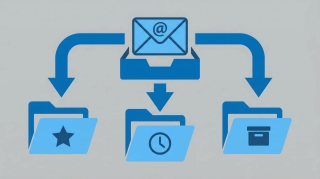
Getting off mailing lists in Outlook works best as a three-tier approach: unsubscribe politely first, Sweep aggressively for senders that keep sending, and Block as a last resort for anyone who ignores the unsubscribe request.
If you only want to block a sender (not unsubscribe from a mailing list), see how to block emails in Outlook.
Here’s how to use every tool Outlook gives you, across every version.
1. Use the Built-in Unsubscribe Link (New Outlook & Web)
Microsoft adds an Unsubscribe banner at the top of any email where the sender has included a proper List-Unsubscribe header — a standard that legitimate marketing senders have used for years. This is the cleanest way to get off a list because it sends a formal request to the sender and doesn’t mark them as spam.
Unsubscribe from a single message
- Open new Outlook or go to outlook.office.com.
- Open the marketing email you want to stop receiving.
- Look at the top of the message, next to the sender’s name. If Outlook recognizes a List-Unsubscribe header, you’ll see an Unsubscribe link.
- Click Unsubscribe.
- In the confirmation dialog, click Unsubscribe again. Outlook submits the request and typically moves the message to Deleted Items.
Why the banner sometimes doesn’t appear
Not every sender implements the header correctly. If you don’t see the Unsubscribe link at the top of the message, scroll to the bottom of the email — there should be a manual Unsubscribe link in the footer. Click that instead. If neither exists, jump to Sweep or Block below.
2. Sweep to Delete in Bulk (New Outlook & Web)
Sweep is Outlook’s best-kept inbox cleaner. Instead of deleting emails one at a time, you set a rule for a specific sender that runs immediately and keeps running going forward.
Run a Sweep
- In new Outlook or on the web, select any message from the sender you want to clear out.
- Click Sweep in the top toolbar (in the web version, it’s next to Delete and Archive).
- In the Sweep dialog, pick an option:
- Move all messages from the Inbox folder — one-time cleanup.
- Move all messages from the Inbox folder, and any future messages — ongoing rule.
- Move messages older than 10 days — leaves recent ones, clears out stale ones.
- Always keep the latest message and move the rest — great for daily newsletters you only want the latest of.
- Choose the destination folder (usually Deleted Items).
- Click OK.
Sweep runs immediately and, if you chose an ongoing option, keeps running in the background. You can review and edit Sweep rules under Settings > Mail > Sweep.
3. Block Sender (Every Version)
Blocking is the nuclear option. Blocked senders go straight to the Junk Email folder and never see your inbox again. Use this for anyone who ignores unsubscribes or for outright spam.
New Outlook and web
- Right-click the message from the sender.
- Select Block > Block sender.
- Confirm in the dialog. The message moves to Junk, and future messages route there automatically.
Classic Outlook for Windows
- Right-click the message.
- Select Junk > Block Sender.
- A notification confirms the sender was added to your Blocked Senders list.
Manage blocked senders
- New Outlook / web: Go to Settings > Mail > Junk email. You’ll see your Blocked senders and domains list and a Safe senders list. Add or remove addresses here.
- Classic Outlook for Windows: Go to Home > Junk > Junk E-mail Options > Blocked Senders tab.
Tip: Adding a whole domain (like
@example.com) blocks every sender from that company at once.
4. Create a Rule to Auto-Delete
Some senders don’t include a working List-Unsubscribe header, don’t honor unsubscribes, or use rotating sender addresses. A rule that matches on subject line, domain, or keyword and auto-deletes is the most durable fix.
New Outlook and web
- Go to Settings (gear icon) > Mail > Rules.
- Click Add new rule.
- Name the rule (e.g., “Delete ExampleCo”).
- Add a condition — usually From and type the sender’s email or domain. You can also use Subject includes or Sender’s address includes.
- Add the action Delete (or Move to > Deleted Items).
- Click Save.
Classic Outlook for Windows
- Right-click a message from the sender.
- Select Rules > Create Rule.
- Check the From [sender] box.
- Check Move the item to folder and select Deleted Items (or click Advanced Options for more conditions).
- Click OK.
Clean Up Conversation
If your real problem is long threads rather than marketing email, use Clean Up to prune redundant replies. Select the conversation, then click Home > Clean Up > Clean Up Conversation. Outlook deletes messages whose full text is quoted in a later reply, leaving only the messages that actually contain new content.
5. Classic Outlook for Windows
Classic Outlook doesn’t add an Unsubscribe banner to messages, so you rely on the footer link inside the email or on Junk/Rules.
- Open the marketing email.
- Scroll to the footer and click the sender’s Unsubscribe link. This opens a browser window where you confirm.
- If the sender ignores unsubscribes or there’s no link: right-click the message > Junk > Block Sender.
- For sender-wide auto-delete: right-click > Rules > Create Rule, check From [sender], and move to Deleted Items.
You can also bulk-manage the Safe Senders and Blocked Senders lists from Home > Junk > Junk E-mail Options.
6. Outlook for Mac
Outlook for Mac uses a similar pattern to classic Outlook for Windows — no Unsubscribe banner, so use the in-message link, Block Sender, or Rules.
- Open the email.
- Click the sender’s footer Unsubscribe link.
- To block: on the menu bar, choose Message > Block Sender, or right-click the message and select Block Sender.
- To create a rule: go to Tools > Rules > + (add). Set From contains [sender email], and action Delete Message. Click OK.
Blocked senders in Outlook for Mac sync with your account’s blocked list, so blocks made on Mac apply on the web and mobile too.
7. Outlook Mobile (iOS and Android)
The Outlook mobile app shows the Unsubscribe option when the server detects a valid List-Unsubscribe header, matching behavior on the web.
Unsubscribe
- Open the marketing email.
- Tap the three-dot menu at the top right of the message.
- If supported, tap Unsubscribe and confirm in the dialog.
If Unsubscribe isn’t shown
- Scroll to the email footer and tap the sender’s Unsubscribe link. It opens in your default browser.
- Or tap the three-dot menu > Move to Junk — this routes future messages from that sender to Junk.
- To block outright, tap three-dot menu > Block sender (where available).
Mobile doesn’t surface Sweep or Rules — use the web or desktop app for those.
Tips for Getting Unsubscribes to Stick
- Click the link in the email itself if Outlook’s Unsubscribe banner doesn’t appear. The footer link goes directly to the sender’s preference page, which is often more effective than a generic List-Unsubscribe request.
- Wait about 10 days before escalating. Many mailing list providers batch unsubscribe processing, so you may still receive a queued send or two before the unsubscribe takes effect.
- Only block after unsubscribes are ignored. Blocking senders that honor unsubscribe requests is unnecessary — Block Sender just shifts the volume into your Junk folder, which you still have to clean out periodically.
- Use Sweep for frequent senders. If you get daily sale emails from a retailer you don’t want to fully unsubscribe from (in case you want a coupon later), Sweep’s “keep the latest message” option is better than blocking.
- Report actual spam. For senders that don’t include any unsubscribe option — classic signs of spam — use Report > Report phishing or Report junk instead of just deleting. This trains the filter for everyone.
Quick Reference
| Method | Best for | Available in |
|---|---|---|
| Unsubscribe banner | Legitimate marketing emails with List-Unsubscribe header | New Outlook, web, mobile |
| Footer Unsubscribe link | Any marketing email that follows CAN-SPAM | Every version |
| Sweep | Senders you want to clear out in bulk or ongoing | New Outlook, web |
| Block Sender | Senders who ignore unsubscribes, or spam | Every version |
| Rules | Senders with no unsubscribe option, or where you need subject/domain matching | Every version (new Outlook, web, classic Windows, Mac) |
| Clean Up Conversation | Pruning redundant replies inside a long thread | Classic Outlook for Windows |
Which Method Should You Use?
- Legitimate marketing email you just don’t want? Use the Unsubscribe link (banner or footer).
- Newsletter from a company you might want to hear from later? Use Sweep with “keep the latest message.”
- Sender who keeps sending after you unsubscribed? Create a Rule that auto-deletes, or Block them.
- Outright spam or phishing? Report as junk or phishing instead of just unsubscribing — unsubscribing confirms your address is live.
- Drowning in threads rather than marketing email? Clean Up Conversation removes redundant replies within a thread.
Cut Inbox Volume Another Way
Unsubscribes thin out marketing email. If the rest of your inbox — real work email, scheduling back-and-forth, follow-ups — is still taking over your day, Carly is an AI assistant that handles email triage, scheduling, and follow-ups across 200+ connected apps.
More on Outlook: How to block emails in Outlook · How to create rules in Outlook · How to archive emails in Outlook · How to use Quick Steps in Outlook · How to create folders in Outlook · How to recover deleted emails in Outlook · How to set up email forwarding in Outlook · How to fix Outlook search not working
Ready to automate your busywork?
Carly schedules, researches, and briefs you—so you can focus on what matters.
See what people say
"Before Carly, I relied on a Calendly link, but the whole process felt impersonal and not very professional. Carly changed that by handling all the back-and-forth, so I'm no longer stuck in endless email threads trying to line up schedules.
Now Carly reaches out to candidates, shares my real-time availability, lets them pick a slot, then sends a Zoom link and drops it straight into my calendar. She sends reminders to both of us before each call, which has significantly reduced no-shows and last-minute confusion.
On top of scheduling, Carly acts like a full executive assistant, sending me my schedule the night before so I can prepare for each call. It reminds me of the old x.ai assistant, but Carly is noticeably smarter, faster, and better suited to my healthcare recruitment business."