OneNote vs Notion: Which Note App to Pick in 2026?
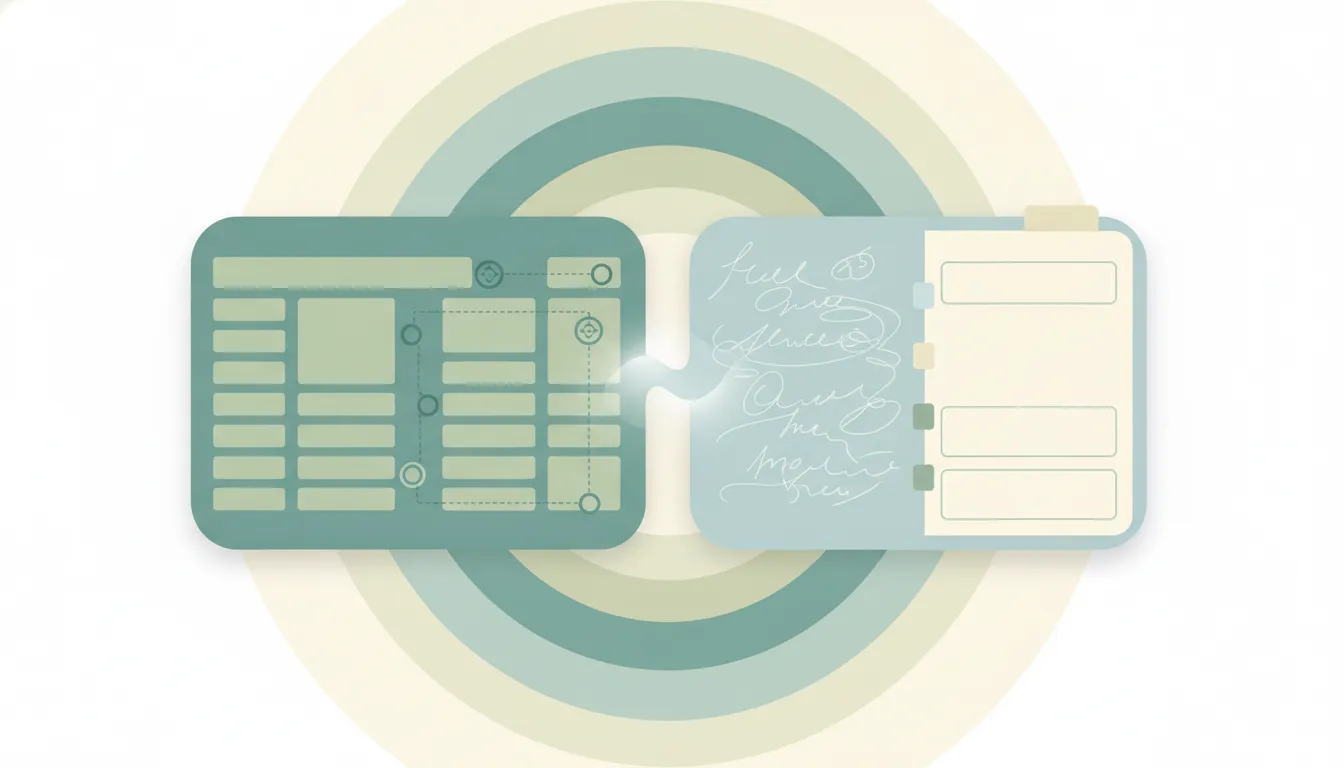
These two tools look similar but think very differently. OneNote is a freeform digital notebook — pages and sections you can type or handwrite anywhere on, like a physical binder. Notion is a structured workspace built from blocks, databases, and linked pages, closer to a wiki and project hub than a notepad. If you want fast capture and handwriting, OneNote wins. If you want to organize information into databases and team docs, Notion does.
The One-Sentence Answer
Use OneNote for quick, freeform, handwritten notes — especially if you’re on Microsoft. Use Notion to build structured docs, databases, and team wikis.
Side-by-Side Comparison
| OneNote | Notion | |
|---|---|---|
| Core model | Freeform notebook (sections + pages) | Blocks, databases, linked pages |
| Handwriting / stylus | Excellent | Limited |
| Databases & tables | Basic | Powerful, relational |
| Team wiki | Not its strength | Built for it |
| Free tier | Generous | Generous |
| Ecosystem | Microsoft 365 | Platform-neutral |
| Learning curve | Low — open and write | Higher — flexible but takes setup |
| Best for | Quick notes, handwriting | Wikis, databases, project docs |
When to Use OneNote
- You want to type or write anywhere on a page, no rigid structure
- You handwrite with a stylus or tablet
- You’re already in Microsoft 365 and want notes alongside Outlook and Office
- You think in notebooks → sections → pages
Think of OneNote as an infinite digital binder — open it, scribble, and find it later.
When to Use Notion
- You’re building a team wiki or knowledge base
- You want databases — tasks, projects, CRMs — not just notes
- You collaborate on living documents with others
- You’re willing to invest a little setup time for a lot of flexibility
Capture Speed vs Organization Power
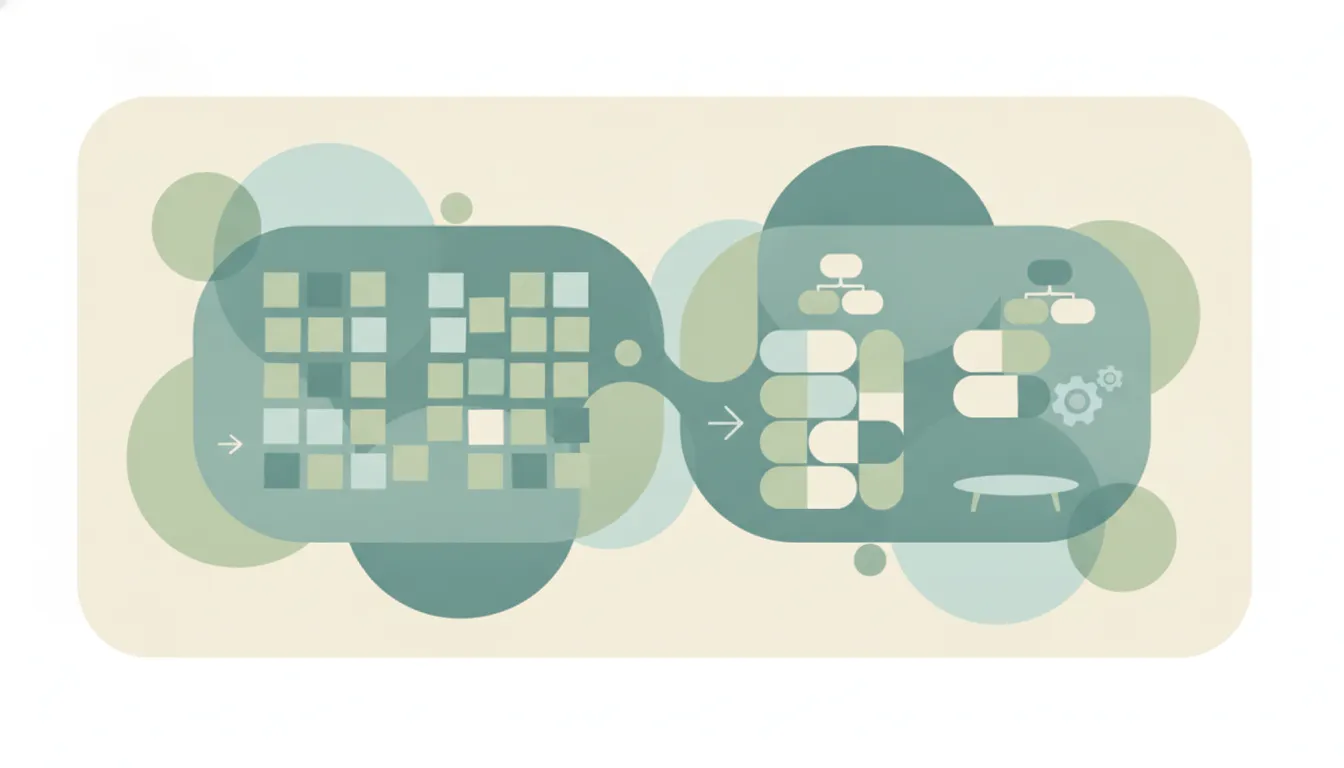
The trade-off is real: OneNote is unbeatable for getting a thought down fast, while Notion is unbeatable for making information reusable and structured. Many people use OneNote for raw capture and Notion for the polished, shared version. Notion’s steeper curve pays off only if you actually need databases and linked pages; if you just need somewhere to write, that power is overhead.
Rule of thumb: messy fast notes and handwriting → OneNote; structured docs, wikis, and databases → Notion.
If what you really want is for someone to turn notes into action — file them, create tasks, schedule follow-ups — that’s where a personal AI assistant helps. See also our best AI tools for task management and Notion Calendar alternatives.
Quick Reference
| Your situation… | Pick… |
|---|---|
| Handwriting with a stylus | OneNote |
| Already in Microsoft 365 | OneNote |
| Need fast, freeform capture | OneNote |
| Building a team wiki | Notion |
| Want databases and tables | Notion |
| Collaborating on shared docs | Notion |
Related guides: Notion Calendar alternatives · Best AI tools for task management · Best AI personal assistants
OneNote how-to guides: Insert a PDF · Password-protect a section · Use tags · Record audio · Templates · Fix syncing
Ready to automate your busywork?
Carly schedules, researches, and briefs you—so you can focus on what matters.
See what people say
"Before Carly, I relied on a Calendly link, but the whole process felt impersonal and not very professional. Carly changed that by handling all the back-and-forth, so I'm no longer stuck in endless email threads trying to line up schedules.
Now Carly reaches out to candidates, shares my real-time availability, lets them pick a slot, then sends a Zoom link and drops it straight into my calendar. She sends reminders to both of us before each call, which has significantly reduced no-shows and last-minute confusion.
On top of scheduling, Carly acts like a full executive assistant, sending me my schedule the night before so I can prepare for each call. It reminds me of the old x.ai assistant, but Carly is noticeably smarter, faster, and better suited to my healthcare recruitment business."