Gmail App Update: Why It Looks Different on iPhone (2026)
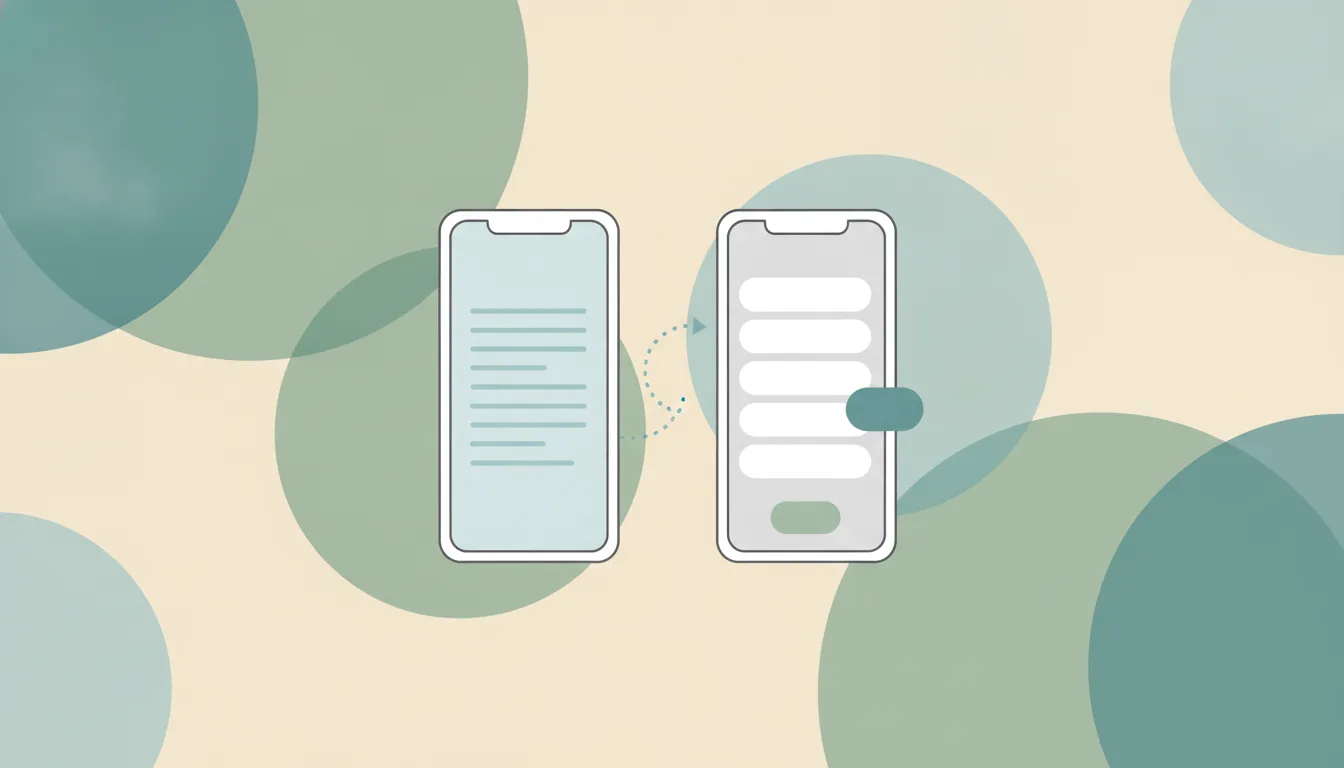
Gmail’s iPhone app got a quiet redesign in October 2026: a light grey background with every email on its own white card, pill-shaped swipe actions, a rounder Compose button, and new fonts and icons. Google hasn’t announced it. It shipped in version 6.0.260928 on October 5 under the usual “Bug fixes and performance improvements” note, and it’s reaching people in stages, so two iPhones on the same version can look different. There’s no setting to switch back. Gmail on a computer still has its old layout.
What changed in the Gmail iPhone app
Dutch site iPhoned spotted the new design first on October 12. The App Store version history shows 6.0.260928 on October 5, then 6.0.261005 and 6.0.261012, all with the same one-line note.
| Part of the app | What it looks like now |
|---|---|
| Inbox | Light grey background, each email on its own rounded white card instead of one white list |
| Swiping an email | The action shows as a rounded pill (red for delete) with a bouncier animation |
| Compose button | Still bottom right, now a soft rounded pill |
| Open email | Three dark blue buttons underneath: reply, forward and a quick reaction |
| Loading indicator | A circle with a small squiggle in it |
| Side menu | The selected item shows red text on a pink-red highlight |
| Fonts and icons | Restyled throughout |
What didn’t change: the tabs, the order of your mail, the search bar at the top, the menu items and the bottom bar. Everything is where it was. It just looks different.
The most common complaint, per Chrome Geek’s roundup of reactions on X, is that read and unread emails are now harder to tell apart, especially in dark mode. Some people also report the new look appearing and then vanishing, a sign Google is still switching it on and off for test groups.
Why Gmail looks different: the iPhone app is catching up to Android
Google hasn’t explained the change, but the new look matches Material 3 Expressive, the design Gmail on Android got first. Android Gmail started putting each email in its own container in September 2025, with the same bubbly swipe animations and prominent Reply and Forward buttons. The iPhone app had only taken the earlier step, a Material 3 refresh in April 2025 that brought the pill-shaped search bar and swapped the red accent for blue.
So if you use Gmail on an Android phone too, the new iPhone look should feel familiar.
Other things that changed in Gmail on iPhone this year
The card redesign is the newest change, but not the only one. If your Gmail looks different and none of the above matches, it’s probably one of these:
- A new app icon. Google replaced its Workspace icons with gradient versions and rolled them out on iPhone on May 27. Gmail is the one app that kept all four Google colors.
- An AI Inbox tab in the bottom bar. If you pay for Google AI Plus, Pro or Ultra in the US, the bottom bar has a fourth tab between Mail and Chat, and AI Inbox also sits under Inbox in the side menu. It opens a page of suggested to-dos and topics to catch up on, pulled from your email. It started rolling out to paid Google Workspace accounts on October 12, with a second wave from October 26. It’s US English only.
- A Live button in the search bar. That’s Gmail Live, which lets you ask questions about your inbox out loud and hear the answer. It became generally available on September 3 for Google AI Plus, Pro and Ultra subscribers.
- Blue stars. Google confirmed in September that it changed the default star and “Important” marker from yellow to blue “to meet modern accessibility standards.” On iPhone, the star has already turned blue.
Is Gmail on desktop changing too?
Not the card look. As of October 25, Gmail in a web browser keeps its familiar layout, and Google hasn’t said whether the grey-and-cards design is coming to the computer.
Three things did change on the web this year:
- Blue stars and Important markers. To get yellow stars back, go to Settings → See all settings → General → Stars and drag the yellow star to the front of the “In use” row. Mail you already starred stays blue until you star it again. The Important marker’s color can’t be changed. You can only hide it, under Settings → See all settings → Inbox → Importance markers → No markers.
- AI Inbox in the left menu, for the same paid accounts that get it on the phone.
- The new gradient Gmail icon in Google’s app launcher.
Can you switch back to the old Gmail design on iPhone?
No. There’s no toggle, and the App Store doesn’t let you install an older version of an app. If you were in a test group and the new look disappeared, it may come back as Google widens the rollout.
You can send Google feedback from inside the app under Menu → Help & feedback. If you’d rather not use the Gmail app at all, your Gmail account also works in Apple’s Mail app. See Gmail alternatives for other options.
Settings that make the new Gmail easier to read
All of these are in Google’s own help pages for inbox type and app settings on iPhone.
- Put unread mail first. Tap Menu → Settings, then under Inbox tap Inbox type → Unread first. Gmail splits your inbox into an Unread section on top and everything else below, which fixes the read-versus-unread problem outright.
- Change what a swipe does. Menu → Settings → Inbox customizations → Mail swipe actions. Set the left and right swipe separately: Archive, Trash, Mark as read/unread, Snooze, Move to or None.
- Turn off sender images. Switch off Show Sender Images in Settings and each email gets a plain checkbox instead of a round photo, which tightens the list.
- Hide the bottom bar while you scroll. Turn on Hide bottom navigation in Settings for more room on screen.
- Try light mode. Gmail on iPhone has no theme setting of its own. It follows your phone’s Dark Mode, so switch to Light under Settings → Display & Brightness on the iPhone if the grey cards are hard to read at night. This changes every app, not just Gmail.
Let Carly sort your Gmail before you open it
A new coat of paint doesn’t make the inbox any shorter, and the main complaint about this one is that you can’t see what’s new at a glance. Carly fixes that at the source. Connect your Gmail, write your rules in plain English, and Carly labels and sorts every email the moment it arrives, the same way every time:
- “Label anything from a client Clients and leave it in my inbox.”
- “Move receipts and shipping updates to Receipts and mark them read.”
- “Text me when Emily from accounting replies.”
Carly’s labels show up in the Gmail app’s side menu like any other, so the inbox you open on your iPhone is already down to what needs you. You can also skip the app entirely: text Carly “anything from Josh today?” and get the answer back by text, or ask inside ChatGPT, Claude, Grok Bot, Meta Muse or Perplexity, where Carly plugs in as a connector. It works with Gmail and Outlook side by side, and with thousands of other apps. Get started with Carly.
FAQ
Why does my Gmail app look different?
Google is rolling out a new design to the Gmail iPhone app, starting with version 6.0.260928 on October 5, 2026. Emails now sit on white cards over a grey background, with pill-shaped swipe actions and a rounder Compose button. The layout, tabs and settings are the same.
Why does my Gmail look different from someone else’s?
Google turns the redesign on in stages, so two iPhones on the same app version can show different designs. Some people have seen it appear and then disappear while Google tests it.
Can I get the old Gmail look back on my iPhone?
No. Gmail has no setting to restore the old design, and the App Store doesn’t allow installing an older version. Setting your inbox type to Unread first and turning off sender images make the new design easier to scan.
Did the Gmail app change on Android too?
Android got the same card-style look first, starting in September 2025 as part of Google’s Material 3 Expressive redesign. The iPhone app is catching up to it.
Why are my Gmail stars blue now?
Google changed the default star and Important marker color from yellow to blue in September 2026, citing accessibility. On a computer you can pick the yellow star again under Settings, See all settings, General, Stars.
What is the AI Inbox tab in Gmail?
AI Inbox is a Gemini-powered view that lists suggested to-dos and topics to catch up on from your email. It’s available to Google AI Plus, Pro and Ultra subscribers in the US and, since October 2026, to paid Google Workspace accounts in the US. In the app it sits in the side menu under Inbox, and for AI subscribers also as a tab in the bottom bar.
Is the new Gmail design on desktop?
Not yet. As of October 25, 2026, the grey-and-cards design is only in the phone apps. Gmail on the web got blue stars, the new icon and, for paid accounts, AI Inbox, but its layout hasn’t changed.
More on Gmail: Gemini in Gmail · How to create labels in Gmail · How to create filters in Gmail · How to mark all as read in Gmail · How to clean up your Gmail inbox · Best AI assistants for Gmail
Ready to automate your busywork?
Carly schedules, researches, and briefs you—so you can focus on what matters.
See what people say
"Before Carly, I relied on a Calendly link, but the whole process felt impersonal and not very professional. Carly changed that by handling all the back-and-forth, so I'm no longer stuck in endless email threads trying to line up schedules.
Now Carly reaches out to candidates, shares my real-time availability, lets them pick a slot, then sends a Zoom link and drops it straight into my calendar. She sends reminders to both of us before each call, which has significantly reduced no-shows and last-minute confusion.
On top of scheduling, Carly acts like a full executive assistant, sending me my schedule the night before so I can prepare for each call. It reminds me of the old x.ai assistant, but Carly is noticeably smarter, faster, and better suited to my healthcare recruitment business."