How to Categorize Emails in Gmail (Tabs, Categories, Labels — 2026)
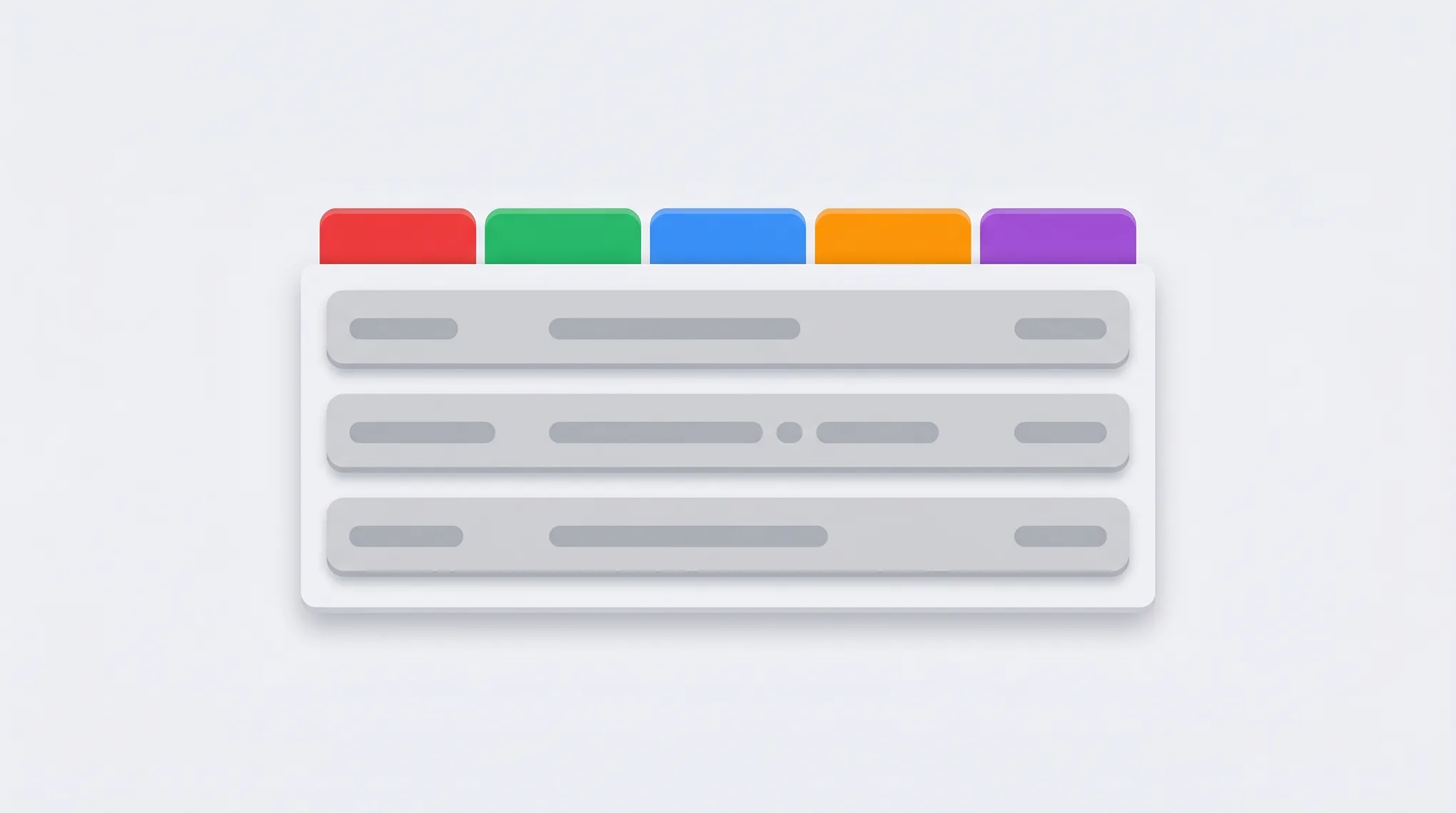
Gmail’s five default tabs — Primary, Promotions, Social, Updates, Forums — automatically sort incoming mail by type. They’re not the same as labels: categories are mutually exclusive, ML-classified, and you can’t create custom ones. Here’s how to enable, manage, and train them.
1. The Five Default Tabs
| Tab | What it catches |
|---|---|
| Primary | Personal email and anything not classified elsewhere |
| Promotions | Marketing, deals, newsletters, offers |
| Social | Notifications from social networks (Facebook, LinkedIn, X, Instagram) |
| Updates | Receipts, confirmations, statements, automated notifications |
| Forums | Mailing lists, Google Groups, online discussion |
There are no other categories. Gmail won’t let you create custom ones — categories are different from labels, which support unlimited custom tags.
2. Enable or Disable Tabs on Web
- Click the gear icon (top-right) → See all settings.
- Click the Inbox tab in the settings ribbon.
- Find the Categories section.
- Tick or untick Social, Promotions, Updates, Forums. Primary can’t be unchecked — it’s always on.
- Scroll down and click Save Changes.
Gmail reloads and the inbox shows your selected tabs across the top.
3. Manage Tabs on iOS
- Open the Gmail app.
- Hamburger menu (☰) → Settings.
- Tap your account.
- Inbox customizations → Inbox categories.
- Tap each category to enable or disable it.
4. Manage Tabs on Android
- Open the Gmail app.
- Hamburger menu → Settings.
- Tap your account.
- Inbox type → ensure Default Inbox is selected → back arrow.
- Inbox categories → check or uncheck each.
If Inbox type is set to anything else (Important first, Unread first, Priority Inbox), categories aren’t shown.
5. Move an Email Between Categories
When Gmail miscategorizes a message:
Web:
- Drag the email from the inbox list onto a different tab.
- A toast appears at the bottom: “This conversation has been moved to <Tab>. Do this for all future messages from <sender>?”
- Click Yes to train the filter.
Or right-click the message → Move to tab → pick destination.
Mobile:
- Open the email.
- Three-dot menu → Move to.
- Select the destination category.
The “do this for future” prompt appears on mobile too — tap Yes to train.
6. Force-Categorize via Filter
The training prompt only triggers for sender-level patterns. To force a category for a sender, subject, or keyword:
- Click the sliders icon in the search bar.
- Enter criteria (From, Subject, Has the words).
- Click Create filter.
- Tick Categorize as → choose Promotions, Social, Updates, Forums, or Personal.
- Optionally tick Apply filter to <N> matching conversations to retroactively recategorize.
- Create filter.
See how to create filters in Gmail for more.
7. Categories vs Tabs vs Labels
This trips up almost everyone:
- Category: an auto-applied label with the prefix
Category/internally (e.g.,Category/Promotions). One per message. - Tab: the inbox UI surface displaying a category. You can have a category active without showing the tab — useful on mobile.
- Label: a user-defined tag. A message can have many labels at once and they survive being moved between categories.
Disabling a tab does not stop categorization. Gmail still applies the Category/Promotions label internally — search operators (section 11) still work.
8. The Hidden Categories
Gmail has two hidden categories not exposed as tabs:
category:reservations— travel and event reservations. Surfaces in Gmail’s trip cards.category:purchases— receipts and order confirmations. Powers the Manage subscriptions view’s purchase-tracking.
These work as search operators but you can’t move messages into them or display them as tabs. They’re driven by Gmail’s content classifiers and feed Google’s automatic Trips and Manage subscriptions surfaces.
9. The 250,000-Message Limit
If your inbox has more than 250,000 messages, Gmail disables the Categories toggle entirely. The Inbox section in Settings still shows the category checkboxes but they’re greyed out.
To enable categories on a giant inbox:
- Mass delete or archive old messages until the inbox drops below the cap.
- Toggle on Inbox categories in Settings.
10. The 2025–2026 AI Layer
Categories now interact with several Gemini features:
- Gemini summary cards at the top of long Updates-tab threads — purchases, deliveries, travel — replaced the older “Top picks” cards from 2024. Available to all users at no cost; “Ask your inbox” follow-up questions require AI Pro or Ultra.
- Manage subscriptions is technically a filtered slice of
category:promotionsplus List-Unsubscribe-bearing senders. See how to unsubscribe from emails in Gmail. - Relevance search (March 2025): Gmail switched search default to a relevance-based ML model. Search results within a category are now sorted by relevance unless you append
sort:date(web only; mobile still defaults to chronological). - Side menu redesign (Android, January 2025): categories collapse into a Categories group rather than each being a separate sidebar item.
11. Useful Search Operators
category:primary— direct human emailcategory:social— social notificationscategory:promotions— marketingcategory:updates— receipts and notificationscategory:forums— mailing listscategory:reservations— hidden travel categorycategory:purchases— hidden receipts categorycategory:promotions older_than:30d— old marketing for cleanupcategory:updates from:noreply— automated noisecategory:primary in:inbox is:unread— actually-important unread emails
12. Limitations
- No custom categories — five (or seven counting hidden) are the entire set.
- Re-bucketing existing mail isn’t automatic — toggling categories back on doesn’t re-classify history. Use a filter with Apply filter to N matching conversations to retroactively categorize.
- Inbox tabs interact with Multiple Inboxes: if you’ve enabled Multiple Inboxes (Settings → Inbox → Inbox type → Multiple inboxes), the Categories tabs disappear.
- Workspace admin override: admins can disable categorization tenant-wide via Admin Console → Apps → Gmail → User settings → Inbox features.
13. Quick Reference
| Goal | Action |
|---|---|
| Enable / disable tabs (web) | Settings → Inbox → Categories |
| Enable / disable tabs (iOS) | Settings → Inbox customizations → Inbox categories |
| Enable / disable tabs (Android) | Settings → Inbox type → Default → Inbox categories |
| Move one email | Drag to tab, or right-click → Move to tab |
| Train all future from sender | Click Yes on the “Do this for future messages?” prompt |
| Force a category | Filter → Categorize as |
| Find old promo emails | Search category:promotions older_than:90d |
| Hidden travel category | Search category:reservations |
If sorting your inbox by category is a coping mechanism for too much email, Carly is an AI assistant that triages, drafts replies, and schedules in Gmail — so the categorization is done for you and only the emails that need a human get one.
More on Gmail: How to create labels in Gmail · How to create filters in Gmail · How to mass delete emails in Gmail · How to unsubscribe from emails in Gmail · Best email management tools
Ready to automate your busywork?
Carly schedules, researches, and briefs you—so you can focus on what matters.
See what people say
"Before Carly, I relied on a Calendly link, but the whole process felt impersonal and not very professional. Carly changed that by handling all the back-and-forth, so I'm no longer stuck in endless email threads trying to line up schedules.
Now Carly reaches out to candidates, shares my real-time availability, lets them pick a slot, then sends a Zoom link and drops it straight into my calendar. She sends reminders to both of us before each call, which has significantly reduced no-shows and last-minute confusion.
On top of scheduling, Carly acts like a full executive assistant, sending me my schedule the night before so I can prepare for each call. It reminds me of the old x.ai assistant, but Carly is noticeably smarter, faster, and better suited to my healthcare recruitment business."