How to Unsubscribe from Emails in Gmail (Manage Subscriptions, 2026)
Gmail’s new Manage subscriptions view (rolled out July 2025) made unsubscribing dramatically easier than it used to be — but the one-click unsubscribe header has been around longer and works on most marketing email. Here’s every native and third-party option for cleaning up unwanted senders.
1. The One-Click Unsubscribe Link
When a sender includes the RFC 8058 List-Unsubscribe and List-Unsubscribe-Post: List-Unsubscribe=One-Click headers, Gmail surfaces an Unsubscribe link right next to the sender’s name at the top of any opened email.
- Open the email.
- Click Unsubscribe next to the sender’s name.
- A small confirmation dialog appears. Click Unsubscribe.
Gmail sends a POST request to the sender on your behalf — no redirect, no extra clicks.
Senders are required by Gmail and Yahoo’s bulk-sender rules (in force since February 2024) to honor it within 48 hours. Microsoft began enforcing the same standard May 5, 2025 with 550 5.7.515 rejections for non-compliant bulk senders.
2. The New Manage Subscriptions View
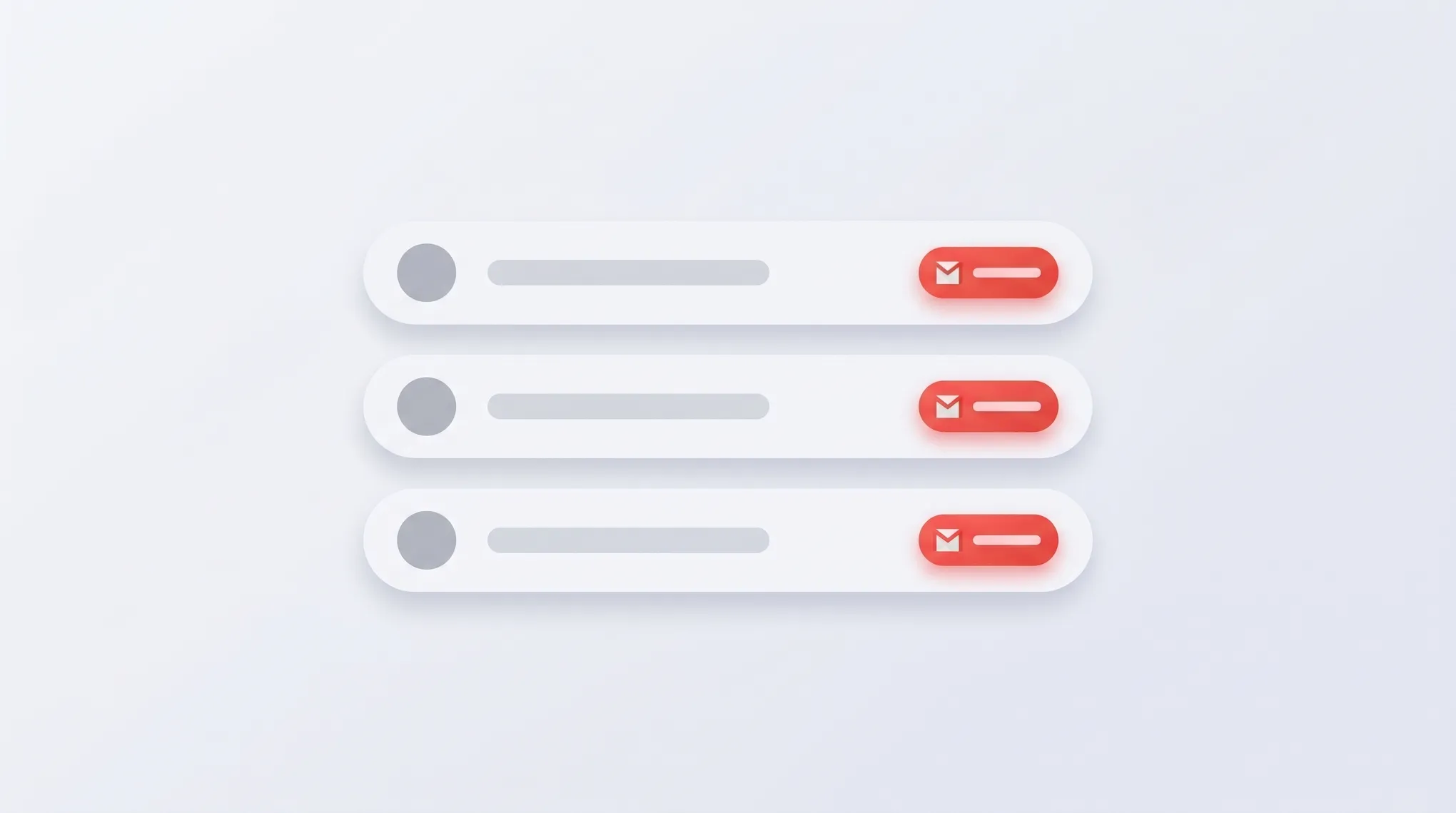
Gmail’s biggest 2025 anti-clutter feature. Lists senders sorted by frequency with one-click unsubscribe.
Web access:
- Click the hamburger menu (☰) in the top-left of Gmail web.
- Click Manage subscriptions in the left nav (sits below Inbox, Starred, Snoozed).
- Senders are sorted by “most frequent” with a count of emails received in the past few weeks.
- Click Unsubscribe on any row.
Mobile access:
- Tap the hamburger menu (☰).
- Tap Manage subscriptions.
- Tap Unsubscribe next to any sender.
The mobile UI matches web. Manage subscriptions rolled out to web on July 8, 2025, Android on July 14, and iOS on July 21, with up to 15-day gradual rollouts. By late 2025 it’s broadly available on consumer and Workspace.
3. Manual Unsubscribe via Footer Link
Older emails or non-compliant senders may not have the RFC 8058 header. The fallback:
- Scroll to the email footer.
- Click the small unsubscribe hyperlink.
- The sender’s web form opens. You may need to:
- Re-confirm your email address
- Choose reasons for unsubscribing
- Log in (rare)
- Click a final confirmation link
Slower and less reliable than the one-click. Some senders don’t honor manual unsubscribes at all — those should be reported as spam.
4. Promotions Tab Shortcuts
If you have the Promotions tab enabled, each promotional email shows an inline Unsubscribe link at the bottom-right of its preview card. One click, same RFC 8058 mechanism.
To enable the Promotions tab: Settings → See all settings → Inbox → Categories → Promotions.
5. Mark as Spam Instead
For malicious or non-compliant senders, Report spam is more effective than unsubscribing. Clicking unsubscribe on a fake sender confirms a working email — they’ll add you to more lists.
To report:
- Web: open the email → click the Report spam icon (octagon with exclamation) at the top of the message.
- Mobile: open the email → three-dot menu → Report spam.
Spam-marking signals Google Postmaster Tools, hurting the sender’s reputation across all Google domains. For obviously legitimate senders you used to want, prefer Unsubscribe; for senders you never opted into, prefer Spam.
6. Bulk-Unsubscribe via Filters
To stop a high-volume sender from reaching your inbox without manually clicking every email:
- Click the sliders icon in the search bar.
- Set From to the sender’s email or domain (e.g.,
*@vendor.com). - Click Create filter.
- Tick:
- Skip the Inbox (Archive it) — quietest option.
- Delete it — most aggressive.
- Apply the label + a label called “Newsletters” if you still want to read sometimes.
- Tick Apply filter to <N> matching conversations to retroactively clean existing emails.
- Create filter.
See how to create filters in Gmail for the full filter mechanics.
7. Mass-Mark Promotions as Spam
The bluntest cleanup. Trains Gmail’s classifier and stops most senders even if they ignore unsubscribe.
- Search:
category:promotions older_than:6m. - Click the master checkbox at the top-left of results.
- Click the blue banner: Select all conversations that match this search.
- Click the Report spam icon.
Caveat: this also flags some legitimate senders. Review your Spam folder for a week afterward to whitelist anything you actually want.
8. When Unsubscribe Doesn’t Work
- Past 48 hours and still emailing: report the sender via Gmail’s feedback tool (Help → Send feedback) and via the FTC at reportfraud.ftc.gov.
- Workspace customers: report via Admin Console → Apps → Gmail → Reporting or use the Phishing/Security tab in Vault.
- Sender uses a different “from” address each time: filter by domain (
from:*@spammer-net.com) instead of by exact address, or filter by subject pattern. - Unsubscribe page asks you to log in: reputable senders never do this. It’s almost always a phishing attempt — report as spam instead.
9. Third-Party Unsubscribe Tools
A few exist, with privacy tradeoffs:
- Unroll.me — free; the 2017 NYT exposé revealed parent Slice Technologies was reading message bodies and selling anonymized data. The FTC settled in 2019. Their current Privacy Notice still discloses data-monetization for “advertising products, measurement products, and datasets.” Avoid for sensitive accounts.
- Leave Me Alone — paid, no data resale.
- Clean Email — paid, no data resale.
- Newmail — paid, no data resale.
Gmail’s native Manage subscriptions has eliminated most reasons to use a third-party tool for consumer accounts.
10. Workspace Admin Restrictions
Admins can disable third-party app access via Admin Console → Security → API controls → App access control — blocking Unroll.me-style services from connecting to Gmail accounts.
The native Manage subscriptions feature is on by default for all Workspace tiers and has no admin toggle.
11. Useful Search Operators
unsubscribe— full-text, very high recall for marketing email.category:promotions older_than:90d— old marketing.from:newsletter@— newsletter-pattern senders.list:— matches the List-ID header (e.g.,list:offers.somesender.com).
12. Quick Reference
| Goal | Action |
|---|---|
| One-click unsubscribe | Click Unsubscribe next to sender’s name |
| See all subscriptions in one place | Hamburger → Manage subscriptions |
| Stop receiving without unsubscribing | Filter → Skip the Inbox |
| Unsubscribe link doesn’t work | Mark as spam |
| Mass cleanup | Search category:promotions older_than:6m → select all → Spam |
| Block specific sender | Block in Gmail |
If your inbox is full of email you didn’t sign up for, Carly is an AI assistant that triages and replies in Gmail — so the messages that matter stop getting drowned out by the noise.
More on Gmail: How to block emails in Gmail · How to create filters in Gmail · How to mass delete emails in Gmail · How to categorize emails in Gmail · Best email management tools
Ready to automate your busywork?
Carly schedules, researches, and briefs you—so you can focus on what matters.
See what people say
"Before Carly, I relied on a Calendly link, but the whole process felt impersonal and not very professional. Carly changed that by handling all the back-and-forth, so I'm no longer stuck in endless email threads trying to line up schedules.
Now Carly reaches out to candidates, shares my real-time availability, lets them pick a slot, then sends a Zoom link and drops it straight into my calendar. She sends reminders to both of us before each call, which has significantly reduced no-shows and last-minute confusion.
On top of scheduling, Carly acts like a full executive assistant, sending me my schedule the night before so I can prepare for each call. It reminds me of the old x.ai assistant, but Carly is noticeably smarter, faster, and better suited to my healthcare recruitment business."