How to Connect Multiple Google Drive Accounts to ChatGPT
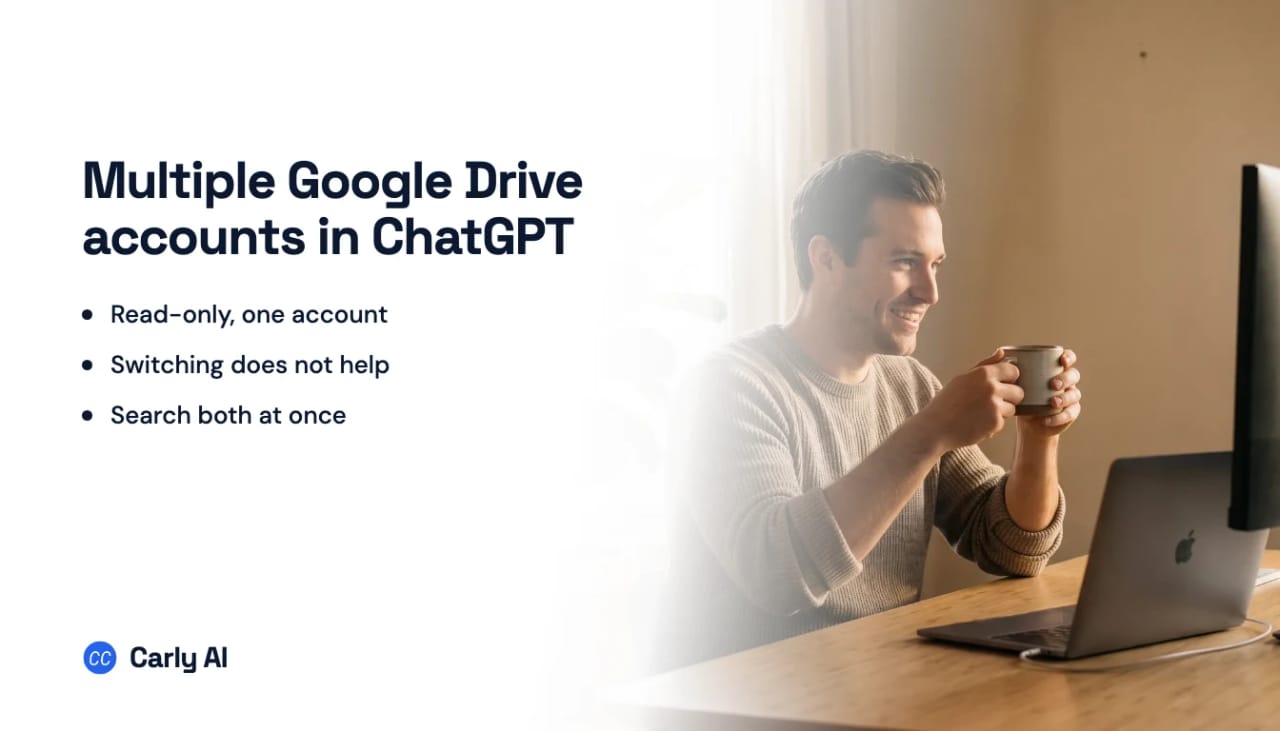
ChatGPT’s Google Drive connector started as one Google account, and OpenAI has not said whether that changed. The August 2026 multi-account release covered Gmail, Google Calendar and Google Contacts and left Drive out. The September 17, 2026 follow-up extended multiple accounts to plugins beyond those three, on every plan, but named none, so whether your personal Drive and work Drive can both answer the same question natively is a gear-icon check on the connection. Carly holds your OneDrive accounts, and every mailbox and calendar on both sides, in the same place.
Here is what the connector does, why the obvious workarounds fail, and how to get both Drives into one chat.
1. Add your Google Drive accounts to Carly
- Sign in at carlyassistant.com.
- Open carlyassistant.com/integrations.
- Find Google Drive, click Connect, and authorize the Drive.
- Click Connect again for the next one, and keep going for as many Drives as you want.
On a managed Google Workspace account, an administrator may need to approve the connection. Ask early rather than at the end.
Each Drive stays its own account with its own folders and permissions.
Carly connects to thousands of apps, so while you are on that page you can add your inboxes, calendars, CRM, and anything else you want ChatGPT to reach through the same connector.
2. Add Carly to ChatGPT
Click Get the Carly plugin, add it, and sign in with the Carly account holding the Drives.
OpenAI’s Apps in ChatGPT guide explains that plugins are the discovery surface while apps and connectors supply the underlying tools. If the Carly plugin won’t add, a workspace administrator may need to enable plugins.
What the Drive connector does per account
ChatGPT can search your Drive by description rather than folder path, read and summarize documents, and answer across several files at once with the source cited. The synced connector indexes selected content so search-style questions come back quickly.
OpenAI’s account switcher keeps several ChatGPT logins available, but their chats, files, memory, and connected apps stay separate. That is the design. It means a second Google Drive lives in a second ChatGPT session, which is exactly the thing you were trying to avoid.
Native connector versus Carly in ChatGPT
| Need | ChatGPT’s Drive connector | Carly plugin |
|---|---|---|
| Search one Google Drive | Yes | Yes |
| Hold several Google identities at once | No | Yes |
| Compare files across two Drives in one chat | No | Yes |
| Upload, move, rename, or organize | Yes, with approval | Yes |
| Act when a file arrives | No | Yes |
| Run the same work outside ChatGPT | No | Yes |
The account line is the one people underestimate, now that the write limit has gone. Finding the contract is the easy half. Filing it against the right client, in the right Drive, logging it, and telling the deal owner is the half that repeats fifty times a month, and it needs both a trigger and more than one account.
Carly fires on the event itself and runs in the cloud, so an attachment that arrives overnight is saved to the right folder in the right Drive and logged before you open your laptop. Free Zapier-style workflows; AI agents from $35/month. Connect it on the integrations page, or start with Google Drive.
Quick fixes when a Drive does not appear
| Problem | Fix |
|---|---|
| The same Google account connected twice | Remove the duplicate and reconnect with Use another account |
| Workspace blocks authorization | Ask the Workspace administrator to approve Carly |
| The Carly plugin won’t add | Ask the ChatGPT workspace admin to enable plugins |
| ChatGPT searches the wrong Drive | Use the full address and require source attribution |
| Carly is connected but ignored | Make it available to the current conversation |
Frequently asked questions
Can ChatGPT connect two Google Drive accounts natively?
No. The Google connector reaches the one Google account you connect, and connecting another replaces it.
Does the ChatGPT account switcher give me two Drives?
Not usefully. Each ChatGPT login keeps its own connected apps, so you get two sessions rather than one assistant that can see both Drives.
Can ChatGPT organize files in Drive?
Yes. Drive actions create, update, share, move, upload, copy, and delete files, with approval prompted for anything meaningful. They are on by default on Business and enabled by an admin on Enterprise and Edu.
Does this copy files between accounts?
No. The Drives stay separate. Carly routes each request to the account you name.
Related: ChatGPT + Google Drive · ChatGPT + OneDrive · Multiple Gmail accounts in ChatGPT · Multiple Google Drive accounts in Claude · Best AI assistants for multiple Gmail accounts
Ready to automate your busywork?
Carly schedules, researches, and briefs you—so you can focus on what matters.
See what people say
"Before Carly, I relied on a Calendly link, but the whole process felt impersonal and not very professional. Carly changed that by handling all the back-and-forth, so I'm no longer stuck in endless email threads trying to line up schedules.
Now Carly reaches out to candidates, shares my real-time availability, lets them pick a slot, then sends a Zoom link and drops it straight into my calendar. She sends reminders to both of us before each call, which has significantly reduced no-shows and last-minute confusion.
On top of scheduling, Carly acts like a full executive assistant, sending me my schedule the night before so I can prepare for each call. It reminds me of the old x.ai assistant, but Carly is noticeably smarter, faster, and better suited to my healthcare recruitment business."