How to Connect Multiple Outlook Calendars to Grok Bot
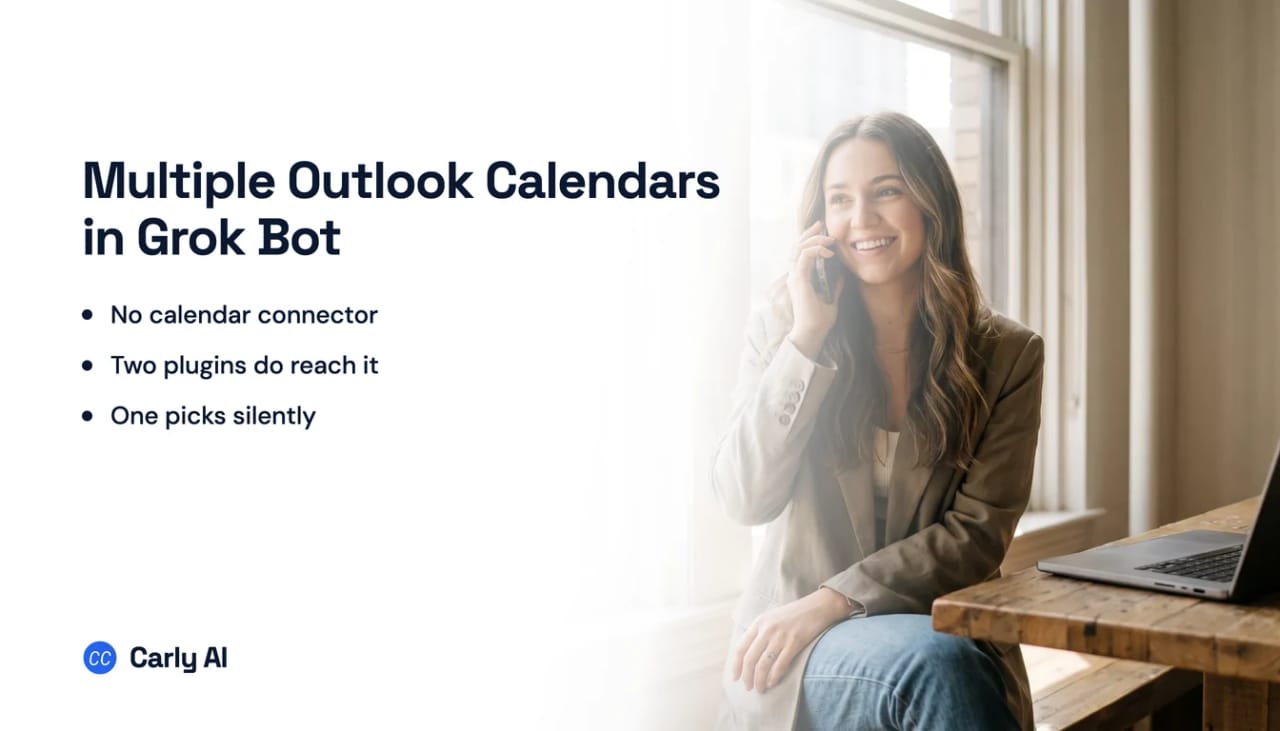
Carly connects every Outlook calendar you own, and one Grok Bot conversation works across all of them. Connect them at carlyassistant.com, add Carly to Grok Bot once, and your Google calendars and every mailbox on both sides come with it. Grok Bot got a first-party Outlook Calendar plugin on Aug 27, 2026, and it signs in a single Microsoft account. The older routes are still there below, and they are worse than they look: two aggregator plugins reach Outlook Calendar with full create, update, delete and RSVP verbs, but neither was built to hold two accounts and one of them quietly picks the wrong one.
One orientation note first, because it is the mistake most readers arrive with. “Grok” names three separate products: the consumer assistant at grok.com, Grok Bot, the desktop and iOS app whose agents work on a shared cloud computer, and the Grok API. This page is about Grok Bot. The consumer app has a genuine first-party Outlook Mail and Outlook Calendar connector, documented, self-serve, on every tier. None of that applies here. Different docs, different account system, different plumbing. If you want that one, read multiple Outlook accounts in Grok instead.
1. Add your Outlook calendars to Carly
- Sign in at carlyassistant.com.
- Open carlyassistant.com/integrations.
- Find Outlook Calendar, click Connect, and authorize the calendar.
- Click Connect again for the next one, and keep going for as many calendars as you want.
Carly connects to thousands of apps, so while you are on that page you can add your inboxes, files, CRM, and anything else you want Grok Bot to reach through the same connector.
2. Add Carly to Grok Bot
- Select Plugins in the Grok Bot sidebar, or tap your avatar and choose Plugins on mobile.
- Add Carly’s remote MCP server,
https://carlyassistant.com/mcp/. - Finish the authorization in the browser tab that opens. If it sits on Waiting for authorization, use Reopen.
- Sign in to the Carly account holding the connections above.
- Confirm Carly appears under Installed.
Grok Bot takes remote MCP servers rather than local ones, and Carly’s is hosted, so it qualifies. Plugin connections belong to your Grok Bot account rather than an individual Bot, and team plans inherit Cursor’s MCP policy, so an admin can gate it.
The Microsoft gap closed on Aug 27, and only partly
xAI publishes no Grok Bot connector catalogue at all. Across its entire Grok Bot documentation set the words Outlook, Microsoft, Office, Exchange, OneDrive and SharePoint do not appear once. Neither, for what it is worth, do Google or Gmail. The word calendar appears three times, all of it generic prose in a use-case example.
That is because the connector surface is not xAI’s. Grok Bot’s connectors appear as Plugins, and the catalogue behind them is Cursor’s: “Grok Bot follows your team’s existing Cursor plugin and MCP policy. There are no separate Grok Bot plugin controls.”
So the question becomes what Cursor ships, and the answer changed on Aug 27, 2026, when first-party Outlook, Outlook Calendar and OneDrive plugins were added to Cursor’s public plugin repository. They authenticate against Entra ID and run on Cursor’s own hosted MCP servers. They had not surfaced in the public marketplace listing the following day, so the install may not be in your Plugins screen yet.
What has not changed is the account count. Each of those plugins signs in one Microsoft account, the same way the Gmail plugin covers Google. And the gap is only half closed: SharePoint and Microsoft Teams still have no plugin in that repository at all.
The account-integration list looks like a way in. It is not.
Cursor keeps a second, separate list called account integrations, and Microsoft Teams is on it. That looks promising for about a minute.
The list is twelve items and enumerable in full: Slack, Microsoft Teams, Jira, Linear, Notion, GitHub, GitLab, Azure DevOps, Bitbucket, JetBrains, Xcode and Cursor Blame. No calendar of any kind.
More importantly, an account integration grants a different thing than a plugin does. Cursor’s own description of the Teams one: “you can use Cloud Agents to work on tasks directly from Microsoft Teams by mentioning @Cursor with a prompt.” Its setup asks you to connect a repository provider. Its capabilities are @Cursor [prompt], help, unlink, disconnect, plus reading thread context and posting result cards. Not one mail or calendar verb.
xAI draws the same line itself: “Cursor account integrations can start a routine from an event, such as a Slack message or a GitHub notification. They are separate from Slack or GitHub plugins and may require their own connection flow.”
So there are three tiers here, not two: a data connector, an invocation surface, and a trigger source. Microsoft’s only presence in Cursor’s world is a chat surface. Even if Outlook appeared on the account-integration list tomorrow, it would be a doorbell, not a calendar.
What actually reaches an Outlook calendar
Two approved marketplace plugins, both aggregators, both verified publishers.
Zapier ships an MCP plugin pointed at its own hosted server, described as connecting 9,000+ apps. Zapier publishes a machine-readable capability document for its Outlook app that names Cursor among its compatible MCP clients, and one of its two headline example actions is literally “Add Attendees to Calendar Event.” The calendar verbs it exposes are create event, update event, delete event, add attendees, find events, get events in a date range, and find events in a group calendar.
Composio ships a plugin described as connecting and operating 1000+ external apps with managed OAuth and tool routing. Its Outlook toolkit is far deeper: create, update, delete, cancel, accept and decline events, list calendars and calendar groups, list and create calendar permissions, snooze reminders, and search events.
⭐ One of those tools inverts the usual Google-versus-Microsoft story on this platform. Cursor’s Google Calendar plugin has no free/busy tool, and its time-suggestion tool requires you to supply attendee email addresses. Composio’s Outlook toolkit ships find-meeting-times, get-schedule and get-calendar-schedule. So the bare question “when am I free next week” is answerable on the Outlook path and not on the Google one. That is a genuine, narrow win for the Microsoft side, and it is the opposite of what the rest of this page would lead you to expect.
Both plugins are third-party routing layers rather than first-party connectors, which matters for two reasons. Neither declares a minimum client version, unlike the Google Calendar plugin, which is mildly in their favour. And Cursor’s own Zapier setup page carries a live caveat worth knowing before you blame yourself: some versions of Cursor have an OAuth issue that prevents authentication completing, and the fix is updating the client.
Two accounts: undocumented, and one route will silently pick for you
| Route | Two Outlook accounts? |
|---|---|
| First-party Outlook Calendar plugin | One Microsoft account, since Aug 27, 2026 |
| Cursor account integration | Not applicable, no calendar integration exists |
| Zapier plugin | Zapier supports several connected accounts; whether the agent can choose one per call is undocumented |
| Composio plugin | Documented mechanism, but at a layer this plugin may not use |
| Shared cloud browser | Reachable, explicitly not separable |
The Composio detail is the most useful sentence on this page. Composio documents that “users can connect multiple accounts for the same toolkit,” with an account parameter, renameable aliases, and a ceiling that defaults to five. But it also documents the default: “By default, each session uses one account per toolkit,” and when multi-account mode is off, “each session uses the most recently connected account for each toolkit.”
⚠️ So the failure mode is not an error message. It is silence. Authorize your work Outlook, then authorize a client’s, and the second one does not become a second calendar. It becomes the calendar, with nothing to tell you the first is no longer being read. Every one of Composio’s multi-account switches is set on a session you construct in code, and this plugin points at a shared hosted endpoint instead. Whether multi-account mode is enabled there is undocumented.
There is one encouraging signal. The plugin’s own connection-management tool lists connected accounts with IDs, aliases and statuses, and can rename and remove them, all from inside Grok Bot. Plural accounts are visible and addressable. Whether a per-call account selector is honoured is not written down anywhere. Name your connections before you add a second, and check which one answers before you trust a write.
The shared computer reaches Outlook on the web, and it is not a boundary
Grok Bot drives a real browser, and xAI is candid about what that buys: “Grok Bot can use many browser-based tools, including services without a dedicated connector. A site may still block automation, require a new login, present a CAPTCHA, or require human confirmation.” A Microsoft 365 sign-in hits three of those four. When it does, the documented behaviour is that the Bot hands the step back to you and you take over its computer.
The deeper problem is isolation. Every Bot on your account shares one computer: “Browser cookies and signed-in sessions are shared.” “The screens are separate work surfaces, not separate security boundaries.” And plainly: “Do not use separate Bots as a security boundary.” Installed connectors are account-wide too, and plugin connections “belong to the same account you used to sign in to Grok Bot.”
⭐ xAI’s own advice for keeping a service out of reach is telling: sign out of it when it should no longer be available. Signing out is the exact opposite of holding two calendars at once.
On whether one browser can hold two live Microsoft sessions at all, the honest answer is that Microsoft does not document it either way. The repeatedly-given answer on Microsoft’s community forum is that you cannot, with separate browser profiles named as the workaround, but that is a volunteer answer rather than vendor guidance and should be read as such. Note the trap it implies though: separate profiles are the standard fix everywhere else, and inside Grok Bot you do not own the browser profile. You borrow its one shared browser.
Nothing fires when a meeting moves
Grok Bot can react, within a developer-shaped world. Schedules for anything, plus Slack messages and GitHub notifications through Cursor account integrations, and the docs name no other event sources. Everything a business runs on, a deal moving, an invoice clearing, a form landing, sits outside it. Carly starts on all of those.
Grok Bot genuinely can start work on an event, which makes it an exception in this category. The exception just never covers a calendar. Its documented event vocabulary is a Slack message or a GitHub notification, and the troubleshooting page gives the game away by telling you to “confirm the source channel, repository, and matching rule are still valid.” Channels and repos. Not calendars.
The routine limits are worth knowing: fifty per Bot, twenty run records kept, a test run does real work rather than simulating it, and routines may be paused if you are away for a long stretch. xAI also advises against broad listeners such as “every new message.”
Both aggregators have real Outlook calendar triggers on their own side. Zapier watches for new, updated, cancelled and starting events; Composio has event and event-change triggers. Neither can start a Grok Bot routine. Zapier’s MCP surface is a fixed set of meta-tools and exposes no triggers at all, and Composio’s triggers deliver to a webhook you host. The events exist, and Grok Bot has no ear for them.
There is one bridge, and it is honest to call it a bridge rather than a solution: Zapier watches the calendar, posts to a Slack channel, and a Grok Bot routine fires on that Slack message. Two vendors and a channel deep, and it is the only way anything calendar-shaped starts work here.
Grok Bot versus Carly on Outlook calendars
| Need | Grok Bot | Carly |
|---|---|---|
| A first-party Outlook Calendar connector | Yes, holding one account | Yes, holding all of them |
| Reach a calendar at all | Via Zapier, Composio or the browser | Directly |
| Hold two Microsoft accounts at once | Undocumented, and one route defaults silently | Yes |
| Free/busy lookups | Yes, on the Composio path | Yes |
| Act when an event is created or moved | No calendar trigger | Yes |
| Run with nobody at the keyboard | Routines, on Slack and GitHub events | Yes |
Grok Bot earns real credit on two rows. Being able to start work from an event at all puts it ahead of most assistants in this category, and the Composio path’s free/busy tools genuinely beat what the Google side offers here. If your calendar life is one Microsoft account and you are content to reach it through an aggregator, it works.
Carly is built for the part that stays awkward. It connects all your accounts, so a work Outlook and a client’s Outlook sit side by side and one instruction covers all of them, rather than landing on whichever account you happened to connect last. It fires on the event rather than on a Slack message about the event: the invitation lands, the clash is caught, an alternative goes out before anyone has opened a chat window. And it does that without a shared machine holding every credential you own.
Free Zapier-style workflows; AI agents from $35/month. Connect it on the integrations page, or start with Outlook.
Quick fixes
| Problem | Fix |
|---|---|
| No Outlook Calendar plugin in the Plugins list | It shipped Aug 27, 2026 and may not have reached the marketplace listing yet; Zapier or Composio still work meanwhile |
| Authentication never completes on a plugin | Some Cursor versions have an OAuth bug; update the client and retry |
| The Bot answers about the wrong calendar | The most recently connected account is the default; rename your connections and name the target explicitly |
| A second Microsoft account seems to replace the first | That is the documented default behaviour with multi-account mode off, not a bug |
| Sign-in stalls mid-task | Expected. Take over the Bot’s computer, complete the sign-in, hand back |
| A colleague’s calendar is invisible | You can only share calendars you own; ask them to share theirs to your connected address |
| Nothing happens when a meeting moves | There is no calendar trigger. A Zapier-to-Slack bridge is the nearest thing |
Frequently asked questions
Does Grok Bot work with Outlook Calendar?
Yes, since Aug 27, 2026. Cursor added a first-party Outlook Calendar plugin, and Grok Bot draws its Plugins list from that catalogue. It holds one Microsoft account. The older routes still work for anything beyond that: the Zapier or Composio aggregator plugins, or driving Outlook on the web in the Bot’s shared browser.
Can I connect two Outlook calendars to Grok Bot?
Not in a documented way. The first-party plugin holds one Microsoft account. On the Composio path the default is one account per toolkit, and the most recently connected account wins silently, so a second authorization tends to replace the first rather than add to it. Carly holds all of them, which is the reliable version of this.
Is Microsoft Teams being on Cursor’s integration list a way in?
No. Account integrations are an invocation surface rather than a data connector: the Teams one lets you start a Cloud Agent by mentioning it with a prompt, and its setup asks for a repository provider. It carries no mail or calendar verbs.
Can Grok Bot react when a meeting is moved or cancelled?
No. Its routines can start from an event, which is unusual and worth crediting, but the documented event vocabulary is a Slack message or a GitHub notification. Both aggregators can watch an Outlook calendar on their own side, and neither can start a Grok Bot routine directly.
Which plan do I need?
Grok Bot access came with the top tiers at launch and widened on Aug 26, 2026 to every paid Cursor individual plan, Pro and Pro+ included, plus self-serve Teams and SuperGrok. It runs on macOS and Windows desktop and on iOS, with no Linux desktop, and Legacy Privacy Mode blocks it entirely.
Related: Multiple Outlook accounts in Grok Bot · Multiple Google Calendars in Grok Bot · Multiple Outlook calendars in Grok · What Grok Bot is · Outlook integration
Ready to automate your busywork?
Carly schedules, researches, and briefs you—so you can focus on what matters.
See what people say
"Before Carly, I relied on a Calendly link, but the whole process felt impersonal and not very professional. Carly changed that by handling all the back-and-forth, so I'm no longer stuck in endless email threads trying to line up schedules.
Now Carly reaches out to candidates, shares my real-time availability, lets them pick a slot, then sends a Zoom link and drops it straight into my calendar. She sends reminders to both of us before each call, which has significantly reduced no-shows and last-minute confusion.
On top of scheduling, Carly acts like a full executive assistant, sending me my schedule the night before so I can prepare for each call. It reminds me of the old x.ai assistant, but Carly is noticeably smarter, faster, and better suited to my healthcare recruitment business."