Connect Multiple Teams Accounts to Grok Bot
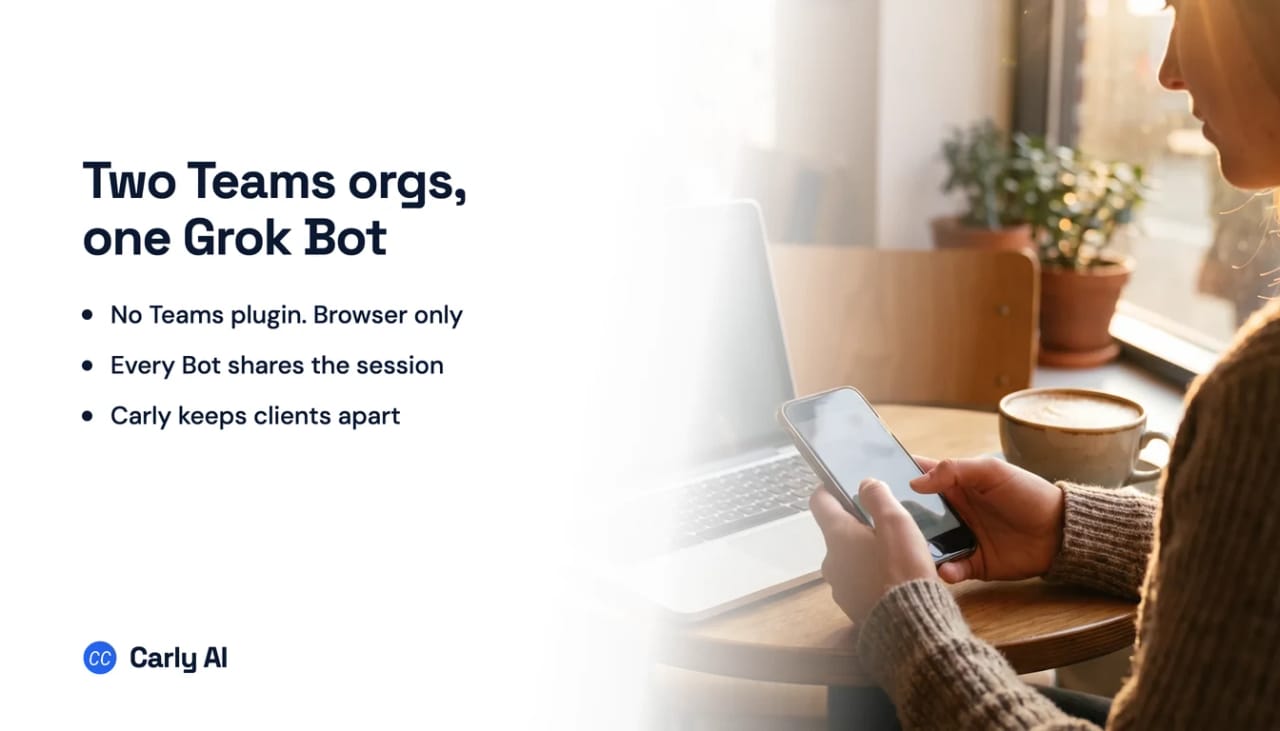
Grok Bot still has no Microsoft Teams plugin, even after Outlook, Outlook Calendar and OneDrive arrived on Aug 27, 2026, so the only way it reaches Teams is by signing in through the browser on its cloud computer. That works. The problem is what signing in means on that machine: xAI states that browser cookies and signed-in sessions are shared across every Bot on your account, and that the per-Bot screens are “not separate security boundaries.” Carly holds your Gmail and Outlook mailboxes and every calendar on both sides in the same place.
So the multi-account question inverts here. The obstacle is not that Grok Bot cannot hold two Teams organizations. It is that it holds them too well, in one place, with nothing separating them.
1. Add your Microsoft Teams accounts to Carly
- Sign in at carlyassistant.com.
- Open carlyassistant.com/integrations.
- Find Microsoft Teams, click Connect, and authorize the account.
- Click Connect again for the next one, and keep going for as many accounts as you want.
⚠️ Microsoft is stickier than Google here. It will silently reuse whichever account the browser already holds, so sign out of the Microsoft session between accounts or use a separate browser profile, and enter the next address deliberately. Confirm the account after each authorization. Re-authenticating against the same tenant twice is the usual way people end up with two connections to one organization and none to the second.
Carly connects to thousands of apps, so while you are on that page you can add your inboxes, calendars, CRM, and anything else you want Grok Bot to reach through the same connector.
2. Add Carly to Grok Bot
- Select Plugins in the Grok Bot sidebar, or tap your avatar and choose Plugins on mobile.
- Add Carly’s remote MCP server,
https://carlyassistant.com/mcp/. - Finish the authorization in the browser tab that opens. If it sits on Waiting for authorization, use Reopen.
- Sign in to the Carly account holding the connections above.
- Confirm Carly appears under Installed.
Grok Bot takes remote MCP servers rather than local ones, and Carly’s is hosted, so it qualifies. Plugin connections belong to your Grok Bot account rather than an individual Bot, and team plans inherit Cursor’s MCP policy, so an admin can gate it.
One orientation note, because “Grok” is three products
The name covers the consumer assistant at grok.com, Grok Bot, and the Grok API. They do not share a connector surface, and on Teams they differ sharply.
⭐ grok.com has a genuine Microsoft Teams connector. It searches channels and chats, reads messages, sends new messages, replies to threads and creates chats, and it is not plan-gated. If that is what you were looking for, the consumer Grok cell is the page you want.
Grok Bot does not inherit it. Grok Bot’s connectors are shown as Plugins under Settings, and they come from Cursor’s plugin marketplace rather than xAI’s connector catalog. That marketplace lists no first-party Microsoft Teams plugin.
Grok Bot was plan-gated in a way grok.com’s Teams connector is not, though that gap narrowed on Aug 26, 2026 when access widened to every paid Cursor plan.
The browser is the Teams path, and it is a real one
Grok Bot works from a persistent cloud computer with a browser, a command line and a shared file workspace, and xAI is clear that a browser is the intended fallback: “Use the browser for services without a connector or for visual workflows a connector does not expose.”
Teams is exactly that case. The Bot can open the Teams web client, sign in, read channels, and post like a person would. It survives your laptop closing, because the computer is in the cloud.
Two practical notes from xAI’s own documentation. Sensitive steps get handed back to you: the Bot will ask you to take over for “a password or passkey,” “two-factor authentication,” or “a CAPTCHA,” which describes a Microsoft sign-in fairly precisely. And sessions persist, so “you usually do not need to sign in for each task.”
Why two organizations is the wrong thing to worry about
Here is the part that makes this cell different from every other one in the row.
The Teams web client has an organization switcher. Microsoft built it years ago because consultants, contractors and agency staff live in several tenants at once. A browser-driving agent can use it. On paper, Grok Bot is the one host in this row that could reach two Teams organizations without asking anyone’s permission.
Now read what xAI says about the machine it would do that on:
“Every Bot on your account uses the same computer: browser cookies and signed-in sessions are shared. Files are visible to every Bot. Command-line credentials are shared. One Bot can continue from work another Bot saved.”
And, on the separation people assume exists:
“The screens are separate work surfaces, not separate security boundaries.”
And on connectors:
“Installed connectors are account-wide. Their availability is not isolated to one Bot.”
⚠️ Follow that through with a client’s Teams. You sign a Bot into your client’s tenant to pull a thread. That session now belongs to the computer, not to that Bot. The research Bot, the reporting Bot and anything else you have running can drive it. xAI’s own advice is the honest summary: “Do not place a credential or file on it if another Bot on your account should not be able to use it.”
For a consultant under a client confidentiality agreement, that is not a limitation to work around. It is a reason to keep the client’s Teams off that computer entirely.
| What you have | Native path in Grok Bot |
|---|---|
| One Teams organization | Browser sign-in, shared account-wide |
| A second organization | Possible through the Teams org switcher, in the same shared session |
| A client tenant under an NDA | Technically possible, and shared with every Bot on the account |
| A per-Bot boundary between clients | Does not exist. xAI says so directly |
| A first-party Teams plugin | None in Cursor’s marketplace |
Routines fire on Slack, not on Teams
A Grok Bot routine starts on a clock, or on a Slack or GitHub event routed through a Cursor account integration, which is a separate connection flow from the plugins of the same name. No CRM, no forms, no billing, no calendar. The documentation also tells you to avoid broad listeners, so even the events it has come with a caution attached. Carly watches all of the systems the work actually starts in.
Applied here, that is a pointed gap. Grok Bot is genuinely one of the few assistants in this category that reacts to events rather than only clocks, and Slack is one of the documented examples. A Teams message is not. So the same product that will wake up for a Slack thread will sleep through an @mention in a channel.
If your organization runs on Teams rather than Slack, the trigger story you may have read about Grok Bot does not apply to you.
Grok Bot versus Carly on Teams
| Need | Grok Bot | Carly |
|---|---|---|
| A first-party Teams connector | No | Yes |
| Read and post in Teams | Through the browser, as a signed-in person | Yes |
| Reach two organizations | Yes, in one shared session | Yes, as two named connections |
| Keep two clients separated | No. Sessions are account-wide | Yes |
| Work without a paid plan gate | No | Free workflows |
| Start when a Teams message arrives | No. Slack and GitHub only | Yes |
| Hand a client tenant to one agent only | No | Yes |
Grok Bot deserves real credit for the cloud computer. A persistent machine that keeps working after you close your laptop is a genuinely different product shape, and the browser fallback means it is never fully blocked by a missing connector.
Carly solves the separation problem that shape creates. Each Microsoft identity is its own authorization, so your company’s Teams and a client’s Teams stay individually addressable and individually revocable rather than becoming two cookies in one browser. And it runs on the event: the @mention lands, the escalation is spotted, the reply goes out, without a routine that only knows how to watch Slack.
Free Zapier-style workflows; AI agents from $35/month. Connect it on the integrations page, or start with Microsoft Teams.
Quick fixes
| Problem | Fix |
|---|---|
| No Teams plugin appears under Settings | Expected. The Aug 27 Microsoft plugins covered mail, calendar and OneDrive, not Teams |
| The Bot stalls at the Microsoft sign-in | By design. Open the computer, complete the password, passkey or two-factor step yourself, then tell the Bot to continue |
| Another Bot can see a client’s Teams | Also by design. Sessions and cookies are account-wide, and screens are not security boundaries |
| A routine never fires on a Teams message | Event triggers come through Cursor account integrations, and the documented examples are Slack and GitHub |
| Grok Bot is not available at all | It ships with every paid Cursor plan since Aug 26, 2026; on a paid plan, contact support |
| You wanted the Teams connector you read about | That is grok.com, a different product. Grok Bot does not inherit it |
Frequently asked questions
Does Grok Bot have a Microsoft Teams connector?
No. Grok Bot’s connectors appear as Plugins and come from Cursor’s plugin marketplace, which lists no first-party Microsoft Teams plugin. The consumer assistant at grok.com does have a full Teams connector, but Grok Bot does not inherit it.
Can Grok Bot use Teams through its browser?
Yes, and xAI recommends the browser for services without a connector. The Bot opens the Teams web client on its cloud computer and works as a signed-in person would, handing control back to you for the password, passkey or two-factor step.
Can Grok Bot hold two Teams organizations?
Technically yes, through the Teams organization switcher in the same browser session. The catch is that browser cookies and signed-in sessions are shared across every Bot on your account, and xAI states the per-Bot screens are not separate security boundaries.
Is it safe to sign a client’s Teams into Grok Bot?
Treat it as an account-wide credential rather than a per-Bot one. xAI’s own guidance is not to place a credential on the computer if another Bot on your account should not be able to use it, which is the relevant test for a client under a confidentiality agreement.
Can a Grok Bot routine start when a Teams message arrives?
No. Routines run on a schedule, or on an event arriving through a Cursor account integration where one is supported. Slack messages and GitHub notifications are the documented examples. Teams is not among them.
Related: Multiple Teams accounts in Grok · Multiple Outlook accounts in Grok Bot · Multiple Slack workspaces in Grok Bot · Best AI assistants for Microsoft Teams · Microsoft Teams integration
Ready to automate your busywork?
Carly schedules, researches, and briefs you—so you can focus on what matters.
See what people say
"Before Carly, I relied on a Calendly link, but the whole process felt impersonal and not very professional. Carly changed that by handling all the back-and-forth, so I'm no longer stuck in endless email threads trying to line up schedules.
Now Carly reaches out to candidates, shares my real-time availability, lets them pick a slot, then sends a Zoom link and drops it straight into my calendar. She sends reminders to both of us before each call, which has significantly reduced no-shows and last-minute confusion.
On top of scheduling, Carly acts like a full executive assistant, sending me my schedule the night before so I can prepare for each call. It reminds me of the old x.ai assistant, but Carly is noticeably smarter, faster, and better suited to my healthcare recruitment business."