How to Connect Multiple SharePoint Sites to Perplexity
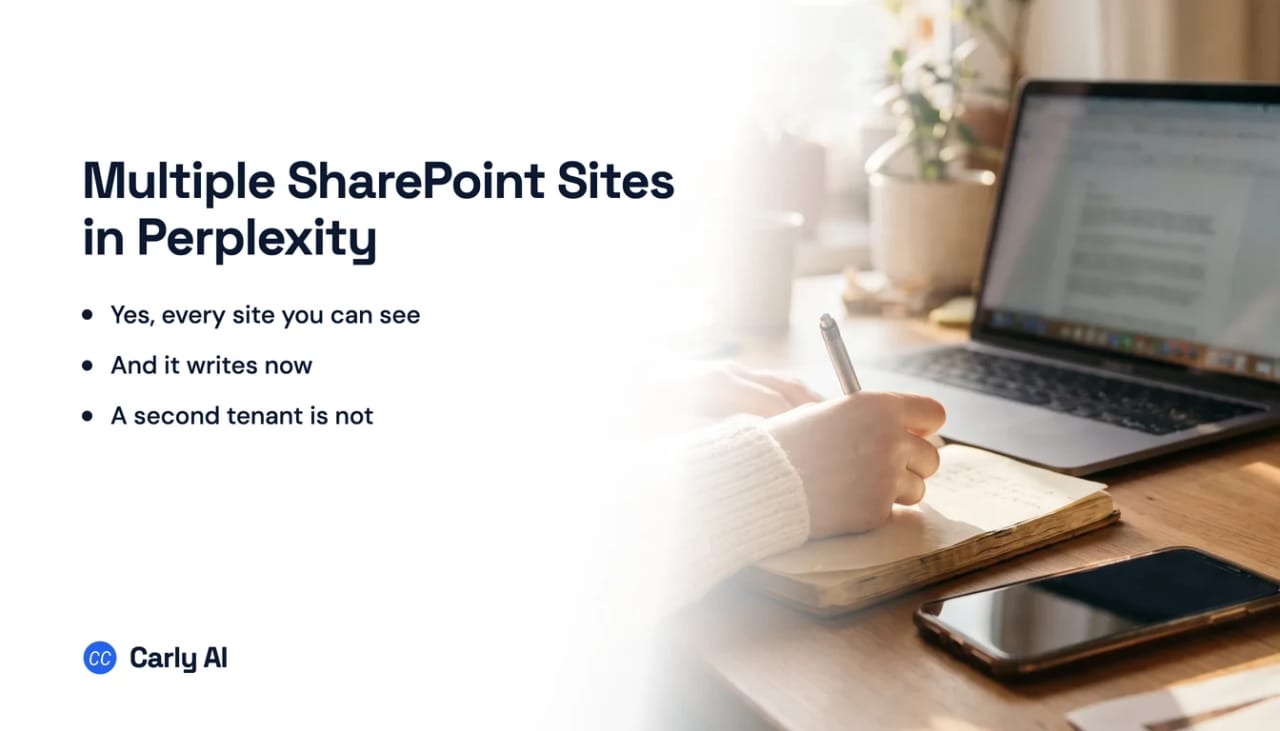
Perplexity’s Microsoft 365 connector searches “across every site and document library your Microsoft account has access to”, with no site-picker step, and it writes. That makes the many-sites question a clean documented yes, which is more than most assistants can claim. The wall is elsewhere: a second Microsoft tenant, which Perplexity has never written a sentence about in either direction. Carly holds your Gmail and Outlook mailboxes, both sets of calendars and your drives in the same place.
One naming change first, because it invalidates most of what is written about this online. Perplexity’s documentation now states: “SharePoint and OneDrive are now part of the Microsoft 365 connector.” There is no separate SharePoint tile any more. The Microsoft 365 connector covers SharePoint sites, document libraries, files, versions, sharing, Lists and site pages, plus your OneDrive personal drive and Excel workbook reads.
1. Add your SharePoint sites to Carly
- Sign in at carlyassistant.com.
- Open carlyassistant.com/integrations.
- Find SharePoint, click Connect, and authorize the site.
- Click Connect again for the next one, and keep going for as many sites as you want.
If the tile is missing entirely on Enterprise, your Perplexity administrator has disabled it. If you get “Needs admin approval”, that is the Entra gate instead.
On a client tenant where you are not the administrator, request approval early. That is usually the long pole.
Carly connects to thousands of apps, so while you are on that page you can add your inboxes, calendars, CRM, and anything else you want Perplexity to reach through the same connector.
2. Add Carly to Perplexity
- Open Settings → Connectors.
- Add a custom connector.
- Paste
https://carlyassistant.com/mcp/. - Authorize and sign in to the Carly workspace holding the tenants.
If your organization manages connectors centrally, an admin may need to allow it before it appears.
Narrow the tools before you write anything
Set Write / delete tools to Always ask while you learn what it does. Reads run freely, and anything that uploads, updates a list item, publishes a page or changes sharing pauses for confirmation. Individual tools override the group setting, so uploads can stay on Allow while sharing changes stay on Always ask.
The read-only framing is out of date
Third-party writeups still call Perplexity’s Microsoft connectors read-only, or Enterprise-only. Both were true of an earlier generation and neither is true now. Perplexity’s connector documentation names the write verbs in prose, which is the test that matters: a granted OAuth scope is not an exposed action, but a vendor describing the action is.
The connector is available on Pro, Max, Enterprise Pro and Enterprise Max, and it runs in the Perplexity web app on desktop browsers only. Perplexity states it is not supported in the Windows app, the Mac app, or on mobile. A connector that works in Chrome and then vanishes inside the desktop app reads like a bug, and it is documented behaviour.
They are separate, and diagnosing the wrong one wastes a day.
This is where Perplexity is better than its reputation. The documented behaviour is natural-language search “across every site and document library your Microsoft account has access to”. There is no setup step where you choose which sites count. Compare that with connecting multiple SharePoint sites to ChatGPT, where sites are selected during connector setup and anything you forgot is invisible until you go back.
Perplexity has never documented what happens when you want two Microsoft accounts on one Perplexity profile. A sweep of every English help-centre article turns up no connector-related mention of multiple accounts, second accounts, switching accounts or multiple tenants. That is silence, not a stated refusal, and it should not be reported as one.
Perplexity’s Scheduled Tasks are real, SharePoint is available to them, and they are schedules rather than triggers. Any recurring cadence works “as long as it runs no more often than once per hour”, and sub-hourly cadences are explicitly not supported. Each Computer conversation can own up to 15 scheduled tasks. Runs consume credits and are skipped if credits run out.
| What you have | Native path in Perplexity |
|---|---|
| Several sites in one tenant | Yes, searched automatically, no picker |
| A library someone shared with your account | Yes, if your account has access in SharePoint |
| Sites in a second Microsoft tenant | Not documented either way |
| A guest account in a client tenant | Inferred no, Graph keeps search tenant-bounded |
| Uploading files, updating Lists, publishing pages | Yes, documented write verbs |
| Creating share links, revoking access | Yes |
| Deleting an item | Group is named write/delete, no verb described |
| Acting when a document lands | Hourly schedule at best |
Perplexity versus Carly on SharePoint
| Need | Microsoft 365 connector | Carly |
|---|---|---|
| Search every site in one tenant | Yes, no picker | Yes |
| Hold two Microsoft tenants at once | Not documented | Yes |
| Upload files, update Lists, publish pages | Yes | Yes |
| Manage share links and revoke access | Yes | Yes |
| Per-tool Allow / Always ask / Disable | Yes, 55 tools | Approval on writes |
| Work in the desktop or mobile app | No, desktop web only | Yes |
| Act when a document lands | Hourly schedule floor | On the event |
| Chain a document into email, calendar and CRM | Inside a Perplexity task | Yes |
Perplexity earns the first rows outright. Searching every site an account can reach with no selection step beats the picker-based approach its rivals use, the write verbs are documented rather than implied, and a 55-tool permission panel with lockable Enterprise defaults is stronger governance than most assistants ship. If you live in one Microsoft tenant and you are happy in a browser, it is a good fit.
Carly is built for the two parts left over. It authorizes per identity, so your own tenant and a client tenant sit side by side as separate connections and one question can span both, with no guest-access workaround. And it fires on the document rather than on the hour: the signed contract lands, it is filed against the right client, the renewal date reaches a calendar, the account owner gets a summary and the counterparty gets a confirmation, at 9:05 rather than at 10:00. If a site or tool you need is not in the native list, the API path is available and worth a conversation.
Free Zapier-style workflows; AI agents from $35/month. Connect it on the integrations page, or start with SharePoint.
Quick fixes
| Problem | Fix |
|---|---|
| No Microsoft 365 tile in Settings | On Enterprise your Perplexity admin has disabled it for the organization |
| ”Needs admin approval” | Entra ID > Enterprise applications > Perplexity > Permissions > Grant admin consent for the tenant |
| Connector worked, now gone | Check you are in the web app on desktop; the Windows, Mac and mobile apps do not support it |
| SharePoint stopped answering after the merge | Reconnect; Microsoft 365 uses a new grant and carries no old SharePoint or OneDrive credentials |
| Scheduled task returns nothing | Update the task’s source to Microsoft 365, and check credits |
| One site never appears in results | In SharePoint, Site Settings → Search, set “Allow this site to appear in search results” to Yes |
| No Microsoft permissions screen appeared | Expected on some tenants and sessions; confirm the tile shows Connected |
| A client tenant’s sites are invisible | Expected; guest access is not returned by search, so connect that identity separately |
| A cap you read about does not match | Site selection and file caps belong to Enterprise High-Precision indexing, not Standard Search |
Frequently asked questions
Can Perplexity search more than one SharePoint site?
Yes, and Perplexity documents it unusually clearly. The Microsoft 365 connector searches across every site and document library your Microsoft account has access to, with no step where you choose sites.
Can Perplexity connect two Microsoft tenants?
Perplexity does not document it either way. Nothing states whether a second Microsoft account is added, replaced or refused, and the wording around the connected account is singular, so treat one tenant per connection as the safe assumption.
Can Perplexity write to SharePoint, or only read?
It writes. Perplexity documents uploading files, updating list items, publishing site pages, creating share links, inviting users and revoking access. Anything describing these connectors as read-only predates the Microsoft 365 merge.
Do I need Enterprise for the SharePoint connector?
No. It covers Pro, Max, Enterprise Pro and Enterprise Max. Older articles listing Enterprise only are out of date, though Enterprise admins can still disable it organization-wide.
Can Perplexity react when a file is added to a library?
No file trigger is documented. Scheduled Tasks can sweep SharePoint but run no more often than once per hour, and the “condition-based triggers” phrase on two overview pages has no matching mechanism in the Tasks documentation.
Related: Multiple SharePoint sites in ChatGPT · Multiple Outlook accounts in Perplexity · Multiple Gmail accounts in Perplexity · MCP servers · Carly’s SharePoint integration
Ready to automate your busywork?
Carly schedules, researches, and briefs you—so you can focus on what matters.
See what people say
"Before Carly, I relied on a Calendly link, but the whole process felt impersonal and not very professional. Carly changed that by handling all the back-and-forth, so I'm no longer stuck in endless email threads trying to line up schedules.
Now Carly reaches out to candidates, shares my real-time availability, lets them pick a slot, then sends a Zoom link and drops it straight into my calendar. She sends reminders to both of us before each call, which has significantly reduced no-shows and last-minute confusion.
On top of scheduling, Carly acts like a full executive assistant, sending me my schedule the night before so I can prepare for each call. It reminds me of the old x.ai assistant, but Carly is noticeably smarter, faster, and better suited to my healthcare recruitment business."