Connect Multiple Teams Accounts to ChatGPT Work
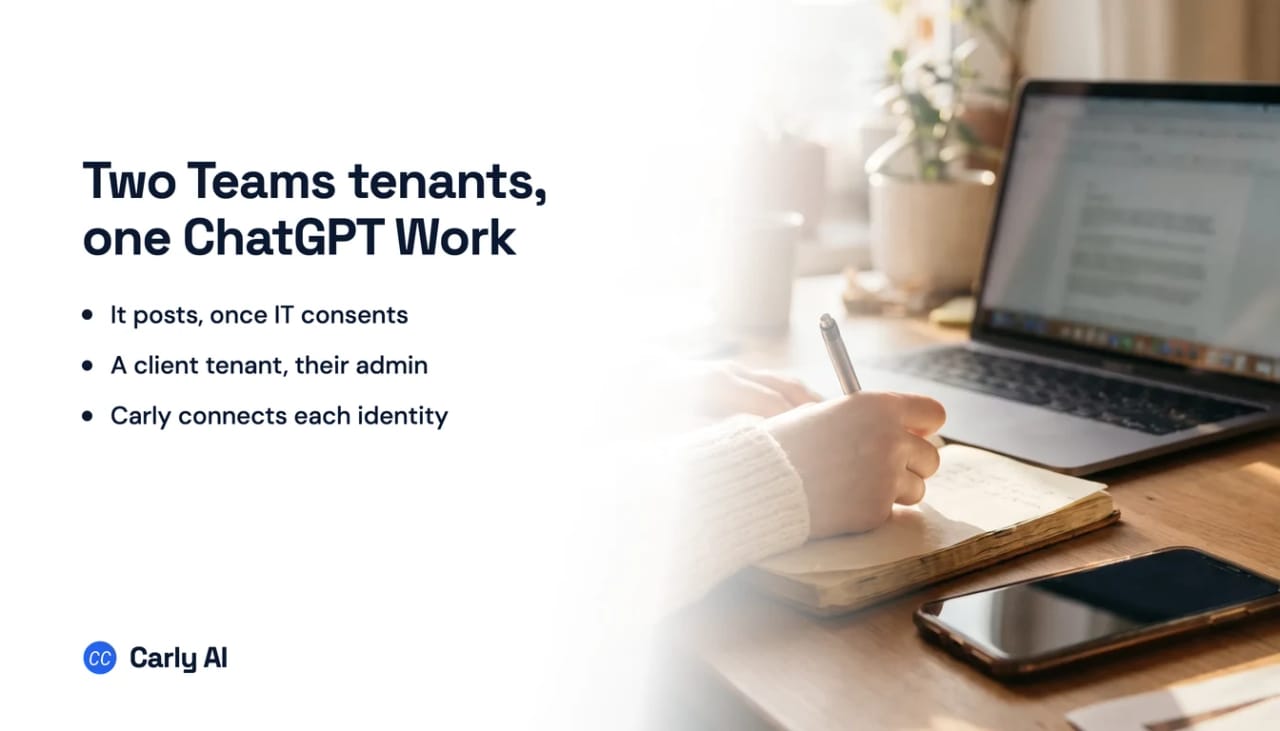
Carly is how one ChatGPT Work run reaches two Microsoft Teams organizations. The Teams app signs in a single Microsoft work account, and on this product the walls around it are administrative rather than technical: two consent gates sit in front of the first tenant, a third setting can refuse a second one outright, and all three live in a console rather than in the connect dialog. Connect all your organizations to Carly, add Carly to ChatGPT Work once, and a single run works across all of them at once. Carly holds your Gmail and Outlook mailboxes and every calendar on both sides in the same place.
1. Add your Microsoft Teams accounts to Carly
- Sign in at carlyassistant.com.
- Open carlyassistant.com/integrations.
- Find Microsoft Teams, click Connect, and authorize the account.
- Click Connect again for the next one, and keep going for as many accounts as you want.
Microsoft may reuse whichever session your browser already holds, so sign out between accounts or use a separate browser profile.
Carly connects to thousands of apps, so while you are on that page you can add your inboxes, calendars, CRM, and anything else you want ChatGPT Work to reach through the same connector.
2. Add Carly to ChatGPT Work
- Click Get the Carly plugin, add it, and sign in with the Carly account holding the Teams connections.
- Make Carly available to the run.
Since July 9, 2026 apps ship inside "plugins," listed in one directory spanning ChatGPT and Codex. Existing connections kept working and nothing needed resubmitting. What changed is the packaging and the storefront, not the protocol.
If the Carly plugin won’t add on a Business or Enterprise workspace, the ChatGPT administrator may need to enable the plugin first.
What one chat can do afterwards
- Search two organizations’ channels in the same question.
- Compare a client thread against the internal one it came from.
- Post a message or reply in any of your organizations.
- Produce one briefing grouped by organization.
- File Planner tasks into the right organization’s plan.
- Act the moment an escalation lands rather than when you next open a chat.
Why the second tenant has nowhere to go
The app signs in one Microsoft account, and “message results are limited to chats and channels the signed-in user can access.”
| Account | Type | Reachable natively? |
|---|---|---|
[your-work-address] | Work, your tenant | Yes, once your Entra admin approves |
[your-second-work-address] | Work, client tenant | Not alongside the first |
| A guest account in a client tenant | Guest | Bounded by that account, and by that tenant’s consent |
[your-personal-address] | Personal Microsoft | No personal Teams path is documented |
OpenAI also warns that the two consent roles are usually two people: “A ChatGPT workspace owner or admin and a Microsoft Entra administrator may be different people, so coordinate with the person who can grant organization-wide consent.”
What the Teams app does well, and where it stops next
Inside the one tenant it holds, the app is strong, and worth stating precisely because plenty of write-ups still describe it as search-only:
- Read: “Search and read messages from 1:1 chats, group chats, and channels the signed-in user can access.”
- Write: “Create chats and channels, and send messages and replies when actions are enabled.”
- Planner: work with Microsoft Planner plans and tasks.
- Meetings, Enterprise only: resolve scheduled Teams meetings and retrieve transcript metadata, transcript text, and recording metadata, “when the signed-in user is authorized to access the meeting.”
The meetings row belongs to this page rather than the consumer one, and it comes with a limit stated in the same breath: “recording actions return recording metadata, not the recording file contents.” So Enterprise can read what was said in a meeting, and cannot fetch the recording itself.
What breaks next is the unattended run.
ChatGPT's event triggers keep widening, from Gmail, Slack and GitHub to other supported plugins as of September 29, 2026, and the plumbing underneath is still the hard part. A thread on OpenAI's own developer forum documents Gmail and Drive showing as authorized in Settings while conversations report them unavailable at runtime, logged from 28 August to 8 September 2026 with no public fix. Claude's scheduled tasks do not fire on events at all. Carly watches thousands of apps and acts on its own.
A workspace agent runs when you start it or when a schedule starts it. An @mention landing in a client channel starts nothing, and neither does an escalation posted at 5:40pm on a Friday. The new write actions let ChatGPT post during a conversation you are driving; they do not make anything watch a channel. Carly runs on the event, so the escalation gets triaged, the thread gets an answer, and the customer hears back before anyone has opened Teams.
ChatGPT Work versus Carly on Teams
| Need | ChatGPT Work | Carly |
|---|---|---|
| Search and summarize one tenant’s Teams | Yes | Yes |
| Post a message or reply | Yes, when actions are enabled | Yes |
| Read meeting transcript text | Enterprise only | Yes |
| Connect without organization-wide Entra consent | No | Yes |
| Hold two organizations at once | No | Yes |
| Survive a Manage domains restriction | No | Yes |
| Act when a message arrives | No Teams trigger | Yes, on any trigger |
Free Zapier-style workflows; AI agents from $35/month. Connect the organizations on the integrations page, then add Carly to ChatGPT Work and start with Microsoft Teams.
Quick fixes
| Problem | Fix |
|---|---|
| Connecting returns an error | Entra scopes have probably not been approved organization-wide. Coordinate with the Entra administrator, who may not be your ChatGPT admin |
| Reading works, posting does not | Action control is set to read actions only. Widen it in Workspace settings, then Apps, and reconnect the app |
| A client account is refused | Check Manage domains. Your own workspace may permit only approved email domains for this app |
| Transcripts return nothing | Meeting capabilities are Enterprise only, need a transcript to exist, and return recording metadata rather than the recording file |
| A second tenant has nowhere to go | Connect all your Teams accounts to Carly and ask across all of them |
| Carly is connected but never used | Make the plugin available to the current run |
| Nothing happens when someone @mentions you | Workspace agents start on a clock or on your command. There is no Teams event trigger |
Frequently asked questions
Can ChatGPT Work connect two Microsoft Teams tenants?
No. The Teams app signs in one Microsoft work account, and results are limited to what that account can access. Reaching a second tenant needs that organization’s own Entra administrator to grant organization-wide consent to OpenAI’s application for your workspace. Connect all your organizations to Carly and add Carly to ChatGPT Work once instead.
Can ChatGPT Work post in Teams?
Yes, when actions are enabled. The app creates chats and channels and sends messages and replies. Entra approval alone does not switch this on; a workspace admin also has to allow write actions in Action control, and members may need to reconnect afterwards.
Why was my Teams connection refused when Entra approval went through?
Most often Manage domains. Business and Enterprise admins can restrict which email domains members use to connect the Teams app, and a client address outside the approved set is refused before Microsoft is involved.
Does ChatGPT Work read Teams meeting recordings?
Not the recordings. On Enterprise it resolves scheduled meetings and retrieves transcript metadata, transcript text and recording metadata. Recording actions return metadata rather than the recording file contents, and transcript text needs a transcript to exist.
Can a workspace agent watch a Teams channel?
No. Workspace agents start when you start them or when a schedule starts them. Nothing subscribes to a Teams message, an @mention or a channel post.
Related: Multiple Teams accounts in ChatGPT · Multiple SharePoint sites in ChatGPT Work · Multiple OneDrive accounts in ChatGPT Work · ChatGPT and Microsoft Teams · Best AI assistants for Microsoft Teams · Microsoft Teams integration
Ready to automate your busywork?
Carly schedules, researches, and briefs you—so you can focus on what matters.
See what people say
"Before Carly, I relied on a Calendly link, but the whole process felt impersonal and not very professional. Carly changed that by handling all the back-and-forth, so I'm no longer stuck in endless email threads trying to line up schedules.
Now Carly reaches out to candidates, shares my real-time availability, lets them pick a slot, then sends a Zoom link and drops it straight into my calendar. She sends reminders to both of us before each call, which has significantly reduced no-shows and last-minute confusion.
On top of scheduling, Carly acts like a full executive assistant, sending me my schedule the night before so I can prepare for each call. It reminds me of the old x.ai assistant, but Carly is noticeably smarter, faster, and better suited to my healthcare recruitment business."