How to Connect Multiple Teams Accounts to Codex
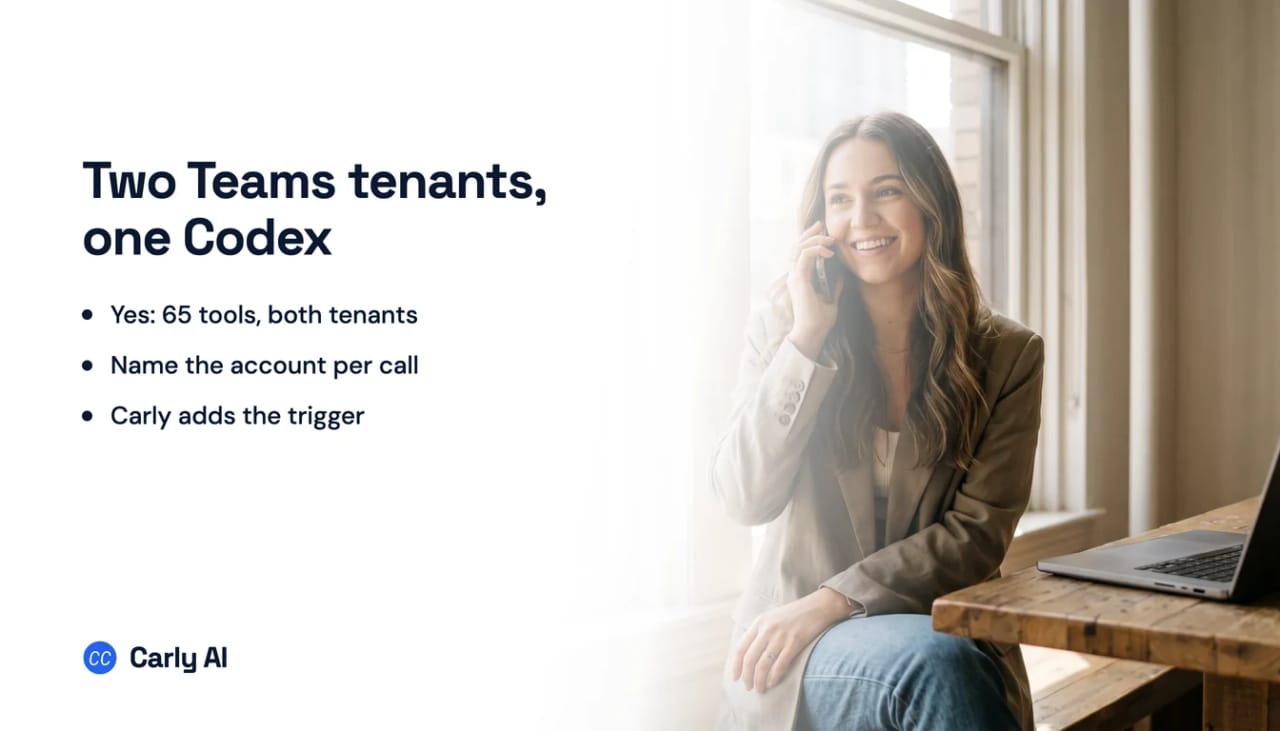
Want Codex working across more than one Teams account? Codex has no Teams connector at all, so on its own it reaches neither one. Connect your accounts to Carly and you can add as many as you want, then one Codex session can search and post across all of them.
1. Add your Microsoft Teams accounts to Carly
- Sign in at carlyassistant.com.
- Open carlyassistant.com/integrations.
- Find Microsoft Teams, click Connect, and authorize the account.
- Click Connect again for the next one, and keep going for as many accounts as you want.
Microsoft silently reuses whichever account your browser already holds, so sign out between accounts or use a separate browser profile. Each tenant approves independently, so one client’s administrators declining does not block the others, and authorization runs in a browser rather than a device-code flow at someone else’s terminal.
Carly connects to thousands of apps, so while you are on that page you can add your inboxes, calendars, CRM, and anything else you want Codex to reach through the same connector.
2. Register Carly as an MCP server
The CLI route is the shortest:
codex mcp add carly --url https://carlyassistant.com/mcp/Servers added this way land in ~/.codex/config.toml at user scope. The hand-written equivalent:
[mcp_servers.carly]
url = "https://carlyassistant.com/mcp/"
default_tools_approval_mode = "writes"
A url key is what makes this a streamable HTTP server; a command key would make it stdio. Codex has no transport field to set, and adding one is a configuration error rather than a hint. Set the approval mode from the start so reads run and anything that posts stops for confirmation.
Then authenticate:
codex mcp login carlySign in to the Carly workspace holding your Teams accounts. Codex supports OAuth and bearer tokens against remote HTTP MCP servers, so no secret sits in a config file. Verify with:
codex mcp listWhat one chat can do afterwards
- Search your own company’s Teams and a client’s in the same question.
- Compare threads sitting in two different organizations.
- Post or reply in any of your organizations.
- Read channel messages without negotiating an Entra admin consent first.
- Produce a daily brief grouped by organization.
- Answer an escalation that lands at 9pm on Friday, with no session open.
Teams here is work and school only
Worth settling before anything else. Microsoft’s personal-account tool surface covers mail, calendar and OneDrive, and Teams is not in it. Everything on this page assumes a work or school account in a Microsoft 365 tenant, and a second organization means a second tenant with its own administrators.
| What you have | Native path in Codex |
|---|---|
| One work Teams account | Only through a server you register |
| A second employer’s or client’s tenant | No connector at all |
| Reading channel messages | Needs ChannelMessage.Read.All, which needs an Entra admin |
| Posting a channel message | Consent-free, oddly, but still needs a server |
| A personal Microsoft account | Not applicable, Teams is work and school only |
| Anything starting when a message arrives | No, nothing watches |
The community server route, and what it costs
For completeness, there is a generic Graph-backed community server, @softeria/ms-365-mcp-server, whose teams preset exposes 65 tools across chats, channels, channel messages, team membership, online meetings, transcripts, recordings, attendance reports and presence. It does support several signed-in accounts, injecting an account parameter into every tool once more than one is logged in. Its README never mentions Codex, so compatibility is an inference rather than a vendor promise.
Three things make it expensive to run.
Organization mode is not retrofittable. Teams tools live behind --org-mode, and the README is blunt about the ordering: “Organization mode must be enabled from the start to access work account features.” Adding it later means redoing the login rather than editing a config line.
Reading a channel needs an administrator; posting to one does not. Checked against Microsoft’s permissions reference, the scopes in that preset do not behave alike:
| Scope | Needs an Entra admin? |
|---|---|
Chat.Read, Chat.ReadWrite, Chat.Create, ChatMessage.Read, ChatMessage.Send | No |
ChannelMessage.Send | No |
ChannelMessage.Read.All | Yes |
ChannelMember.Read.All, TeamMember.Read.All | Yes |
OnlineMeetingTranscript.Read.All, OnlineMeetingRecording.Read.All | Yes |
Presence.Read.All, Channel.Delete.All, ChannelSettings.*.All | Yes |
Read the shape of that. You can send a channel message without an administrator. You cannot read one. That split is a property of Microsoft Graph rather than of any assistant, and it shows up on other hosts’ Teams connectors too. Trimming it with --allowed-scopes only ever narrows what you can do, and --list-permissions is what tells you what sign-in will actually request.
Every tenant is a separate device-code sign-in at your terminal, and one flag quietly undoes the whole point: --expected-username pins the server to one Microsoft account, and the README notes that “pinning collapses the effective MCP mode to single-account: the server does not advertise an account parameter.”
What is still missing: the trigger
An MCP server can finally act first, if its app supports it. ChatGPT shipped automations that start from MCP events, but the specification behind them is still marked ideating by the working group writing it, and each vendor has to add support on its own schedule. OpenAI's docs list three apps whose events can start a task today: Gmail, Slack and GitHub. Carly already starts work from a customer email, a new booking, a CRM stage change or a new spreadsheet row, and can check any app with an API.
This is the limit no config file fixes. Codex will read, post, reply, react and fetch a recording across two tenants, and it will do none of it until you ask. An @mention landing in a client channel at 9pm starts nothing, and a message nobody thought to tag a bot in is never seen at all. That watching half runs on Carly’s side.
Codex versus Carly on Teams
| Need | Codex alone | Carly MCP server |
|---|---|---|
| Hold two Teams organizations at once | Only via a server you register | Yes |
| Read and post in channels and chats | Depends on the scopes you got consented | Yes |
| Avoid an Entra admin for channel reads | No | Yes |
| Add a third tenant later | Another device-code sign-in and consent round | A Connect click |
| Act when a message arrives | No trigger | Yes |
| Reach non-Microsoft tools in the same flow | Only by adding more MCP servers | Yes |
Carly runs on the event rather than the request, so the escalation gets answered on Friday evening rather than described on Monday. It signs in each account through a browser rather than a device-code flow, which matters when the person who owns the client tenant is not the person editing config.toml. And Carly connects to thousands of apps, so Teams is rarely the last step in the chain.
Free Zapier-style workflows; AI agents from $35/month. Connect your Teams accounts at carlyassistant.com/integrations, then point Codex at carlyassistant.com/mcp.
Quick fixes
| Problem | Fix |
|---|---|
| No tools appear after registering the server | Start a new Codex session; tools load at session start |
codex mcp login carly never completes | Finish the browser OAuth flow, then rerun codex mcp list |
| Codex rejected the config | Remove any type key. Codex selects stdio from command and streamable HTTP from url |
| Channel reads fail but posting works | ChannelMessage.Read.All needs admin consent and ChannelMessage.Send does not. That split is Microsoft’s |
| Sign-in bounces to an administrator | Something in the scope set needs consent; each tenant decides separately |
| Both connections landed on the same person | Microsoft reused the live browser session. Sign out between authorizations |
Frequently asked questions
Can Codex connect to two Microsoft Teams tenants?
Yes, once all your Teams accounts are connected to Carly and Codex is pointed at one MCP server. How many organizations you reach depends on Carly, not Codex.
Do I need an administrator to use Teams from Codex?
For part of it, on the community-server route. Chat tools and sending channel messages need no admin consent, while reading channel messages, reading team or channel membership, and fetching meeting transcripts or recordings all do. Through Carly, you sign in to each account in a browser instead.
Does Teams work with a personal Microsoft account here?
No. The personal-account tool surface covers mail, calendar and OneDrive. Teams is work and school only.
Can Codex watch a Teams channel?
No. MCP servers expose tools that get called during a run, and nothing subscribes to a Teams event. Carly runs on the event, so the 9pm escalation is handled before you open a session.
Related: Multiple SharePoint sites in Codex · Multiple OneDrive accounts in Codex · Multiple Outlook accounts in Codex · Codex MCP servers · Best AI assistants for Microsoft Teams · Microsoft Teams integration
Ready to automate your busywork?
Carly schedules, researches, and briefs you—so you can focus on what matters.
See what people say
"Before Carly, I relied on a Calendly link, but the whole process felt impersonal and not very professional. Carly changed that by handling all the back-and-forth, so I'm no longer stuck in endless email threads trying to line up schedules.
Now Carly reaches out to candidates, shares my real-time availability, lets them pick a slot, then sends a Zoom link and drops it straight into my calendar. She sends reminders to both of us before each call, which has significantly reduced no-shows and last-minute confusion.
On top of scheduling, Carly acts like a full executive assistant, sending me my schedule the night before so I can prepare for each call. It reminds me of the old x.ai assistant, but Carly is noticeably smarter, faster, and better suited to my healthcare recruitment business."