How to Link Notes in OneNote (2026)
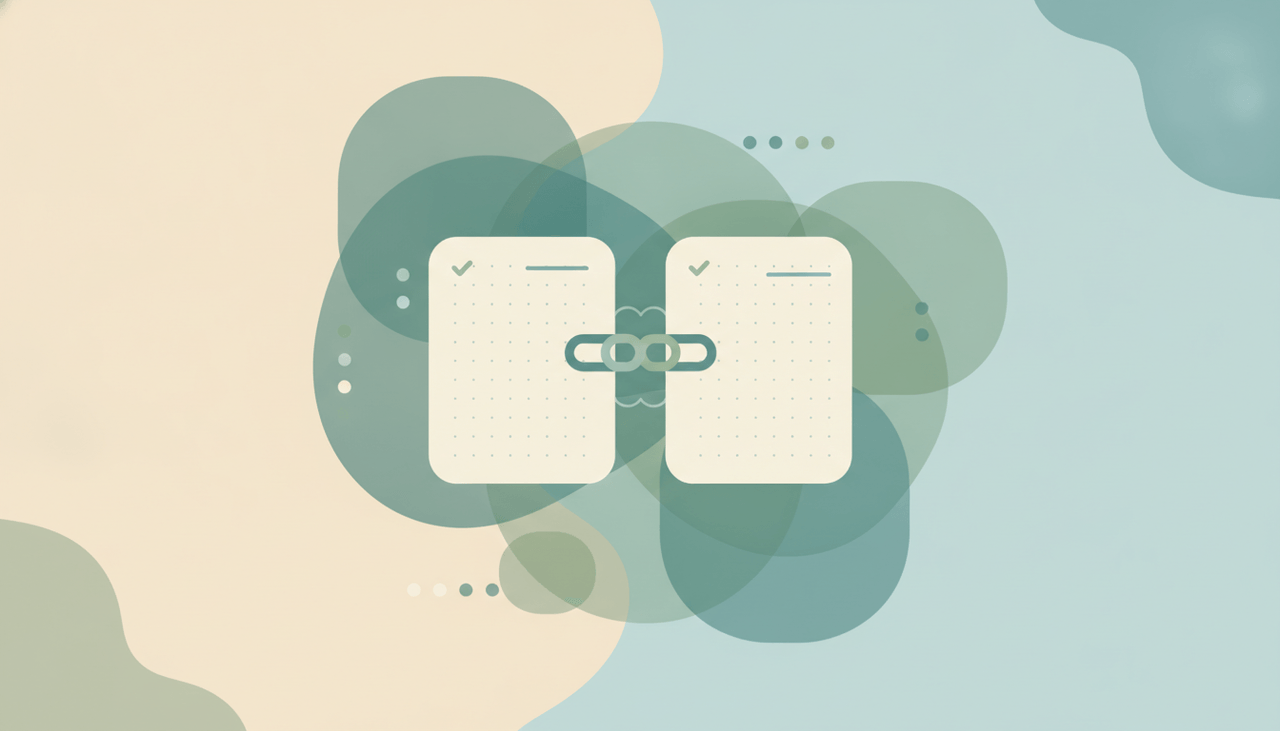
OneNote lets you wire pages together so a note can point straight to another page, section, or even a specific paragraph. The fastest method is wiki-style [[ ]] links, which create the page if it doesn’t exist yet.
1. Copy a Link to a Page or Paragraph (Windows)
- Right-click the page tab (or any paragraph) you want to link to.
- Choose Copy Link to Page (or Copy Link to Paragraph).
- Go to the source note, select text, and press Ctrl+V.
The selected text becomes a clickable link that jumps to the target.
2. Wiki-Style [[ ]] Links
Type double brackets around a page name:
- Type
[[Project Plan]]. - OneNote turns it into a link to a page called Project Plan in the current section.
- If no such page exists, OneNote creates it — great for building a linked note web fast.
3. Link to a Section or Notebook
Right-click a section tab or notebook in the navigation and choose Copy Link to Section / Copy Link to Notebook, then paste. These links work across devices when the notebook is synced.
4. OneNote on Mac, Web & Mobile
On Mac and the web, right-click a page > Copy Link to Page, then paste. The [[ ]] wiki-link shortcut is mainly a Windows feature — on other platforms, use Copy Link instead. Pasted links sync everywhere.
5. Troubleshooting
My link opens the wrong page
If you renamed or moved the target page, the link can drift. Recopy the link from the current page.
[[ ]] just shows brackets, no link
Wiki links are a Windows desktop feature. Use Copy Link to Page on Mac, web, or mobile.
A link to a paragraph jumps to the top of the page
Paragraph links need the paragraph to still exist. If it was deleted, the link falls back to the page.
Related OneNote guides: How to use tags · How to use templates · How to insert a table · How to share a notebook · How to sync OneNote
Ready to automate your busywork?
Carly schedules, researches, and briefs you—so you can focus on what matters.
See what people say
"Before Carly, I relied on a Calendly link, but the whole process felt impersonal and not very professional. Carly changed that by handling all the back-and-forth, so I'm no longer stuck in endless email threads trying to line up schedules.
Now Carly reaches out to candidates, shares my real-time availability, lets them pick a slot, then sends a Zoom link and drops it straight into my calendar. She sends reminders to both of us before each call, which has significantly reduced no-shows and last-minute confusion.
On top of scheduling, Carly acts like a full executive assistant, sending me my schedule the night before so I can prepare for each call. It reminds me of the old x.ai assistant, but Carly is noticeably smarter, faster, and better suited to my healthcare recruitment business."