How to Record a Zoom Meeting (2026)
Zoom lets you record meetings to your local computer (any plan) or to the cloud (paid plans). Participants can record too — but only if the host gives permission. Here’s how to do it on every platform, plus where the files end up.
Record to Your Computer
Local recording works on the free plan and saves an MP4 to your machine.
- Start or join the meeting as the host (or get recording permission).
- On the toolbar, click Record.
- If prompted, choose Record on this Computer.
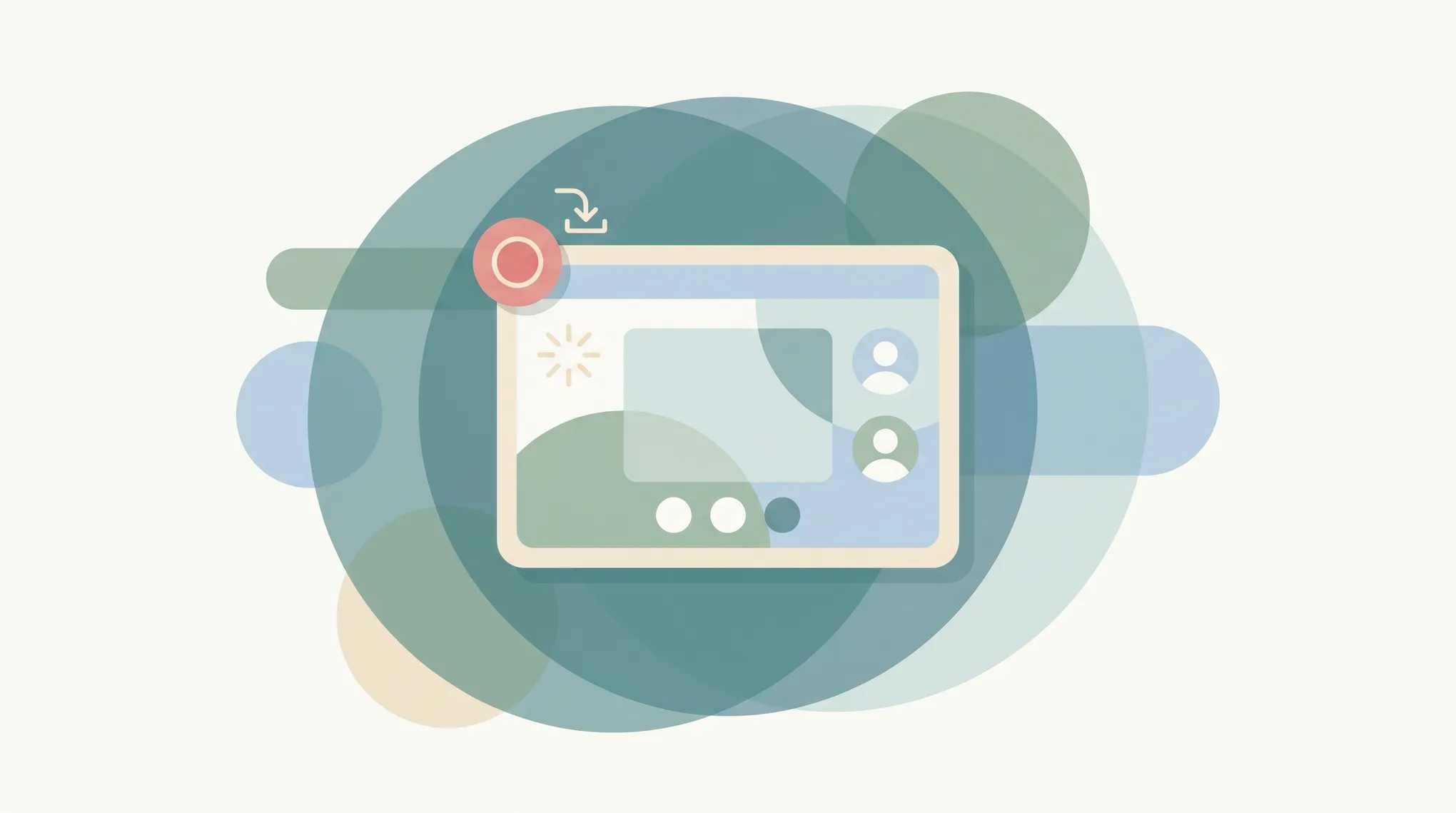
- A red Recording… indicator appears in the top-left.
- Click Pause/Stop Recording on the toolbar when done, or just end the meeting.
When the meeting ends, Zoom converts the recording to MP4. By default it saves to:
- Windows:
Documents\Zoom - Mac:
~/Documents/Zoom
Each meeting gets its own folder with the video (.mp4), an audio-only file (.m4a), and a chat transcript if enabled.
Record to the Cloud (Paid Plans)
Cloud recording is available on Pro, Business, and Enterprise plans.
- In the meeting, click Record > Record to the Cloud.
- Stop it from the toolbar when done.
- After processing, go to the Zoom web portal > Recordings > Cloud Recordings.
- From there you can play, download, share a link, or set a passcode and expiration on the recording.
Cloud recordings also email you a link when they finish processing.
Record as a Participant
If you’re not the host, the Record button is greyed out until the host allows it.
- Ask the host to grant permission.
- The host hovers your name in Participants > More > Allow Record (or Allow to Record Local Files).
- Your Record button activates — click it to start.
Only local recording can be granted to participants. Cloud recording stays with the host.
Record on Mobile (iOS/Android)
Mobile recording goes to the cloud and requires a paid plan.
- In the meeting, tap More (the …).
- Tap Record or Record to the Cloud.
- Tap More > Stop Recording to finish. Find it later in the web portal under Recordings.
Troubleshooting
The Record button is greyed out
You’re a participant without permission. Ask the host to allow recording, or have them record instead.
I don’t see “Record to the Cloud”
Cloud recording requires a paid plan and may be disabled by your admin. Check Settings > Recording in the web portal, or record locally instead.
My local recording is still “converting” and won’t open
Don’t delete the meeting’s folder. Reopen Zoom > Meetings tab > Recorded > find the meeting > Convert. If it failed, double-click the .zoom file to retry the conversion.
Recordings save to the wrong place
Open Zoom > Settings (gear) > Recording and change the Local Recording location. You can also tick Choose a location for recordings when the meeting ends.
Participants didn’t know they were recorded
Zoom shows a recording indicator and can play a consent prompt. Enable Recording consent in the web portal under Settings > Recording to require acknowledgment.
Quick Reference
| Goal | What to do |
|---|---|
| Free local recording | Record > Record on this Computer |
| Cloud recording | Paid plan > Record > Record to the Cloud |
| Let a guest record | Host: Participants > More > Allow Record |
| Find local files | Documents/Zoom |
| Find cloud files | zoom.us > Recordings |
| Change save folder | Settings > Recording > Local Recording |
Related Zoom guides: How to schedule a Zoom meeting · How to share your screen on Zoom · How to use breakout rooms in Zoom · How to add Zoom to Google Calendar · The best AI note takers for Zoom, Teams & Meet · Zoom time limits
Ready to automate your busywork?
Carly schedules, researches, and briefs you—so you can focus on what matters.
See what people say
"Before Carly, I relied on a Calendly link, but the whole process felt impersonal and not very professional. Carly changed that by handling all the back-and-forth, so I'm no longer stuck in endless email threads trying to line up schedules.
Now Carly reaches out to candidates, shares my real-time availability, lets them pick a slot, then sends a Zoom link and drops it straight into my calendar. She sends reminders to both of us before each call, which has significantly reduced no-shows and last-minute confusion.
On top of scheduling, Carly acts like a full executive assistant, sending me my schedule the night before so I can prepare for each call. It reminds me of the old x.ai assistant, but Carly is noticeably smarter, faster, and better suited to my healthcare recruitment business."