
X Calls (call.x.com): What It Is and How It Works
X Calls is X's new video meeting app at call.x.com, in beta since Oct 2, 2026. What it does, how to start or join a call, and how it compares to Zoom.
70 posts
X Calls is X's new video meeting app at call.x.com, in beta since Oct 2, 2026. What it does, how to start or join a call, and how it compares to Zoom.

Copy-paste meeting invite templates for team meetings, client calls, interviews, 1:1s and reschedules, plus what every invite needs and how to send one.

Calendly shipped Callie, an AI assistant you CC into email threads, plus Notetaker. Both sit behind new Standard Plus and Teams Plus tiers at $18 and $24.

Zoom retired the AI Companion brand and shipped ZoomMate as a paid add-on. What each Zoom AI piece does, the free limits, and how Carly acts on a call.

Calendly Notetaker records meetings, writes recaps and drafts follow-ups. What it covers, which platforms it joins, and how the gradual rollout works.

How to use the Outlook Scheduling Assistant in every version, what the free/busy colors mean, why external attendees show as blank, and what to do instead.
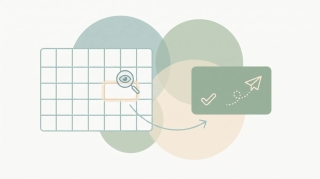
ChatGPT can read your calendar and suggest times, but it can't reliably book meetings on its own. What works, what fails, and what to use instead.

A research-backed guide to the all-hands (company town hall): why transparency earns the hour, the silence problem that quietly kills it, an agenda built from employees' real questions, remote and hybrid formats, real Q&A, and measurement that proves it's working.

A practical guide to running 1:1 meetings: cadence, who owns the agenda, a default structure, a bank of 1:1 questions, and how to follow up.
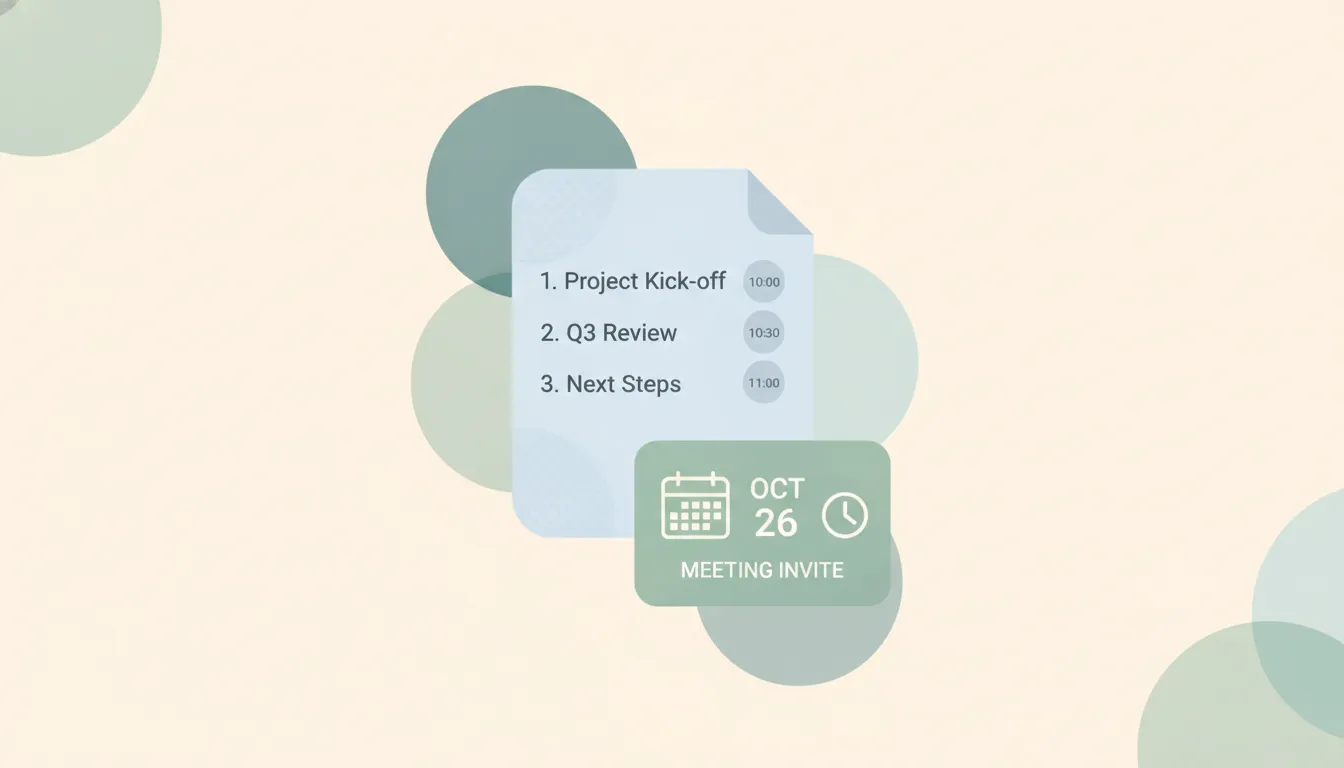
Learn how to write a meeting agenda that keeps meetings on track. Step-by-step guide plus 5 copy-paste templates for team, 1:1, kickoff, client, and board meetings.

Free meeting minutes templates for board, team, project, and 1:1 meetings, plus a step-by-step guide to taking, distributing, and tracking minutes.

A research-backed guide to the daily stand-up: what the Scrum Guide actually says, the three-questions history, what studies find makes them useful vs wasteful, remote and async formats, and anti-patterns to avoid.
Start a Slack huddle in a channel or DM, switch between audio and video, share your screen, invite others, use the huddle thread, and check plan limits.
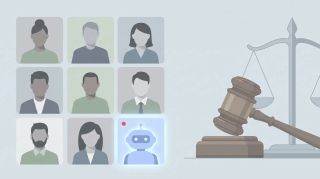
Otter and Fireflies face wiretapping and biometric-privacy suits, and IT teams are banning auto-joiner notetaker bots. What the capability test means for meetings.

Accidentally declined an Outlook meeting? Recover it from Deleted Items and re-accept, get a resend, or stop Outlook from auto-deleting invites.

Send a calendar invite in Outlook across New, Classic, web, and Mac — add attendees and a Teams link, BCC people, and forward an existing invite.
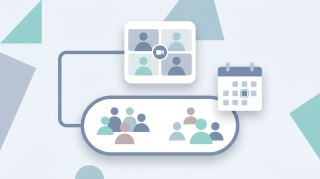
Create a channel meeting in Microsoft Teams so the whole channel can see and join — schedule from the Calendar or from inside the channel, add required attendees, make it recurring, and understand standard vs private channel limits.
Gmail has no standalone meeting scheduler — you schedule through Google Calendar and Google Meet. Here's every path: create an event from an email, set up a time to meet, and add a Meet link.
Schedule a meeting in Outlook from new Outlook, classic desktop, the web, or mobile — add attendees, make it a Teams meeting, set recurrence, and use Scheduling Assistant to find free times.
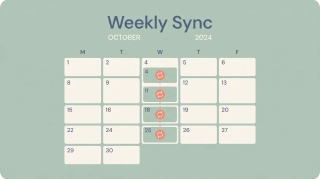
Set up a recurring meeting in Outlook — new Outlook, classic desktop, and the web. Pick daily, weekly, monthly, or custom patterns, set an end date, edit one occurrence vs the whole series, and make it a recurring Teams meeting.
Set up a recurring Teams meeting from the Calendar — use the recurrence dropdown for daily, weekly, monthly, or custom, set an end date, edit one occurrence vs the series, and fix the channel-meeting and join-link snags.

React to a message in Microsoft Teams chats and channels, and send live emoji reactions during a meeting — like, heart, applaud, laugh, and more.
Assign the presenter role in Microsoft Teams — before the meeting from Meeting options, or live during the meeting — and learn what organizers, presenters, and attendees can each do.
View and download the attendance report for a Microsoft Teams meeting — during the meeting and afterward from the chat — plus how to turn the report on.

Spotlight a video for everyone in a Microsoft Teams meeting, spotlight several people at once, and understand how spotlight differs from pin.

How many people can join a Zoom meeting: 100 on Basic and Pro, 300 on Business, 500 on Enterprise, and up to 1,000 with the Large Meeting add-on.

How to add a Google Meet link to any calendar event, make Meet links appear automatically, or remove them — on the web, Android, and iPhone.

How many people can join a Google Meet — 100 on free accounts, up to 1,000 on Enterprise, and 100,000 view-only via livestream. Full breakdown by Workspace plan.

Schedule a meeting in Microsoft Teams from the Calendar, Outlook, or a channel — add attendees, invite guests, make it recurring, or start an instant Meet now.

Use Copilot in Microsoft Teams to summarize meetings, list action items, catch up on chats, and get a meeting recap — what you need and how to turn it on.

Use Microsoft Whiteboard in a Teams meeting — open it from the Share tray, draw, add sticky notes and templates, collaborate live, and find the board afterward.
How long a Microsoft Teams meeting can run and how many people can join — the 60-minute free cap, the 30-hour paid limit, and participant ceilings by license.

How long a Zoom meeting can run on free and paid plans — the 40-minute cap on Basic accounts, the 30-hour paid limit, and how to get around it.
Start a live transcript in a Microsoft Teams meeting, find and download the transcript afterward, and fix transcription when the option is greyed out.

Turn on live captions in Microsoft Teams on desktop, web, and mobile, change the caption language, and fix captions when they won't show up.

How long a Google Meet can run on free and paid accounts — the 60-minute group-call cap, the 24-hour limits, and how to get around them.

Blur your background in Microsoft Teams before or during a meeting on desktop and mobile — plus what to do when the blur or background-effects option is missing.

Blur your background, add a virtual background, or apply a filter in Google Meet — before you join or mid-call, on desktop and mobile.

Change your background in Microsoft Teams — pick a built-in image, upload your own custom background, or blur it — before or during a meeting, on desktop and mobile.

Create a poll in Microsoft Teams — live in a meeting with the Polls app or ahead of time in a chat — launch it, share results, and fix a missing poll option.

Turn on transcription in Google Meet to save a Google Doc of who said what, where the transcript saves in Drive, and how it differs from live captions.

Mute and unmute yourself in Microsoft Teams, use the keyboard shortcut and push-to-talk, and — as an organizer — mute other participants or stop them from unmuting.

Pin a participant's video in Microsoft Teams so they stay on your screen, understand pin vs. spotlight, and do it on desktop and mobile — plus how to unpin.

Raise your hand in a Microsoft Teams meeting on desktop, mobile, and with a keyboard shortcut — plus how to lower it and see who else has raised theirs.
Record a Google Meet to Drive — who's allowed, how to start and stop, where the recording saves, and why the Record option is sometimes greyed out.
Record a Microsoft Teams meeting on desktop or mobile, find where the recording saves in OneDrive or SharePoint, and fix it when the Record option is greyed out.

Share your screen, a single window, or a PowerPoint in Microsoft Teams on desktop and mobile — including how to share computer sound and give control to someone else.

Turn off your camera in Microsoft Teams before or during a meeting, use the keyboard shortcut, and join with video off by default — on desktop and mobile.

Split a Google Meet into breakout rooms: create and assign rooms, set a timer, move between them, and broadcast a message to every group.

Create and run breakout rooms in Microsoft Teams — split a meeting into groups, assign people, set a timer, send announcements, and bring everyone back.
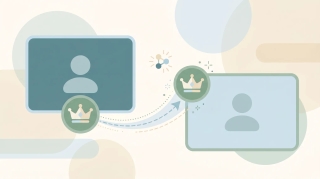
Make someone else the host on Zoom, assign a co-host, reclaim host, leave a meeting without ending it, and set an alternative host in advance — on desktop and mobile.
Add or change a Zoom virtual background — blur it, use a built-in image, upload your own, or set a video background — on desktop and mobile, even without a green screen.
Change your display name on Zoom before or during a meeting, on desktop, mobile, or the web — including how to add pronouns and what to do when renaming is locked by the host.

Pin a participant's video on Zoom so they stay on your screen, pin multiple people, and use Spotlight to pin a speaker for everyone — on desktop and mobile, plus why pin is greyed out.

Raise your hand in a Zoom meeting on desktop, mobile, or by phone using the Reactions menu and keyboard shortcut — plus how the host sees raised hands and lowers them.

Record a Zoom meeting to your computer or the cloud — as a host or a participant. Where the files save, how to grant recording permission, and how to record when it's greyed out.
Schedule a Zoom meeting from the desktop app, web portal, or your calendar — set the time, passcode, waiting room, and recurring options, then send the invite so everyone gets the link.
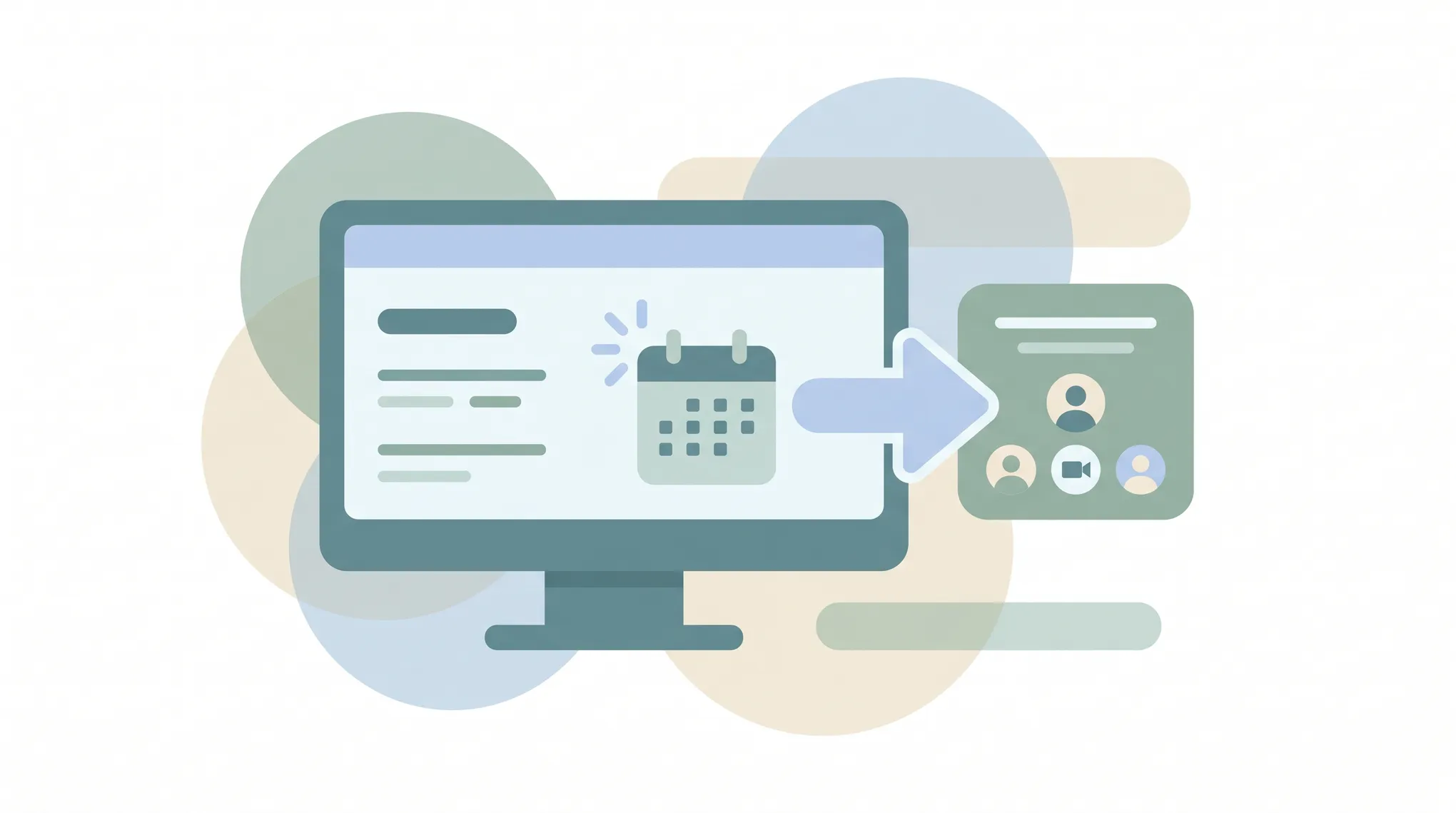
Share your screen on Zoom from desktop or mobile — a single window, your whole screen, a whiteboard, or just audio. How to share with sound, give others control, and fix 'screen share blocked'.

Turn your camera off on Zoom before or during a meeting, always join with video off, mute audio and video together, and fix a camera that won't turn back on — on desktop and mobile.
Create and manage Zoom breakout rooms — split participants automatically or manually, let people self-select, broadcast a message to all rooms, and bring everyone back to the main session.

Attach files to a Google Calendar event from Google Drive or your computer so guests have the agenda, deck, or doc ready — plus how to fix sharing permissions and the mobile limitation.

Check RSVP status on a Google Calendar invite — see who accepted, declined, or hasn't responded, read guests' notes, and get emailed when people reply.

Cancel single meetings, recurring series, or just one occurrence in Outlook — plus the difference between Cancel and Delete, what attendees see, and how to recover an accidentally cancelled meeting.

Forward meeting invites as an attendee or organizer across new Outlook, classic Outlook, and the web — with notes on the Allow Forwarding toggle and what recipients actually receive.

Schedule Microsoft Teams meetings from Outlook on desktop, web, classic Windows, mobile, and Mac — plus fixes when the Teams button is missing.
Use Outlook Scheduling Assistant to find free time, add attendees, AutoPick a slot, and book rooms across new Outlook, web, classic, and Mac.
Step-by-step guide to creating calendar events in Outlook — web, desktop, classic, and mobile, plus meeting invites, all-day events, and shortcuts.

How to say no to meeting requests without guilt or awkwardness — templates for declining, redirecting, and handling recurring invites.

Compare Carly AI vs Calendly for scheduling. Carly offers AI-powered scheduling with click-to-book, SMS, and email thread awareness - no booking links required.

The ultimate meeting guide for 2026. Learn how to run productive meetings, create effective agendas, and eliminate scheduling overhead. Save hours weekly.