How to Snooze Emails in Gmail (Web, iOS, Android — 2026)
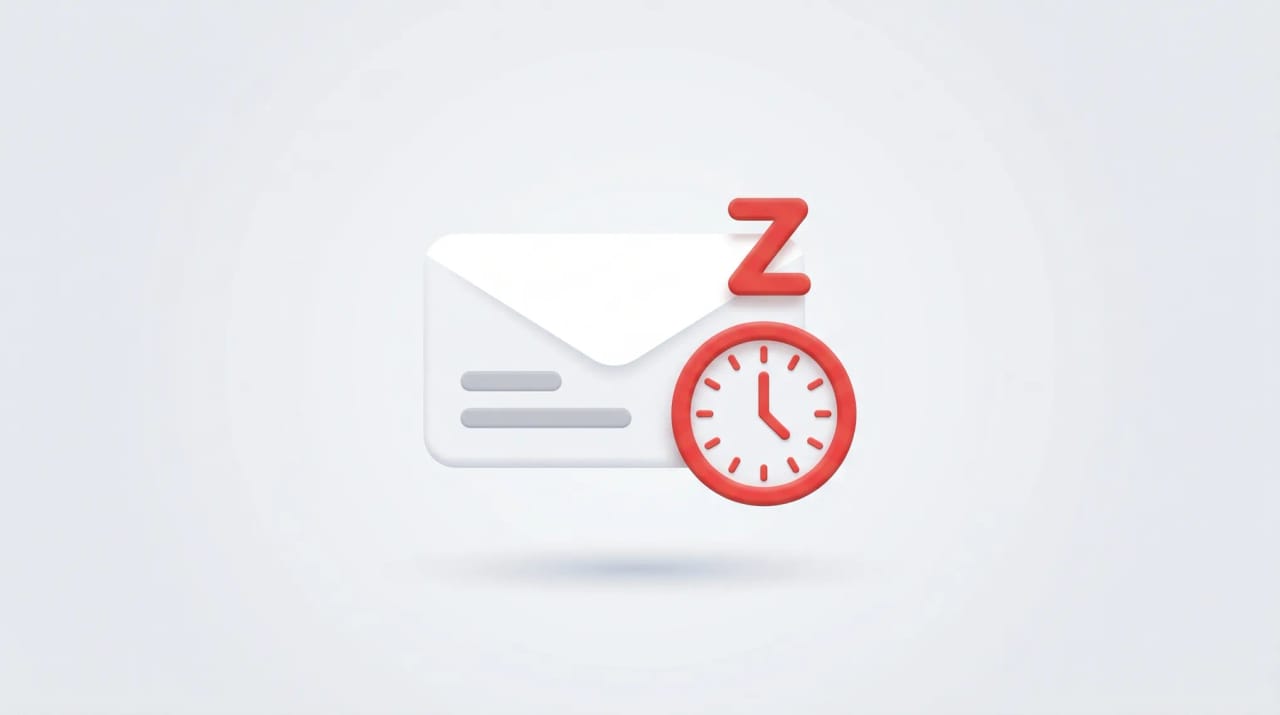
Snooze pulls an email out of your inbox and brings it back later — perfect for emails that need a reply, but not right now. The feature is available on Gmail web, iOS, and Android, with slightly different controls on each.
1. Snooze on Gmail Web
The fastest way:
- Hover over a message in the inbox list. A row of icons appears on the right.
- Click the clock icon (Snooze).
- Pick a default:
- Later today (defaults to 4 hours later or 6:00 PM)
- Tomorrow (defaults to 8:00 AM tomorrow)
- This weekend (Saturday at 8:00 AM, only shown Mon–Fri)
- Next week (Monday at 8:00 AM)
- Pick date & time — fully custom
To snooze an email you’ve already opened: top toolbar → clock icon.
To bulk snooze: tick checkboxes next to multiple emails in the inbox, then click the clock icon in the top toolbar. Same picker applies to all selected.
2. Snooze on iOS
The Gmail iOS app has the most flexible snooze settings.
Snooze a single email:
- Open the message.
- Tap the three-dot menu (top-right).
- Tap Snooze.
- Pick a preset or Pick date & time.
Set Snooze as a swipe action:
- Menu (☰) → Settings → tap your account → Inbox customizations → Mail swipe actions.
- Tap Right swipe or Left swipe → Snooze.
After that, swipe a message in the inbox to snooze instantly.
Customize default snooze times (iOS only):
- Menu → Settings → tap your account → Inbox customizations → Snooze settings (or scroll to the snooze section).
- Adjust morning, afternoon, evening times and which days count as the “weekend.”
This is the only first-party way to change the 8:00 / 13:00 / 18:00 defaults — Gmail web still doesn’t have this setting.
3. Snooze on Android
Snooze a single email:
- Open the message.
- Tap the three-dot menu → Snooze.
Set Snooze as a swipe action:
- Menu (☰) → Settings → General settings → Mail swipe actions.
- Tap Right swipe or Left swipe → Change → Snooze.
Bulk snooze:
- Long-press one message to enter selection mode.
- Tap others to multi-select.
- Tap the three-dot menu → Snooze.
In late 2025 Android Gmail redesigned the side menu — Snoozed now lives under the collapsible “More” section if you have many labels.
4. Where Snoozed Emails Go
Snoozed emails leave your inbox and live in the Snoozed label.
- Web: Sidebar → Snoozed.
- Mobile: Hamburger menu → Snoozed.
- Search:
in:snoozedorlabel:snoozed.
When the snooze time arrives, the email returns to the top of your inbox with a yellow banner indicating it was snoozed.
5. Unsnooze
To pull an email back early:
- Web: open the Snoozed label, hover the message, click the X next to the snooze time. Or open the email and click Unsnooze in the yellow banner at the top of the message.
- Mobile: open the email in Snoozed → three-dot menu → Unsnooze.
Replying to a snoozed email automatically unsnoozes the thread.
6. Customize Default Times on Web (No Native Setting)
Gmail web still has no setting to change the 8 AM / 1 PM / 6 PM defaults. Workarounds:
- Use Pick date & time every time you want a non-default. Slower but precise.
- Use the Gmail iOS app to change the defaults — they don’t sync to web. The web defaults remain hard-coded.
- The often-cited Google Keep workaround (open Keep → Settings → Reminder defaults) no longer reliably propagates to Gmail since Reminders migrated to Tasks. Don’t rely on it.
This is the most-requested missing feature on the Gmail Help forums and remains unaddressed in 2026.
7. Why Snooze Doesn’t Return on Time
Common causes:
- IMAP client interference: if the same Gmail account is connected via IMAP to Apple Mail, Mimestream, or eM Client, the snoozed copy can reappear in the IMAP client’s inbox immediately because IMAP clients don’t honor the Snoozed label. Use only the official Gmail apps for snooze-heavy workflows.
- Time zone mismatch: Gmail uses the time zone set in Google Calendar, not your OS time zone. Snoozing while traveling without updating Calendar’s primary time zone is the #1 reported cause of “wrong time” snoozes.
- Smart Features off: with Settings → General → Smart features and personalization turned off, Snooze still works, but unsnooze timing can drift by minutes because Gmail deprioritizes the scheduled job.
- Server-side delays: 1–2 minute drift is normal. Anything more than 5 minutes points to one of the issues above.
8. Snooze Multiple Emails at Once
- Web: tick checkboxes in the inbox → click the clock icon in the top toolbar → pick a time.
- iOS: tap-and-hold to multi-select → three-dot menu → Snooze.
- Android: long-press to multi-select → three-dot menu → Snooze.
All selected emails snooze to the same time. To pick different times, snooze in batches.
9. Snooze Threads with Future Replies
- If a snoozed email gets a reply before the snooze time, the entire thread returns to the inbox immediately.
- If you reply to a snoozed thread, it unsnoozes.
- If a snoozed thread is part of a long conversation, only the snoozed thread (not other branches) is affected.
To suppress reply-driven unsnoozing, mute the thread instead: open the email → three-dot menu → Mute. Muted threads stay out of the inbox even when replies arrive.
10. Workspace Admin Behavior
Snooze is on by default for all Workspace tiers and there is no admin toggle to disable it. Disabling Smart Compose or Smart Features org-wide does not turn off Snooze — these are independent.
11. Useful Operators
in:snoozed— all snoozed emailslabel:snoozed older_than:30d— find stale snoozesin:snoozed from:me— rare, happens when you snoozed a Sent thread
12. Quick Reference
| Action | Web | iOS | Android |
|---|---|---|---|
| Snooze one | Hover → clock icon | Three-dot → Snooze | Three-dot → Snooze |
| Snooze many | Check boxes → clock icon | Multi-select → three-dot → Snooze | Multi-select → three-dot → Snooze |
| Pick custom time | Pick date & time | Pick date & time | Pick date & time |
| Custom defaults | Not supported | Settings → Snooze | Not supported |
| Snooze via swipe | N/A | Settings → swipe actions | Settings → swipe actions |
| Unsnooze | Snoozed → X next to time | Open → Unsnooze | Open → Unsnooze |
If you snooze emails because there’s no time to deal with them, Carly is an AI assistant that drafts replies and schedules meetings for you in Gmail — so emails get handled the first time instead of pushed forward.
More on Gmail: How to schedule email in Gmail · How to create filters in Gmail · How to set out of office in Gmail · How to mass delete emails in Gmail · Best email management tools
Ready to automate your busywork?
Carly schedules, researches, and briefs you—so you can focus on what matters.
See what people say
"Before Carly, I relied on a Calendly link, but the whole process felt impersonal and not very professional. Carly changed that by handling all the back-and-forth, so I'm no longer stuck in endless email threads trying to line up schedules.
Now Carly reaches out to candidates, shares my real-time availability, lets them pick a slot, then sends a Zoom link and drops it straight into my calendar. She sends reminders to both of us before each call, which has significantly reduced no-shows and last-minute confusion.
On top of scheduling, Carly acts like a full executive assistant, sending me my schedule the night before so I can prepare for each call. It reminds me of the old x.ai assistant, but Carly is noticeably smarter, faster, and better suited to my healthcare recruitment business."