How to Turn Off Conversation View in Gmail (2026)
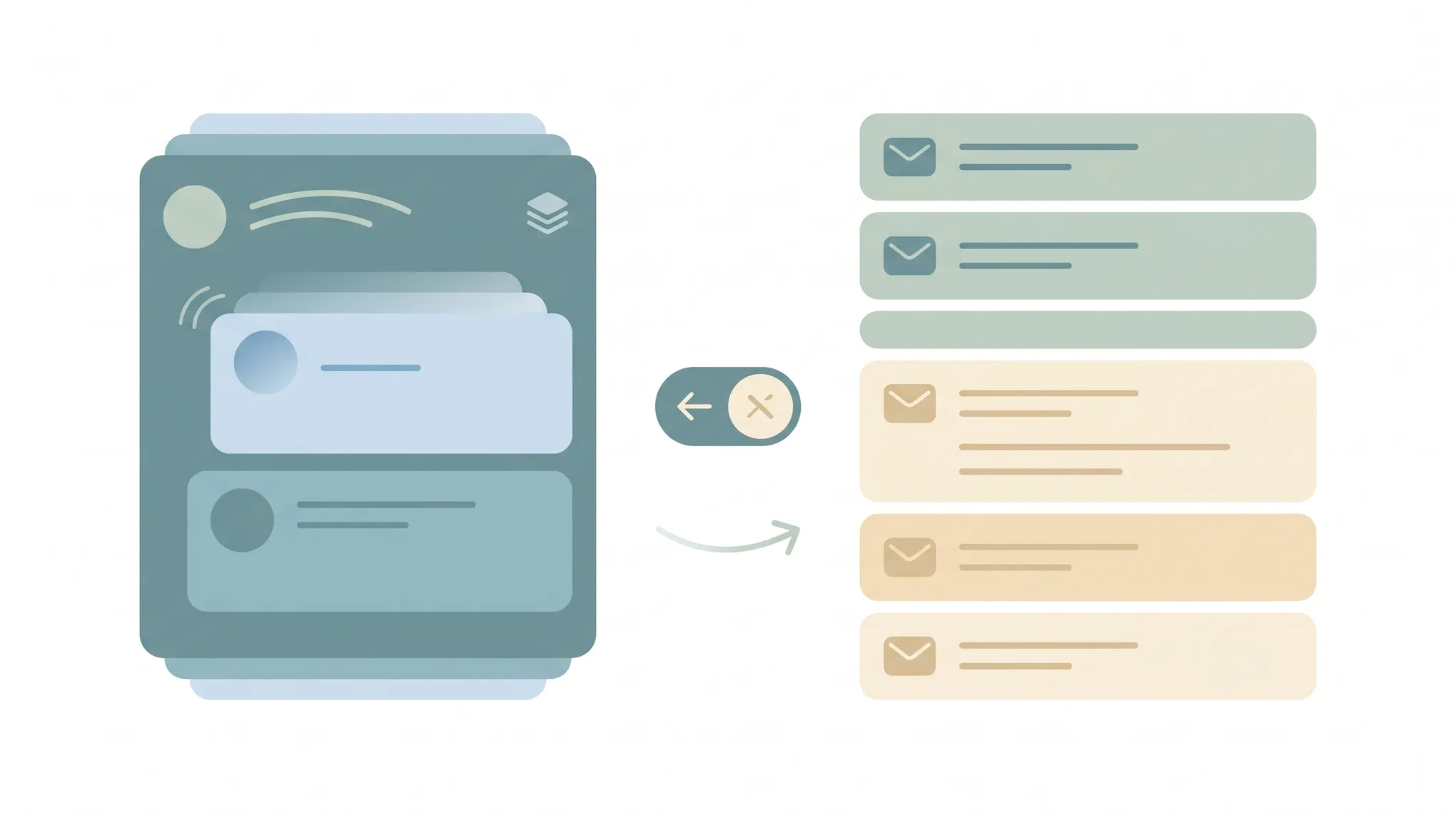
Conversation View groups every reply in a thread into a single stacked entry. Turn it off and Gmail lists each message as its own line in the inbox — the way Outlook and most older email clients behave. Useful if you find threaded view confusing or you process email one message at a time.
1. Turn Off Conversation View on Gmail Web
- Open mail.google.com.
- Click the gear icon (top-right) → See all settings.
- Stay on the General tab (it’s the default).
- Scroll down to Conversation view.
- Select Conversation view off.
- Scroll to the bottom and click Save Changes.
Gmail reloads. Every email — including replies that used to nest together — now appears as a separate row, sorted by the time it arrived.
2. Turn It Off on Android
- Open the Gmail app.
- Tap the hamburger menu (☰) → Settings.
- Tap General settings.
- Uncheck (toggle off) Conversation view.
This applies across all accounts in the app at once.
3. Turn It Off on iPhone or iPad
- Open the Gmail app.
- Tap the hamburger menu (☰) → Settings.
- Toggle off Conversation view (near the top of the settings list).
On iOS the toggle is a global app setting, so it affects every account you’ve added.
4. On vs. Off — Which to Choose
| Conversation View On | Conversation View Off | |
|---|---|---|
| Inbox layout | Replies grouped into one thread | Each message is its own row |
| Finding a specific reply | Expand the thread | It’s already a separate line |
| Inbox count | One entry per conversation | One entry per email |
| Best for | Long back-and-forth discussions | One-at-a-time processing, Outlook habits |
There’s no middle setting — it’s all-or-nothing per client. The web and mobile settings are independent, so turn it off in each place you use Gmail if you want consistency.
5. If the Setting Isn’t Saving
- You skipped Save Changes. The General tab doesn’t auto-save; the button is at the very bottom.
- Workspace account. The setting still exists for work/school accounts — same General tab. Admins don’t typically lock it.
- Multiple devices. Changing it on the web does not sync to the mobile apps. Set it separately on each.
If reorganizing your inbox layout is really about taming the volume, Carly is an AI assistant that processes Gmail for you — reading threads, drafting replies, and surfacing only what needs you — so the threaded-vs-unthreaded debate matters a lot less.
More on Gmail: How to clean up your inbox · How to create filters in Gmail · How to mute an email conversation in Gmail · How to thread emails in Outlook · Best email management tools
Ready to automate your busywork?
Carly schedules, researches, and briefs you—so you can focus on what matters.
See what people say
"Before Carly, I relied on a Calendly link, but the whole process felt impersonal and not very professional. Carly changed that by handling all the back-and-forth, so I'm no longer stuck in endless email threads trying to line up schedules.
Now Carly reaches out to candidates, shares my real-time availability, lets them pick a slot, then sends a Zoom link and drops it straight into my calendar. She sends reminders to both of us before each call, which has significantly reduced no-shows and last-minute confusion.
On top of scheduling, Carly acts like a full executive assistant, sending me my schedule the night before so I can prepare for each call. It reminds me of the old x.ai assistant, but Carly is noticeably smarter, faster, and better suited to my healthcare recruitment business."