How to Enable Dark Mode in Gmail (Desktop, Android & iPhone, 2026)
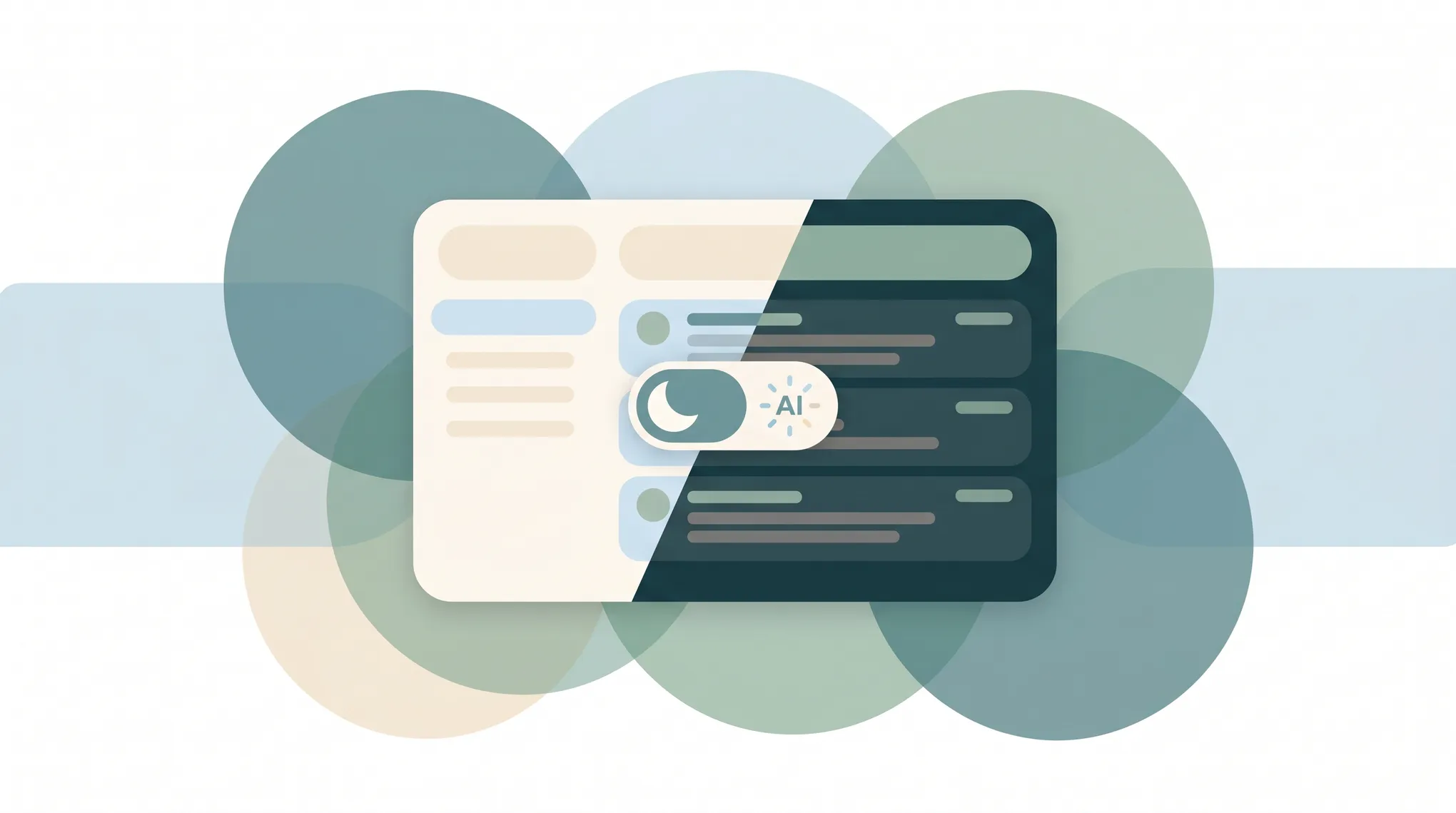
Gmail supports dark mode on every device, but it works two different ways: the desktop web version applies a dark theme to the interface while keeping message bodies light, and the mobile apps apply true dark mode to everything, including the emails you read. Here’s how to turn it on in each place — plus why your messages might still look white after you switch. If you’re on Microsoft’s side, see how to enable dark mode in Outlook.
1. Gmail Dark Theme on Desktop (Web)
Gmail on the web doesn’t have a true “dark mode” — it has a Dark theme. The interface (sidebar, toolbar, inbox list) goes dark, but individual messages still open on a white background so HTML emails don’t break.
- Open Gmail in your browser.
- Click the Settings (gear) icon in the top-right corner.
- In the Quick Settings panel that slides out, find the Theme section.
- Click View all.
- Select the Dark theme tile (a solid dark square near the top of the theme picker).
- Click Save.
The change applies immediately. Your inbox, labels, and compose window turn dark.
Note: There’s no separate toggle on the web to darken the message body itself. If you want the emails you read to render dark too, you’ll need a system-level or browser-level dark setting (see section 4), or use the mobile app.
2. Dark Mode in the Gmail App (Android)
The Android app has real dark mode that affects the whole interface, including the messages you open.
- Open the Gmail app.
- Tap the hamburger menu (three lines) in the top-left.
- Scroll down and tap Settings.
- Tap General settings.
- Tap Theme.
- Choose one of:
- Light — always light
- Dark — always dark
- System default — follow your phone’s theme
The change applies instantly across the inbox, reading view, and compose screen.
3. Dark Mode in the Gmail App (iPhone & iPad)
- Open the Gmail app on your iPhone or iPad.
- Tap the hamburger menu (three lines) in the top-left.
- Tap Settings.
- Tap Theme.
- Choose Dark, Light, or System default.
System default follows your iOS appearance setting (Settings > Display & Brightness), so Gmail switches automatically when your phone does — including on an automatic light/dark schedule.
4. Make Gmail Follow Your System Theme
On mobile, the cleanest setup is System default — Gmail then matches your phone and switches on any automatic day/night schedule you’ve set.
On desktop, Gmail’s Dark theme is manual and doesn’t follow your OS. Two ways to get a darker reading experience anyway:
- Pick the Dark theme tile (section 1) for the interface, and accept that messages render light.
- Use your browser or OS dark setting for the page chrome around Gmail. Some browsers offer a “force dark” flag for web content, but this can make HTML emails look broken, so test it before relying on it.
5. Troubleshooting
I turned on the Dark theme but emails are still white
Expected on the web. The Dark theme only darkens Gmail’s interface, not message bodies — that’s intentional, so HTML emails with light backgrounds and white logos still display correctly. Use the mobile app for true dark message bodies.
Dark mode looks washed out or gray instead of black
Gmail’s dark theme is a dark gray, not pure black. If you want a deeper black (useful on OLED screens), that’s controlled by your device’s display settings, not Gmail.
The theme reverted after I signed in on another device
Gmail’s web theme is stored per-browser/per-account. Mobile theme is stored on the device. They’re independent — setting dark mode on your phone won’t change the web, and vice versa.
A specific email is unreadable in dark mode (mobile)
Some senders use light-themed images or hard-coded text colors that clash with a dark background. Tap the three-dot menu on the message and look for a display or “view in light theme” option on supported builds.
Quick Reference
| Device | Path | Affects message bodies? | Follows system? |
|---|---|---|---|
| Gmail web (desktop) | Settings (gear) > Theme > View all > Dark | No (interface only) | No |
| Gmail app (Android) | Menu > Settings > General settings > Theme | Yes | Yes (System default) |
| Gmail app (iPhone) | Menu > Settings > Theme | Yes | Yes (System default) |
Beyond a Darker Inbox
Dark mode makes the inbox easier on your eyes. It doesn’t make it any emptier. Carly is an AI assistant you reach by email or text — you give it its own name and email address, write what you want in plain English, and it works inside Gmail (and Outlook) plus 200+ other apps to reply to routine messages, schedule meetings, and surface only the emails that actually need you.
More on Gmail: How to add a signature in Gmail · How to create filters in Gmail · How to schedule an email in Gmail · How to mass delete emails in Gmail · Best AI assistants for Gmail · Best AI email tools
Ready to automate your busywork?
Carly schedules, researches, and briefs you—so you can focus on what matters.
See what people say
"Before Carly, I relied on a Calendly link, but the whole process felt impersonal and not very professional. Carly changed that by handling all the back-and-forth, so I'm no longer stuck in endless email threads trying to line up schedules.
Now Carly reaches out to candidates, shares my real-time availability, lets them pick a slot, then sends a Zoom link and drops it straight into my calendar. She sends reminders to both of us before each call, which has significantly reduced no-shows and last-minute confusion.
On top of scheduling, Carly acts like a full executive assistant, sending me my schedule the night before so I can prepare for each call. It reminds me of the old x.ai assistant, but Carly is noticeably smarter, faster, and better suited to my healthcare recruitment business."