How to Turn On Focused Inbox in Outlook (2026 Guide)
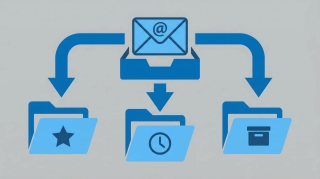
Focused Inbox is Microsoft’s machine-learning filter that splits your Outlook mailbox into two tabs — Focused (the mail it thinks matters) and Other (newsletters, receipts, automated notifications, and low-priority mail). It ships turned on for most Microsoft 365 mailboxes but the toggle lives in a different place depending on which Outlook you use.
Here’s how to turn it on, train it, and turn it off in every version.
1. New Outlook Desktop & Outlook on the Web
The new Outlook for Windows and Outlook on the web share the same interface; Mac exposes the toggle through the macOS menu bar instead of a ribbon View tab.
Turn it on from the View tab
- Open new Outlook or go to outlook.office.com.
- Click the View tab in the ribbon.
- Toggle Show Focused Inbox on.
Your Inbox will immediately split into Focused and Other tabs at the top of the message list.
Turn it on from Settings
If the View toggle is missing (or you want the setting to stick across layouts):
- Click the Settings gear in the top-right corner.
- Go to Mail > Layout.
- Under Focused Inbox, select Sort messages into Focused and Other.
- Click Save.
Note: In some Microsoft 365 tenants, Focused Inbox has been replaced by the unified Inbox with categories (Primary, Promotions, Social, Updates). If you don’t see a Focused Inbox setting at all, your admin or tenant has moved to categories — skip to the categories note below.
2. Classic Outlook for Windows
Classic Outlook (the MSI/Click-to-Run desktop app that pre-dates the new Outlook) keeps the toggle directly on the ribbon.
- Open classic Outlook.
- Click the View tab on the ribbon.
- Click Show Focused Inbox.
The Inbox view splits into Focused and Other tabs. The setting is per-account, so if you have multiple accounts, toggle it for each one.
If the button is greyed out, your organization may have disabled Focused Inbox at the tenant level or you’re connected to a mailbox that doesn’t support it (IMAP/POP accounts don’t).
3. Outlook for Mac
Classic Outlook for Mac
- Open Outlook for Mac.
- Click the Organize tab in the ribbon.
- Click Focused Inbox to toggle it on.
New Outlook for Mac
- Open the new Outlook for Mac.
- Go to the View menu in the macOS menu bar and click Focused Inbox, or open Outlook > Settings > Reading and check Sort messages into Focused and Other.
The change applies to every folder and every account in the app.
4. Outlook Mobile (iOS and Android)
The mobile apps use the same toggle on both platforms.
- Open Outlook on your phone.
- Tap your profile picture or account icon in the top-left corner.
- Tap the Settings gear.
- Scroll down to the Mail section.
- Toggle Focused Inbox on.
Your mailbox list will reload with Focused and Other filter pills at the top. Tap either one to switch views.
Train Focused Inbox
Focused Inbox uses a machine-learning model that’s partly global (Microsoft trains it on aggregate signals) and partly personal (it learns from your moves, reads, replies, and deletes). Explicit training is the fastest way to correct mistakes.
Move a single message
- Right-click a message in Focused and choose Move to Other — or drag it from the Focused tab to the Other tab.
- Right-click a message in Other and choose Move to Focused — or drag it the other way.
This moves only that one message.
Always move messages from a sender
- Right-click the message.
- Choose Move to Focused or Move to Other.
- In the submenu, pick Always Move to Focused or Always Move to Other.
Outlook treats this like a soft rule: future mail from that sender goes straight to the tab you picked, and the signal also feeds back into the overall model.
What the model pays attention to
- Who you reply to, read, flag, or delete without reading
- Whether a sender is in your contacts or org directory
- Whether the message is addressed directly to you or to a distribution list
- Message type (automated notification, newsletter, calendar invite, personal mail)
Training usually settles after a week or two of normal use. You don’t need to “teach” every sender — correct the big misses and let the rest sort itself.
Turn Focused Inbox Off
Turning it off uses the same toggle you used to turn it on:
- New Outlook / Web: View tab > toggle Show Focused Inbox off, or Settings > Mail > Layout > Don’t sort my messages.
- Classic Outlook for Windows: View tab > click Show Focused Inbox again to untoggle.
- Outlook for Mac: Organize tab > Focused Inbox (classic), or View > Show Focused Inbox (new).
- Outlook Mobile: Settings > Focused Inbox toggle off.
When it’s off, your mailbox reverts to a single Inbox sorted by date. Any “Always Move” rules you set for Focused/Other stop applying.
Focused Inbox vs Rules vs Sweep
All three move mail around, but they work differently.
| Feature | What it does | How it decides | Reversible? |
|---|---|---|---|
| Focused Inbox | Splits Inbox into Focused and Other tabs | Machine learning + your moves | Yes — toggle off or retrain |
| Rules | Moves, flags, categorizes, forwards, or deletes mail on arrival | Explicit conditions you define (sender, subject, keywords, etc.) | Yes — edit or delete the rule |
| Sweep | Bulk-cleans mail from a specific sender (keep latest, delete older than X days, etc.) | One-time or recurring condition you pick | Yes — delete the Sweep rule |
Focused Inbox is the right tool when you want soft prioritization without deleting or filing anything. Use Rules when you want mail to land in a specific folder or get a category every time. Use Sweep when a sender’s mail is fine to keep arriving but you want older copies auto-deleted.
They also stack — a Rule that files something into a folder runs before Focused Inbox decides which tab to show, and Sweep runs on whatever is left in Inbox regardless of tab.
What About Clutter?
Clutter was the predecessor to Focused Inbox. It shipped as a separate Clutter folder that Outlook would silently move low-priority mail into. Microsoft deprecated Clutter in 2017 and replaced it with Focused Inbox across Exchange Online and Microsoft 365. As of 2020, Clutter is fully removed from modern mailboxes.
If you had Clutter turned on before:
- The Clutter folder no longer receives new mail. Anything that would have gone there now lands in the Other tab (if Focused Inbox is on) or in the regular Inbox (if it’s off).
- The old Clutter folder itself may still exist in your mailbox with its historical contents — you can move those messages to Inbox or Archive and delete the empty folder.
- Any server-side rules you set up to sort into Clutter are still active but ineffective; it’s worth cleaning them out.
What if I don’t see Focused Inbox at all?
Microsoft has been rolling out a replacement in some tenants called Inbox with categories — the unified Inbox gets split into Primary, Promotions, Social, and Updates tabs, similar to Gmail. If your Outlook shows these tabs instead of a Focused/Other toggle, your mailbox is on the new system. You can:
- Open Settings > Mail > Layout.
- Look for Inbox categories (not Focused Inbox).
- Toggle categories on or off there.
The categories system can’t be trained with “Always Move to Focused” — instead, right-click and pick Move to [Category] to reclassify.
Quick Reference
| Version | Where to toggle | Train it with |
|---|---|---|
| New Outlook Desktop | View tab > Show Focused Inbox, or Settings > Mail > Layout | Right-click > Move to / Always Move to |
| Outlook on the Web | View tab > Show Focused Inbox, or Settings > Mail > Layout | Right-click > Move to / Always Move to |
| Classic Outlook for Windows | View tab > Show Focused Inbox | Right-click > Move to / Always Move to |
| Outlook for Mac (classic) | Organize tab > Focused Inbox | Right-click > Move to / Always Move to |
| Outlook for Mac (new) | View > Show Focused Inbox, or Settings > Reading | Right-click > Move to / Always Move to |
| Outlook Mobile (iOS/Android) | Profile > Settings > Focused Inbox toggle | Long-press message > Move to Focused/Other |
Should You Use Focused Inbox?
- Yes, if most of your mail is a mix of real conversations and bulk/automated messages, and you want a one-click way to see the important stuff first without filing anything.
- Yes, if you mostly triage on mobile — the Focused/Other split on phones saves a lot of scrolling.
- Maybe not, if you already have a tight set of Rules filing everything into folders — Focused Inbox adds a second sorting layer that can feel redundant.
- Probably not, if you’re on an IMAP or POP account, a shared mailbox, or a tenant that’s already moved to Inbox categories — the feature may be unavailable or behave inconsistently.
- Not a replacement for unsubscribe. Focused Inbox hides low-priority mail but it still counts against your storage and still shows up in search. Sweep or an unsubscribe pass handles the senders you don’t want at all.
Take Inbox Management Further
Focused Inbox sorts what’s already in your mailbox. If you want something that drafts replies, schedules meetings, and takes action on the threads that actually need it, Carly is an AI assistant that connects to Outlook and 200+ other apps and handles the work end-to-end.
More on Outlook: How to create rules in Outlook · How to archive emails in Outlook · How to use Quick Steps in Outlook · How to block emails in Outlook · How to create folders in Outlook · How to fix Outlook search not working · How to set out of office in Outlook · How to create an email template in Outlook
Ready to automate your busywork?
Carly schedules, researches, and briefs you—so you can focus on what matters.
See what people say
"Before Carly, I relied on a Calendly link, but the whole process felt impersonal and not very professional. Carly changed that by handling all the back-and-forth, so I'm no longer stuck in endless email threads trying to line up schedules.
Now Carly reaches out to candidates, shares my real-time availability, lets them pick a slot, then sends a Zoom link and drops it straight into my calendar. She sends reminders to both of us before each call, which has significantly reduced no-shows and last-minute confusion.
On top of scheduling, Carly acts like a full executive assistant, sending me my schedule the night before so I can prepare for each call. It reminds me of the old x.ai assistant, but Carly is noticeably smarter, faster, and better suited to my healthcare recruitment business."