ChatGPT Work With Multiple Accounts (2026)
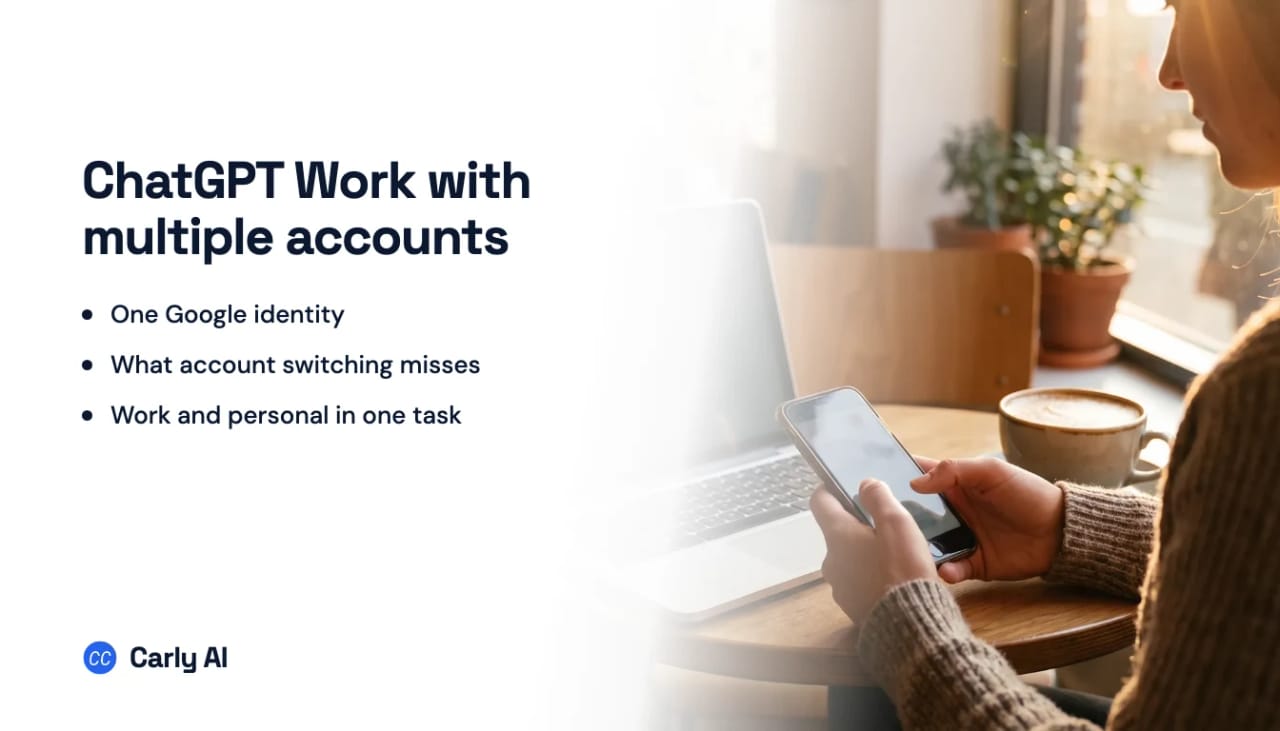
ChatGPT Work has held several Google accounts since August 2026, and on September 17, 2026 OpenAI extended multiple accounts to plugins beyond Google, on every plan, without naming which plugins or saying anything about Microsoft tenants. Connect each identity to Carly, add Carly to Work once, and a single task reaches all of them.
What one Work task can do afterwards
- Search personal and work mail in the same task.
- Compare threads sitting in two different companies’ accounts.
- Produce a morning brief grouped by account.
- Draft or send from the exact address you choose.
- File, label, or archive in the correct account.
- Create and move calendar events on any connected calendar.
Nothing is merged. Each account keeps its own credentials, and Carly keeps them individually addressable.
One Google, one Microsoft, and that is the ceiling
OpenAI's multi-account plugins started with Gmail, Calendar and Contacts in August 2026 and were extended beyond Google, to every plan, on September 17, 2026. The release note is one paragraph and lists no plugins, so whether a second Outlook mailbox or Slack workspace sits beside the first is something to check per connection. Reliability is the other check: users kept reporting authorized Google connectors failing at runtime through September 2026. Carly holds all of them and names the one it used.
OpenAI’s Google app FAQ is explicit that ChatGPT “can only access content from the Google account you choose to connect.” The Outlook Email app is the same shape on the Microsoft side, searching “the signed-in user’s mailbox.” Neither article has been updated for the multi-account releases, which is the problem: the release notes say more plugins take several accounts, and the plugin docs still describe one.
| Your setup | What ChatGPT Work reaches natively |
|---|---|
| Personal Gmail + work Google Workspace | One of the two |
| Work Google + personal Google | One of the two |
| Two Microsoft 365 tenants | One tenant |
| Two ChatGPT logins via account switching | Two separate Work sessions that share nothing |
| Work Microsoft + personal Gmail | Both, for mail only |
Even the one pair that connects cannot do the job
ChatGPT cannot create or move an event on your own Outlook calendar. OpenAI’s Outlook app documentation lists as a known limitation that “Calendar event data, including event descriptions, is read-only.” A release note from April 8, 2026 says shared Outlook calendars do accept the full write set, so the two live documents disagree on that half. What neither disputes is your own calendar. A request to find a slot that clears both of your calendars and book it fails on the Microsoft side.
That matters because work Outlook plus personal Gmail is the one combination the native apps hold at the same time, being two different apps. It is also the combination people most often want for scheduling, and scheduling is where it stops.
Two further holes sit in that same pair:
- Attachments in shared or delegated mailboxes cannot be retrieved. OpenAI limits the
list_attachmentsandfetch_attachmentactions to messages in the signed-in user’s own mailbox. - A workspace owner or admin “may restrict which Outlook accounts you can connect, to an approved set of domains,” which is usually the control that blocks the personal address.
So the mixed pair reads two mailboxes. It does not schedule across two calendars, and it does not survive a third account.
Account switching is two ChatGPTs
OpenAI documents account switching for keeping more than one ChatGPT login signed in on the web. Each login carries its own chats, files, memory, workspaces, and connected apps, and OpenAI documents no way for those sessions to share connections.
That keeps a personal ChatGPT next to a company workspace. It is not one Work task that reaches both inboxes.
1. Connect every account to Carly
- Sign in at carlyassistant.com.
- Open carlyassistant.com/integrations.
- Find Gmail or Outlook, click Connect, and approve access.
- Click Connect again for the next account, choosing Use another account if the first login is preselected, and keep going for as many as you want.
- Repeat for Calendar on each account that has one.
A Google Workspace or Microsoft 365 account may need administrator review. Ask that administrator to approve the connection, then finish authorization.
Carly connects to thousands of apps, so while you are on that page you can add your CRM, files, and anything else you want reachable in the same Work task.
2. Add Carly to ChatGPT
- Open Plugins in the ChatGPT sidebar.
- Click +.
- Paste
https://carlyassistant.com/mcp/. - Continue to authorization.
- Sign in to the Carly account holding the connections.
- Make Carly available to the Work task.
OpenAI's app directory became a plugin directory on July 9, 2026, shared between ChatGPT and Codex. Plugins are packages that can carry apps, skills, or app templates. It is a repackaging of how things are listed and discovered, not a change to the MCP plumbing underneath.
If + is greyed out on a Business or Enterprise workspace, the ChatGPT administrator needs to enable the plugin first.
3. Ask for the account you want
Name the address and the work happens there.
Draft the reply from
jordan.hale@peakline.comto the newest Varonex thread. Do not send it yet.
Search every connected inbox for “renewal” in the last 30 days. Include the source address on every row.
Check every connected calendar for conflicts Thursday 1:00 to 4:00 PM Eastern, then book the review at 2:00 on the Peakline calendar only.
Under Settings → Apps, keeping approval enabled for changes lets searches run freely while a send, move, label, or calendar edit shows you the target account before it runs.
Native apps versus Carly in Work
| Need | Native Gmail / Outlook / Calendar apps | Carly plugin |
|---|---|---|
| Search one connected identity | Yes | Yes |
| Two Gmails or two Outlooks in one task | No | Yes |
| Work Google + personal Google | No | Yes |
| Read work Outlook and personal Gmail together | Yes, two different apps | Yes |
| Create or move an event on your own Outlook calendar | No, read-only | Yes |
| Send from a named connected account | The authenticated identity only | Yes, with that account’s permissions |
| Keep the routing running after the task ends | No | Yes |
Carly gives Work one account-aware toolset across every connected identity. Carly offers free Zapier-style workflows; AI agents start at $35/month.
Quick fixes
| Problem | Fix |
|---|---|
| A second login replaced the first on a plugin | Keep both in Carly and leave that plugin on one identity |
| Workspace blocks the personal domain | Ask the admin to allow the domain, or keep personal mail on Carly only |
| Plugins + is disabled | Ask the ChatGPT admin to enable the plugin |
| Edits to your own Outlook calendar are refused | Your own calendar is read-only natively. Route calendar changes through Carly |
| Work searches the wrong inbox | Name the address in the prompt |
Frequently asked questions
Can ChatGPT Work connect two Gmail accounts?
No. The Google app authorizes a single Google identity, and connecting another replaces it. Carly is the direct way to put two separately authorized Gmail accounts in one Work task. Step-by-step: multiple Gmail accounts in ChatGPT Work.
Can ChatGPT Work connect work Outlook and personal Gmail?
It can read both, because those are two separate apps. It cannot create or move events on your own Outlook calendar, and it cannot hold a third account. Two Outlooks, or work Google plus personal Google, need Carly from the start.
Does account switching give me both inboxes in one task?
No. Each ChatGPT login keeps its own connected apps. You are switching assistants rather than combining accounts.
Can ChatGPT Work book a meeting on my Outlook calendar?
Not on your own calendar. OpenAI documents personal Outlook calendar event data as read-only, so ChatGPT reads it and proposes a time without creating the event. Shared and delegated calendars you already have access to do accept writes. Carly holds the write path on every connected calendar, including your own.
Will my employer see the personal Gmail if I connect Carly to a work ChatGPT workspace?
The work workspace sees whatever the connector returns into that chat. If the ChatGPT workspace is company-managed, keep the personal account out of it, or run the personal side from a personal ChatGPT login talking to the same Carly workspace.
Related: What is ChatGPT Work · ChatGPT Work connectors · ChatGPT Work and email · Multiple Gmail accounts in ChatGPT Work · Multiple Outlook accounts in ChatGPT Work · Gmail and Outlook together in ChatGPT Work
Ready to automate your busywork?
Carly schedules, researches, and briefs you—so you can focus on what matters.
See what people say
"Before Carly, I relied on a Calendly link, but the whole process felt impersonal and not very professional. Carly changed that by handling all the back-and-forth, so I'm no longer stuck in endless email threads trying to line up schedules.
Now Carly reaches out to candidates, shares my real-time availability, lets them pick a slot, then sends a Zoom link and drops it straight into my calendar. She sends reminders to both of us before each call, which has significantly reduced no-shows and last-minute confusion.
On top of scheduling, Carly acts like a full executive assistant, sending me my schedule the night before so I can prepare for each call. It reminds me of the old x.ai assistant, but Carly is noticeably smarter, faster, and better suited to my healthcare recruitment business."