How to Set Up Email Forwarding in Outlook (Every Version, 2026)
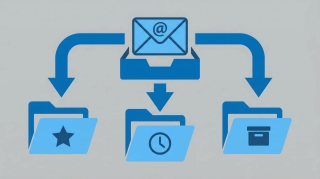
Email forwarding in Outlook sends incoming messages to another email address automatically — useful when you’re switching accounts, consolidating inboxes, sharing emails with a team, or monitoring a shared mailbox from your personal account. Outlook offers two approaches: forward everything, or forward selectively using rules.
This guide covers Outlook on the web, the new Outlook for Windows and Mac, classic Outlook for Windows, and Exchange admin center forwarding.
1. Forward All Emails in Outlook on the Web
This is the simplest method. It forwards every incoming email to one destination address.
- Go to outlook.office.com and sign in
- Click the Settings gear icon (top right)
- Go to Mail → Forwarding
- Toggle on Enable forwarding
- Enter the email address you want to forward to (e.g., your Gmail, a teammate’s address, or another Microsoft 365 account)
- Decide whether to check Keep a copy of forwarded messages — if unchecked, emails land only at the destination address and won’t stay in your Outlook inbox
- Click Save
Forwarding starts immediately for all new incoming messages. Existing emails in your inbox are not forwarded retroactively.
Keep a copy vs. don’t: If you check “Keep a copy,” messages appear in both your Outlook inbox and the forwarding destination. If you uncheck it, your Outlook inbox stays empty — useful if you’re fully migrating away from an account, but risky if the forwarding destination has deliverability issues.
2. Forward All Emails in New Outlook Desktop (Windows & Mac)
The new Outlook desktop app shares the same settings interface as Outlook on the web.
- Open the new Outlook desktop app
- Click the Settings gear icon (top right)
- Go to Mail → Forwarding
- Toggle on Enable forwarding
- Enter the destination email address
- Optionally check Keep a copy of forwarded messages
- Click Save
Since the new Outlook app syncs settings with Microsoft’s servers, this change also takes effect in Outlook on the web — they’re the same setting. Forwarding runs server-side, so emails forward even when the desktop app is closed.
3. Forward Specific Emails Using Rules (Selective Forwarding)
If you don’t want to forward everything — just emails from certain senders, with certain subjects, or matching other criteria — use a rule instead of the blanket forwarding setting.
Outlook on the web / New Outlook:
- Click the Settings gear icon
- Go to Mail → Rules
- Click Add new rule
- Give the rule a name (e.g., “Forward client emails to assistant”)
- Under Add a condition, pick your criteria:
- From → specific sender(s)
- Subject includes → keyword(s)
- Sent to → a specific distribution list or alias
- Has attachment → if you only want to forward emails with files attached
- Under Add an action, select Forward to
- Enter the destination email address
- Optionally add Stop processing more rules if you don’t want subsequent rules to also act on these messages
- Click Save
Classic Outlook for Windows:
- Go to Home tab → Rules → Manage Rules & Alerts
- Click New Rule
- In the Rules Wizard, start with a blank rule or choose “Apply rule on messages I receive”
- Click Next and select your condition(s) — sender, subject words, sent to address, etc.
- Click Next and select forward it to people or public group
- Click the underlined people or public group link in the rule description to enter the forwarding address
- Click Next to add any exceptions
- Name the rule and click Finish
Rules-based forwarding gives you granular control. You can create multiple rules to forward different types of email to different people — invoices to your accountant, support tickets to your team lead, calendar invites to an assistant.
Forward vs. Redirect: In classic Outlook’s Rules Wizard, you’ll see two options: “forward” and “redirect.” Forward sends the message as a forwarded email with your address as the sender of the forwarded copy. Redirect sends the original message as if it came directly from the original sender — the recipient sees the original “From” address. Use redirect when you want the reply to go back to the original sender rather than to you.
4. Forward Emails via Exchange Admin Center
If you’re a Microsoft 365 admin (or need to request this from your IT team), you can set up forwarding at the mailbox level through the Exchange admin center. This is useful for forwarding emails for a departing employee, a shared mailbox, or an entire team.
- Go to admin.exchange.microsoft.com
- Navigate to Recipients → Mailboxes
- Click the mailbox you want to configure
- Select the Mail flow tab (or Mailbox → Manage mail flow settings depending on your admin center version)
- Under Email forwarding, click Edit
- Toggle on Enable forwarding
- Enter the forwarding address — this can be an internal Microsoft 365 user or an external email address
- Choose whether to deliver to both the forwarding address and the mailbox (equivalent to “Keep a copy”)
- Click Save
Admin-set forwarding overrides any user-level forwarding settings. It also works even if the user has never configured forwarding themselves.
PowerShell alternative: Admins can also use Exchange Online PowerShell for bulk operations:
Set-Mailbox -Identity user@company.com -ForwardingSmtpAddress external@gmail.com -DeliverToMailboxAndForward $trueThe -DeliverToMailboxAndForward $true flag keeps a copy in the original mailbox. Set it to $false to forward only.
5. Stop Email Forwarding
Turn off automatic forwarding (web / new Outlook):
- Click the Settings gear icon
- Go to Mail → Forwarding
- Toggle off Enable forwarding
- Click Save
Delete or disable a forwarding rule:
- Go to Settings → Mail → Rules
- Find the forwarding rule
- Click the trash icon to delete it, or toggle it off to disable it temporarily
- Click Save
Turn off forwarding in classic Outlook:
- Go to Home → Rules → Manage Rules & Alerts
- Uncheck the box next to the forwarding rule to disable it, or select it and click Delete
- Click Apply → OK
Turn off forwarding via Exchange admin center:
- Go to Recipients → Mailboxes → select the mailbox
- Under Mail flow → Email forwarding, click Edit
- Toggle off Enable forwarding
- Click Save
6. When Forwarding Doesn’t Work
Several things can prevent Outlook forwarding from working as expected.
Your admin has blocked automatic forwarding. Many organizations disable external auto-forwarding as a security measure. Microsoft 365 has an outbound spam filter policy that can block automatic forwarding to external addresses. If you toggle on forwarding and nothing arrives at the destination, check with your IT admin. They can allow external forwarding by adjusting the Anti-spam outbound policy in the Microsoft Defender portal under Email & collaboration → Policies & rules → Threat policies → Anti-spam → Outbound policy.
You’re forwarding to an external address from a work account. Even if forwarding is technically enabled, some organizations use transport rules or data loss prevention (DLP) policies that block external forwarding for compliance reasons. Your admin would need to create an exception.
Classic Outlook rule isn’t firing. If you created a forwarding rule in classic Outlook and it’s not working, it may be a client-side rule. Client-side rules only run when Outlook is open on your computer. Recreate the rule in Outlook on the web to make it server-side.
The forwarding address is rejecting emails. If the destination mailbox is full, has strict spam filtering, or doesn’t exist, forwarded messages will bounce. Check your Outlook inbox for bounce-back (non-delivery report) messages.
Mail loops. If Account A forwards to Account B, and Account B forwards back to Account A, Microsoft 365 will detect the loop and stop delivering after a few cycles. Avoid circular forwarding configurations.
Quick Reference
| What you want to do | Where to set it up | Keeps a copy? |
|---|---|---|
| Forward all mail (personal account) | Settings → Mail → Forwarding | Optional (checkbox) |
| Forward all mail (admin-managed) | Exchange admin center → Mailbox → Mail flow | Optional (toggle) |
| Forward emails from one sender | Settings → Mail → Rules → Forward to | Yes (always) |
| Forward emails with a keyword | Settings → Mail → Rules → Forward to | Yes (always) |
| Redirect email (preserve original sender) | Classic Outlook → Rules Wizard → Redirect | Yes (always) |
| Forward via PowerShell | Set-Mailbox -ForwardingSmtpAddress | Optional (-DeliverToMailboxAndForward) |
If you’re forwarding emails to keep up with multiple inboxes, Carly is an AI assistant that connects to 200+ apps — including Outlook, Gmail, Slack, and your calendar — so you can manage everything from one place instead of stitching together forwarding rules.
Forward Event Emails Straight to Your Calendar
One specific use case worth calling out: forwarding event confirmations, meeting requests, or “let’s grab coffee Friday at 2” emails into your calendar. Instead of building a rule for it, forward the message to add@usecarly.com and you’ll get an .ics invite emailed back — opens straight into Outlook with the date, time, and location filled in. No signup, no install. Try the free email-to-calendar tool →
More on Outlook: How to create rules in Outlook · How to create a shared mailbox in Outlook · How to schedule an email in Outlook · How to block emails in Outlook · How to export emails from Outlook · Free email-to-calendar tool (add@usecarly.com)
Ready to automate your busywork?
Carly schedules, researches, and briefs you—so you can focus on what matters.
See what people say
"Before Carly, I relied on a Calendly link, but the whole process felt impersonal and not very professional. Carly changed that by handling all the back-and-forth, so I'm no longer stuck in endless email threads trying to line up schedules.
Now Carly reaches out to candidates, shares my real-time availability, lets them pick a slot, then sends a Zoom link and drops it straight into my calendar. She sends reminders to both of us before each call, which has significantly reduced no-shows and last-minute confusion.
On top of scheduling, Carly acts like a full executive assistant, sending me my schedule the night before so I can prepare for each call. It reminds me of the old x.ai assistant, but Carly is noticeably smarter, faster, and better suited to my healthcare recruitment business."