How to Connect Slack to an AI Agent
Slack is where your team lives — but the information that should land there often doesn’t. A new lead arrives via email. A meeting wraps up with five action items. A client sends a contract revision. Someone has to manually relay all of this to the right channel.
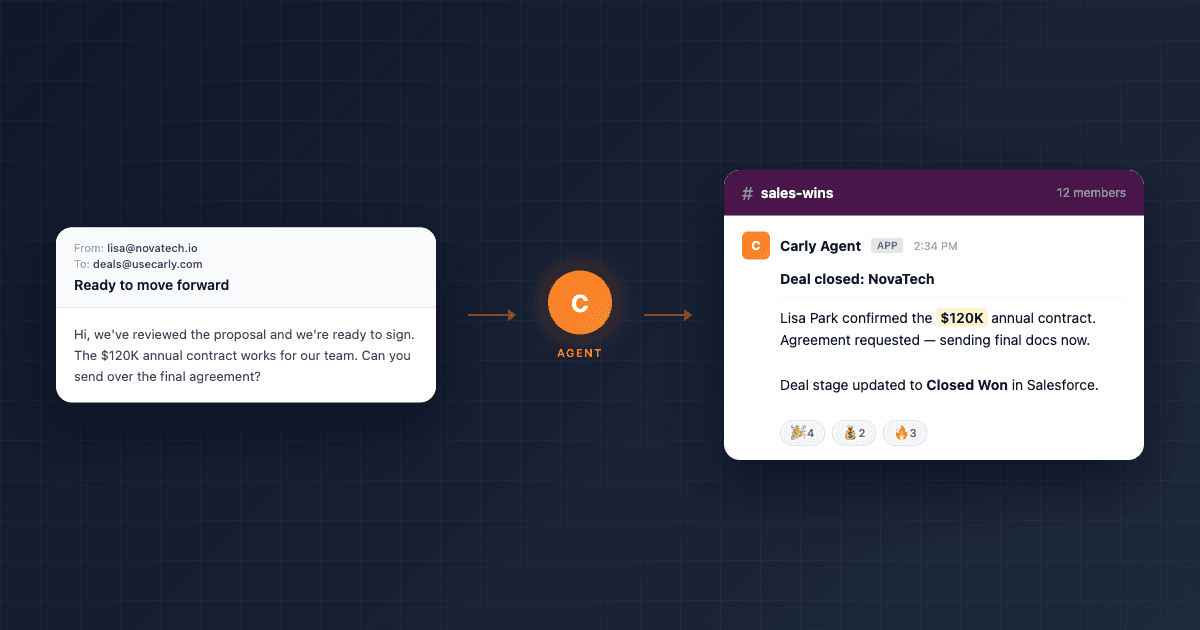
Carly is a full-service AI agent with 60+ integrations — Slack is one of them. Once connected, the agent posts updates, sends alerts, shares summaries, and routes information to the right channels, triggered by emails, calendar events, CRM changes, or anything else in your workflow. Slack becomes the output layer for everything the agent does across your tools.
Connect Slack to Your Agent
Go to dashboard.carlyassistant.com/integrations, find Slack under Messaging, click Connect, and authorize Carly in your Slack workspace. Select which channels the agent can post to.
That’s it. No setup wizard, no configuration steps. The same integrations page is where you connect all 60+ tools — HubSpot, Salesforce, Google Tasks, Google Drive, Asana, QuickBooks, and everything else. One page, OAuth for each. See the full Slack integration page for use cases and FAQs.
Your agent can now send messages to channels, DM team members, and post formatted updates.
Two Ways to Talk to Your Agent
You interact with Carly in two ways:
- Email carly@usecarly.com — send any request in plain English from your inbox.
- Chat at dashboard.carlyassistant.com — type directly in the browser for quick back-and-forth.
Both give you the same agent with the same connected tools. The examples below show both.
What Your Agent Can Do With Slack
Post Deal Alerts
Email example:
To: carly@usecarly.com Subject: Deal closed
We just closed the NovaTech deal — $120K annual contract. Post a win announcement in #sales with the details and update the deal stage to “Closed Won” in HubSpot.
The agent posts a formatted message to #sales and updates your CRM in the same action. Your team sees the win immediately.
Share Meeting Summaries
Chat example:
Just finished the product planning meeting. Key decisions: API redesign prioritized for Q2, mobile app pushed to Q3, hiring two more engineers. Post a summary to #product and create tasks in Asana for each action item.
The agent posts the summary to the right channel, creates the tasks, and assigns owners if you specify them. One message, multiple tools.
Route Client Updates to Channels
Email example:
To: carly@usecarly.com Subject: Acme contract update
Check my latest email thread with Acme Corp about the contract revision. Summarize the key changes they’re requesting and post it to #acme-account in Slack.
The agent reads the thread from your connected inbox, extracts the important points, and posts a summary in the client’s dedicated channel. Context moves from one person’s inbox to where the account team actually works.
Send Reminders
Chat example:
Send a message in #engineering reminding the team that the API spec review is due by end of day Thursday.
DM Team Members
Email example:
To: carly@usecarly.com Subject: Quick note
DM @sarah in Slack: “Hey, the client approved the revised timeline. You’re good to start on the design phase.”
The agent sends a direct message on your behalf. Useful for async updates where email is too formal and a Slack DM is the right touch.
Multi-Tool Workflows That End in Slack
Slack gets powerful when the agent chains it with other connected tools. These aren’t separate automations — it’s one agent handling the full workflow.
New Lead → CRM → Slack
Connect your agent to both HubSpot (or Salesforce) and Slack. When a new lead comes in by email:
- Agent creates the CRM record
- Enriches the lead with company data via web search
- Posts to #sales: “New lead: Rachel Kim, VP Ops at Dataline. Series B, 200 employees. Interested in enterprise plan.”
Your sales team sees every new lead in real-time without checking the CRM.
Meeting Notes → Tasks → Slack
After meetings, email or chat your notes to the agent:
Here are my notes from the sprint planning call. Extract all action items, create tasks in Asana for each one, and post the full list to #engineering with owners tagged.
The agent parses your notes, creates structured tasks, and posts a clean summary to the channel — all from one message.
Daily Schedule → Slack
Every morning, check my Google Calendar for the day and post a summary of my meetings to #team. Include times, attendees, and any agenda notes.
The agent reads your calendar and surfaces the day’s schedule where your team can see it.
Escalated Support → Slack
Connect Zendesk and Slack. Tell your agent:
When I forward you a support ticket marked urgent, post it to #support-escalations with the customer name, issue summary, and ticket link.
Invoice Received → Accounting → Slack
When I forward an invoice, extract the amount and due date, log it in QuickBooks, and post to #finance: “New invoice from [vendor] — $X due [date].”
Build a Dedicated Slack Notification Agent
Carly (carly@usecarly.com) is your personal assistant — it handles everything for you. But you can also create specialized email agents with their own email addresses for specific jobs.
A Slack notification agent is a good example. Give it an address like updates@usecarly.com, point clients or vendors at it, and it routes incoming messages to the right channels:
You are a team communications assistant. When you receive an email:

1. Determine which team channel the content is relevant to
2. Summarize the key information in 2-3 bullet points
3. Post to the appropriate Slack channel:
   - Sales-related → #sales
   - Client updates → #client-updates
   - Engineering/technical → #engineering
   - General announcements → #general
4. Include the sender's name and company for context
5. Reply to the sender confirming receipt

If unsure which channel, post to #general.
Keep Slack messages under 5 lines.
This agent becomes a smart router. External emails hit the agent, and the right team gets the right information in the right channel — no one manually relays anything.
You set this up in the Agents tab of your dashboard. Each specialized agent gets its own email address, instructions, and scoped tool access. See our full guide on creating custom AI email agents for the step-by-step.
The Agent Learns How You Use Slack
One thing that separates Carly from a static automation: the agent writes its own skills and memories over time. The first time you say “post to #sales,” it executes the request. After a few interactions, it learns your patterns — which channels you post to most, how you like summaries formatted, which deals are worth announcing. You stop having to spell everything out.
This applies across all 60+ integrations, not just Slack. The agent builds up working knowledge of your tools, preferences, and contacts the more you use it. For a structured plan on ramping up, see the first 30 days with an AI agent.
FAQ
Can the agent post to private channels?
Yes, as long as the Carly Slack integration is added to the private channel. Invite the Carly bot to any private channel you want the agent to post in.
Can the agent read Slack messages?
The agent sends messages to Slack. For reading and responding to Slack messages, work through your agent via email or dashboard chat.
Will this spam my channels?
Only if you set it up that way. Be specific in your agent instructions about what warrants a Slack post. Include rules like “Only post to #sales for deals over $10K” or “Don’t post to #general more than twice per day.”
Can different agents post to different channels?
Yes. Carly and any custom email agents can all access Slack. Route each agent to specific channels in its instructions — the sales agent posts to #sales, the support agent posts to #support.
Does this replace my existing Slack bots?
It complements them. Native Slack integrations (Google Calendar status sync, GitHub PR notifications) handle simple triggers. Your Carly agent handles multi-step workflows that need judgment — like reading an email thread, deciding what’s important, and posting a summary to the right channel.
What other tools can the agent chain with Slack?
All of them. Carly connects to 60+ tools including CRM (HubSpot, Salesforce, Attio), project management (Asana, Linear, Monday, ClickUp), accounting (QuickBooks, Xero, FreshBooks), file storage (Google Drive, Dropbox, Box), support (Zendesk, Intercom), e-commerce (Shopify), and more. Any workflow that ends with “and tell the team in Slack” is one message to your agent.
Connect Slack to your Carly agent →
Ready to automate your busywork?
Carly schedules, researches, and briefs you—so you can focus on what matters.
See what people say
"Before Carly, I relied on a Calendly link, but the whole process felt impersonal and not very professional. Carly changed that by handling all the back-and-forth, so I'm no longer stuck in endless email threads trying to line up schedules.
Now Carly reaches out to candidates, shares my real-time availability, lets them pick a slot, then sends a Zoom link and drops it straight into my calendar. She sends reminders to both of us before each call, which has significantly reduced no-shows and last-minute confusion.
On top of scheduling, Carly acts like a full executive assistant, sending me my schedule the night before so I can prepare for each call. It reminds me of the old x.ai assistant, but Carly is noticeably smarter, faster, and better suited to my healthcare recruitment business."