The Best AI for Filling Out Forms (2026)
The best AI form fillers for web forms and PDFs, tested and ranked by accuracy, reach, and price — from job applications to tax documents.
Page 143 of 169
The best AI form fillers for web forms and PDFs, tested and ranked by accuracy, reach, and price — from job applications to tax documents.

AI note taker picks for Zoom, Microsoft Teams, and Google Meet — from free bots to built-in features — ranked by accuracy, summaries, and platform fit.

AI sales assistant tools that actually remove selling admin — follow-ups, scheduling, CRM logging — compared honestly for 2026.

Free AI email writer tools ranked honestly — what the free tiers actually give you, where the caps bite, and which tool fits your inbox.
Google Docs has no page-border button, but you can add one with a single-cell table, a drawing, or a paragraph border. Here's each method, including a full-page border for flyers and certificates.

Insert an automatic, clickable table of contents in Google Docs using heading styles — then update it, choose a style, and add page numbers to each entry.

Add a logo or image to your Gmail signature from Drive, upload, or a URL — resize it, host it so it never breaks, handle transparent logos, and fix images that show as a broken icon or red X.

Add page numbers in Google Docs in seconds — choose the header or footer, skip the first page, start numbering at a specific number, and add 'Page X of Y' style counts.

Add a drop-down list in Google Sheets using data validation: build one from a typed list or a range, allow multiple selections, color-code options, and edit or remove it.
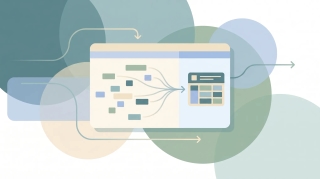
Build a pivot table in Google Sheets to summarize and group data: add rows, columns, and values, change how values are summarized, add filters, and refresh when data changes.
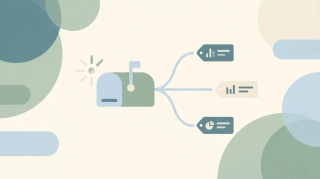
Create Gmail aliases without a new account — plus addressing, dot variations, send-as addresses, and Workspace aliases. How to make them, when to use each, and how to filter mail by alias.

Create a hanging indent in Google Docs for MLA, APA, and Chicago bibliographies — using the Indentation options menu or the ruler. Includes how to apply it to a whole reference list at once.

Set double spacing in Google Docs from the toolbar or the Format menu, apply it to the whole document or one section, and add space between paragraphs for MLA and APA papers.

Turn on dark mode in Gmail on every device — the web's dark theme, true dark mode on Android and iPhone, and why message bodies sometimes stay white. Plus how to set it to follow your system.

Freeze the header row in Google Sheets so it stays visible while you scroll — plus freezing multiple rows, freezing columns, doing it on mobile, and unfreezing.

Import contacts into Gmail from a CSV or vCard file, from Outlook or another email account, or from your phone — plus how to format the file, merge duplicates, and fix import errors.

Add interactive, clickable checkboxes in Google Docs to build a to-do list or checklist — plus how to make a static checkbox and convert existing lines into a checklist.

Google Docs has no direct 'text box' button. Here are the three reliable ways to add one — the Drawing tool, a single-cell table, and a shape — plus how to move, resize, and wrap text around it.

Split your document into two or three columns in Google Docs, control the spacing and divider line, use column breaks, and switch part of a page back to a single column.

Make a Google Calendar public so anyone can view it, share a public link or embed it on a website, control how much detail is visible, and make it private again.

Remove duplicate rows in Google Sheets with the built-in Data cleanup tool, the UNIQUE function, conditional formatting to find them first, or COUNTIF to flag them.

How read receipts work in Gmail, who can use them, how to request one when sending, and free alternatives for personal Gmail accounts that don't have the feature.

Highlight cells automatically in Google Sheets with conditional formatting: single-color rules, color scales, formatting based on another cell, and custom formula rules.

Send self-expiring, no-forward emails with Gmail Confidential Mode — how to turn it on, set an expiration date and SMS passcode, revoke access, and what it does (and doesn't) protect.